Hello! 👋🏽
Welcome to Hillnote! We’re so excited to have you here and Thank you for giving it a try. 🎉
This quick guide will provide you with an overview of the app and some ideas to help you #get-started.

Onboarding Overview
This should take you roughly 2 minutes to read through - after that you are good to go 🚀
What is Hillnote?

Hillnote is a workspace tool that is built to capture your work in AI native formats. It focuses on 3 key pillars
- Ensure you have the best experience crafting your thoughts in the workspace with a blend of the right interfaces, formats and local AI tools.
- Making sure your workspace is ready to integrate with all tools using universal formats and overarching context files to keep the goal of the workspace available across.
- Keep things fair, extendable and ready for scale.
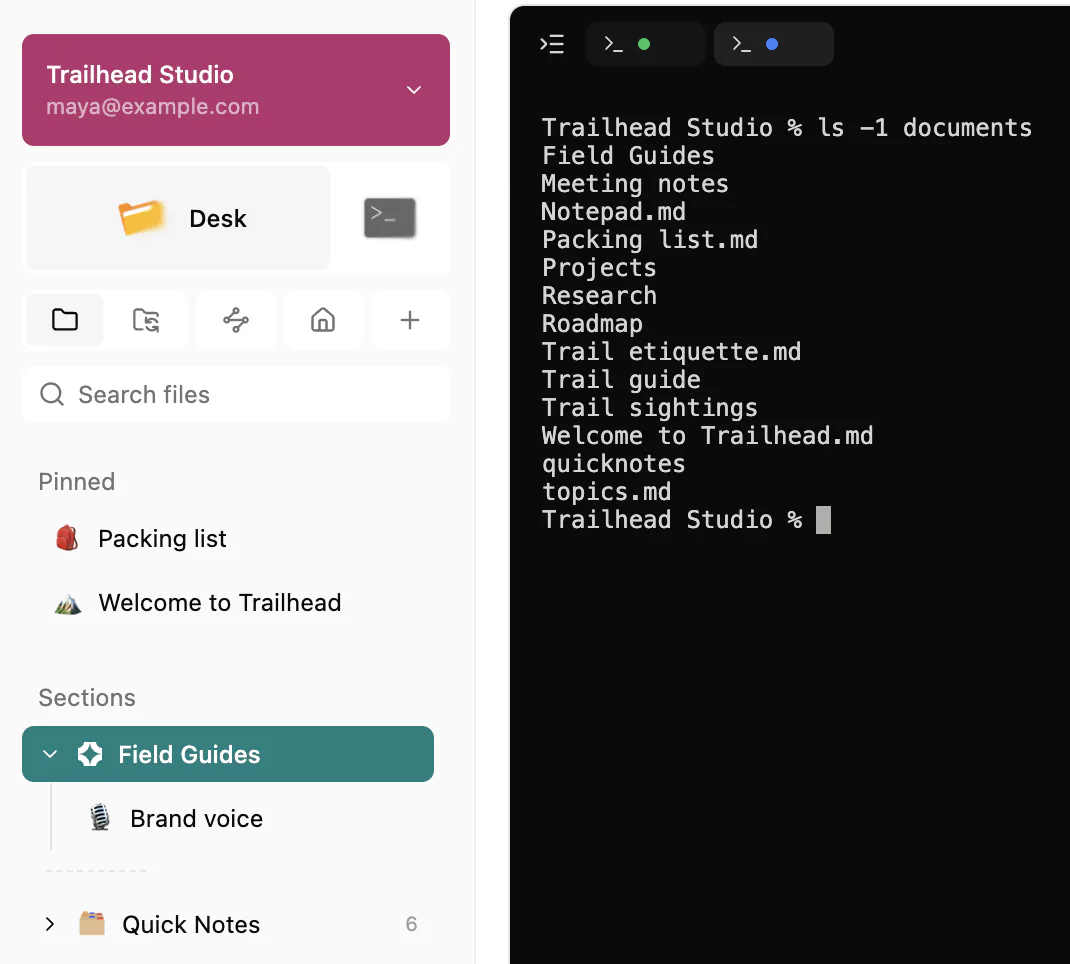
You work in workspaces. Each workspace is an ordinary folder on your computer, and each page in it is a markdown file that other apps can open too. AI agents such as Claude Code, Codex, Cursor, Antigravity and GitHub Copilot can work in it directly.
An account is optional. Sign in when you want sync across devices, sharing, publishing to the web or cloud AI models. See Sign-in to sync and unlock premium features!.
What you can make
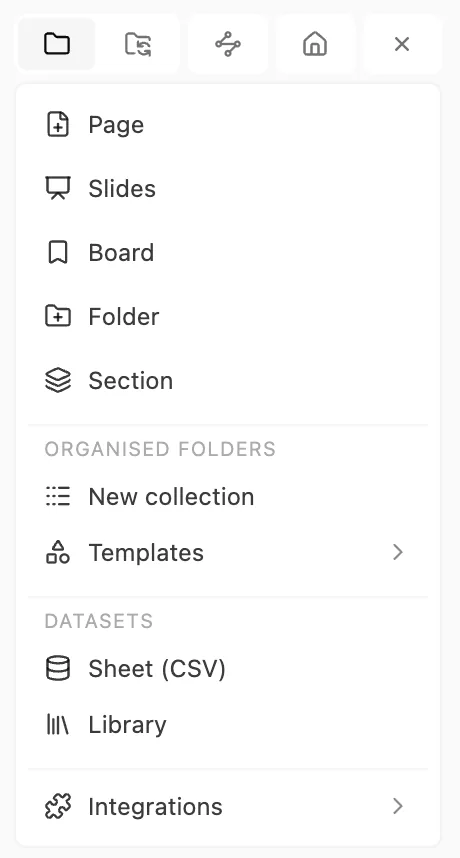
Click + (Create new) in the sidebar to add any of these:
- Page: a document to write in. See Pages.
- Slides: a presentation you write like a page. See Slides.
- Board: a moodboard of images, links and notes. See Moodboards.
- Folder or Section: ways to group things. See App interface.
- New collection: a table where every row is its own page. Ready-made TaskList, Calendar, Blog and Map kinds are under Templates. See Database.
- Sheet (CSV): a big dataset in one CSV file. See Database.
- Library: books and manuals split into searchable sections. Creating one is desktop app only. See Library.
Your files stay yours
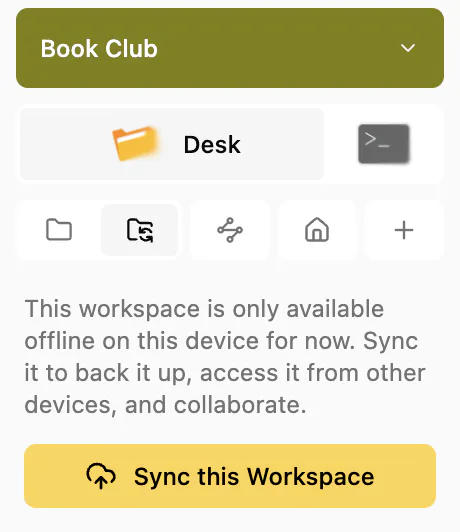
Hillnote is local-first. Your workspaces are folders on your computer, so you can work offline, back them up like any other files, and open your pages in other apps. To see how a workspace looks on disk, read Files and folders.
When you want a workspace on your other devices too, sign in, click Sync in the sidebar and choose Sync this Workspace.
AI that works on your files
Press ⌘L (Ctrl+L on Windows) to open Chat. Chat can read your pages, answer questions about them and make edits. Its edits can appear in the page as suggestions that you accept or discard.
You choose the model: one that runs on your own computer in the desktop app, or a cloud model when you sign in. AI also helps while you write, with autocomplete, actions on selected text and dictation.
See Chat with AI, Local models, AI while you write and Dictation and voice.
Bring your own AI tools
Because a workspace is just a folder, coding agents such as Claude Code, Codex, Cursor, Antigravity and GitHub Copilot can read and edit your pages, either in Hillnote's Terminal panel (desktop app only) or in your own terminal. Each workspace has agents.md and CLAUDE.md files that explain its layout to them.
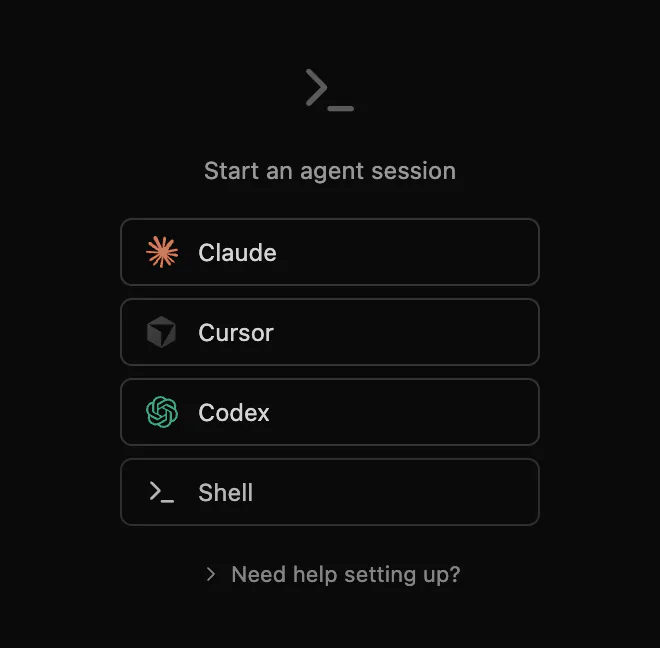
Apps that support MCP can connect to Hillnote as well: Claude Desktop, Claude Code, Cursor, Windsurf, VS Code (Copilot), Gemini CLI, Zed and Codex CLI. To set this up, open Help and click Connect your tools, or go to Settings ▸ Connections. See Agents in your workspace and Connect your tools.
What do I do first?
The best way to experience Hillnote is to dive in headfirst.
If you haven’t already, you can download the app at hillnote.com/download.
There are options for both desktop and mobile across operating systems.
The first time you open Hillnote, a short setup walks you through it (it takes only 2 minutes). You pick your language, a setup that fits your work, a theme and page layout, and whether to use AI that runs on your computer. Then Hillnote creates your first workspace, empty or started from a template, and opens Help on the Getting started checklist.
Want a finished example to explore? Click Open the sample workspace on Help's Getting started page to add Hello from Hillnote (desktop app only). It opens on a dashboard-style home page; see The sample workspace in App interface. You can also start a new workspace from one of the ready-made workspace templates, as Workspace templates explains.
The rest of the documentation
Most of the app and its functionality is detailed here in the rest of the documents:
Start
- App interface: finding your way around the window: the home page and your workspaces, the sidebar with its folders, sections and pins, tabs, panels and search
- Files and folders: how a workspace is stored on your computer, and working on its files in other apps
- Workspace templates: start from a ready-made workspace
Write
- Pages: writing, the ‘/’, ‘@’ and ‘#’ shortcuts, and AI in a page
- Links and topics: link pages and passages, and group pages by topic
- Comments and mentions: comment on a passage and mention people in a shared workspace
- Workspace variables: values that stay up to date on every page, and calculations with them
- Version history: compare earlier versions of a page and bring them back
- Quick capture: jot notes, record, clip web pages and grab screenshots from anywhere
Make
- Database: collections, their views and rows, plus sheets for big datasets
- Slides: decks written in markdown
- Moodboards: open boards for images, links, notes and more
- Library: books, papers and manuals as searchable, citeable sections
- Files panel and importing: PDFs, Word files, images and media beside a page, and importing files as Markdown
- Tools: small apps you build with AI, and plugins
AI
- Chat with AI: ask questions, write and edit pages with Chat
- AI while you write: autocomplete, actions on selected text and AI memory
- Dictation and voice: dictate into any page and talk to Hillnote
- Local models: AI that runs free and offline on your own computer
- Agents in your workspace: hand work to coding agents from any page
Connect
- Connect your tools: AI apps and agents that work with your workspaces
- Local MCP, Cloud MCP and Claude Skill: each way to connect, in detail
- Coding projects: make apps and websites with a coding agent
- Automations: run agents on events or schedules, and use routines and recipes
Share
- Sign-in to sync and unlock premium features!: accounts, sync, sharing and plans
- Publish: put a workspace on the web
Reference
- Customise Hillnote: settings, templates and AI actions
- Keyboard shortcuts: the shortcuts you won't find in the menus
- Complete formatting guide: every format a page can use
- Privacy and your data: where your files live and what goes to the cloud
- Fix common problems: when sync, AI or a connection doesn't work
In the app, the ? button in the top bar opens Help, with guides for everything from the basics to power features. Help never sends usage data anywhere.
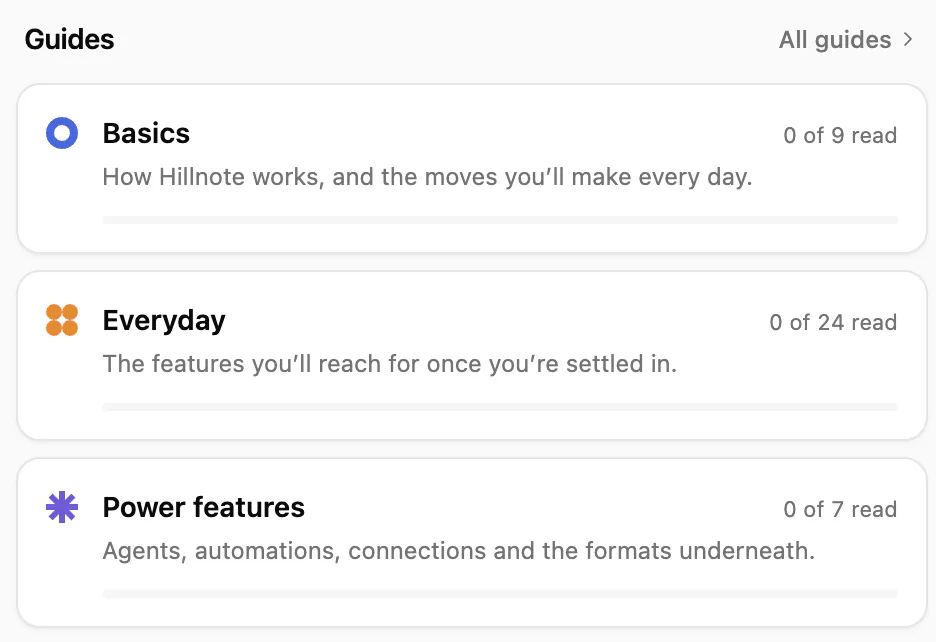
This is a living set of documents that we aim to periodically refine and update. If you find something missing please do let us know using one of the methods in hillnote.com/support.