AI while you write
Hillnote's AI isn't only in Chat: it's in the editor too, right where you write. Accept autocomplete suggestions with Tab, fix or rewrite selected text, run your own custom actions, ask a question from the slash menu, and let an AI memory keep track of what matters to you. The AI features use a model on your computer, Apple Intelligence, or a premium cloud model once you sign in. See Local models and Chat with AI.
Tab autocomplete
When you pause typing, Hillnote may suggest the next few words in grey. Press Tab to accept, Esc to dismiss, or just keep typing.
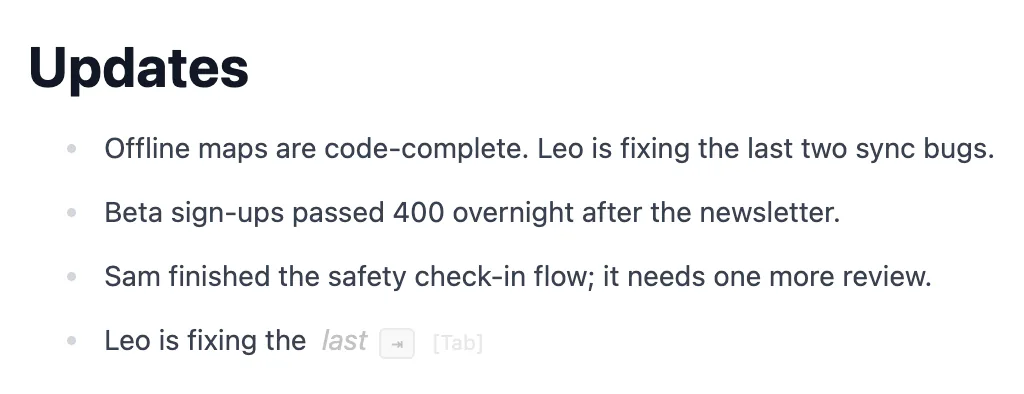
Suggestions come from phrases you've already used in this page and your recent pages, worked out on your computer. No AI model is involved and nothing is sent anywhere. They don't appear in code blocks or tables.
Turn them on or off with AI Autocomplete in Settings ▸ Editor, or Inline autocomplete on the home screen's AI tab. Both change the same setting.
AI on selected text
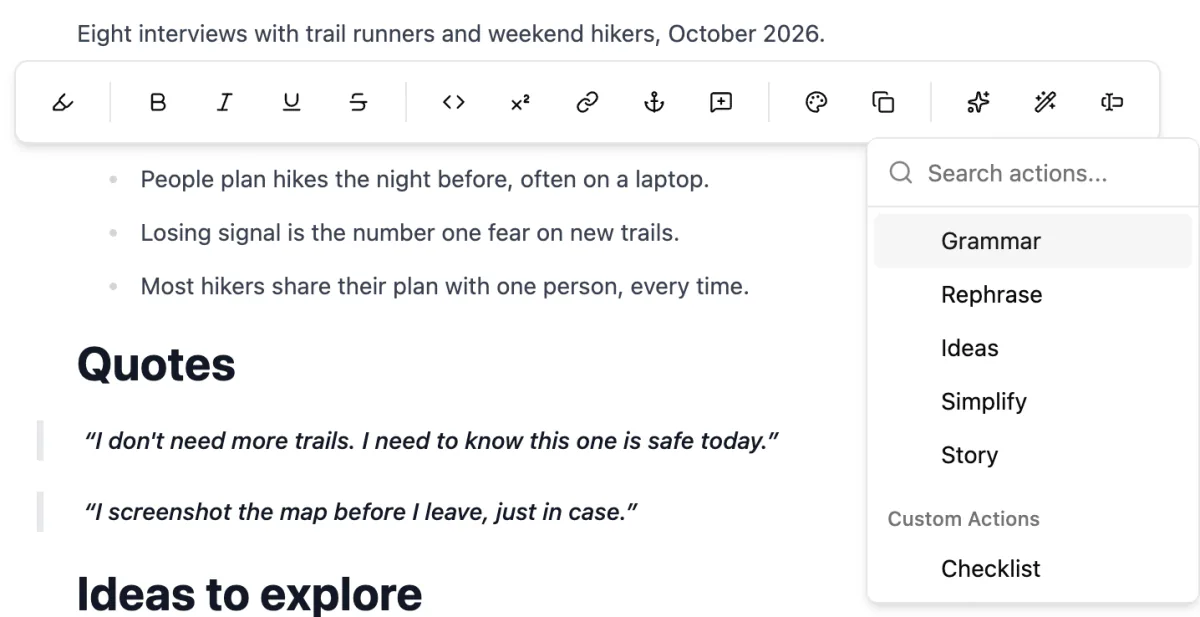
Select text, and the menu below it shows AI buttons whenever an AI model is available:
- Fix Text corrects spelling and grammar in place. It uses Apple Intelligence or your local model, never a cloud one, so it's in the desktop app only.
- AI Actions lists Grammar, Rephrase, Ideas, Simplify and Story, then your own Custom Actions (see Make your own actions below).
- Custom Prompt (⌘K, or Ctrl+K on Windows) takes your own instruction, such as make this friendlier. It has its own model menu and a document-context switch.
While you're typing with nothing selected, ⌘K (Ctrl+K on Windows) opens the same prompt and adds the answer at your cursor.
Review the result
Each action shows its result in one of three ways:
- Grammar and Fix Text swap the text in place. Undo (⌘Z, or Ctrl+Z on Windows) if you don't like it.
- Rephrase, Simplify and Custom Prompt show a change block with Current and Proposed changes. Click Accept changes or discard changes.
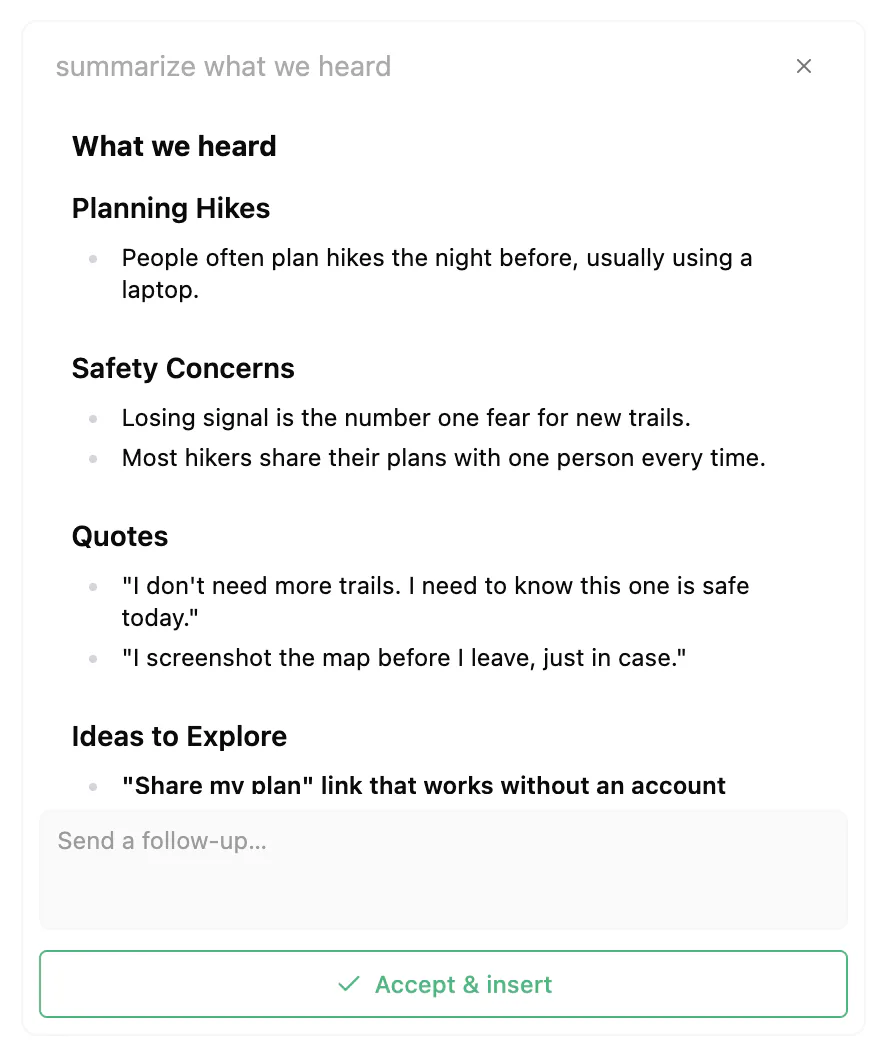
- Ideas and Story stream into a panel first. Type in Send a follow-up… to refine the answer, then click Accept & insert to place it in the page as a change block.
Until you choose, the page keeps both versions. Edits from Chat use the same change blocks.
Ask AI as you type
Type / in a page for more AI:
- Ask AI: type
/and a question. When no command matches, Ask AI appears: press ↵ or ⌘↵ (Enter or Ctrl+Enter on Windows). The answer streams into a panel you can refine before you click Accept & insert. - Ask Document and Ask Library answer from a page or a library you pick.
- AI Generation writes into a collapsible scratch space.
- Switch Model picks a local model or Apple Intelligence for these commands, or sends them to an agent.
/@(Ask an Agent, Model, or Doc) chooses who answers. See Agents in your workspace.
Make your own actions
Add your own prompts to AI Actions in Settings ▸ Actions:
- Under New Action, type a Label (single word) and a Prompt, such as Turn the following text into a checklist.
- Turn on Use Full document text if the action needs the whole page.
- Under Behavior, pick Replace selection or Suggest in side panel.
- Choose a Model, or keep Last used local model.
- Click Add Action.
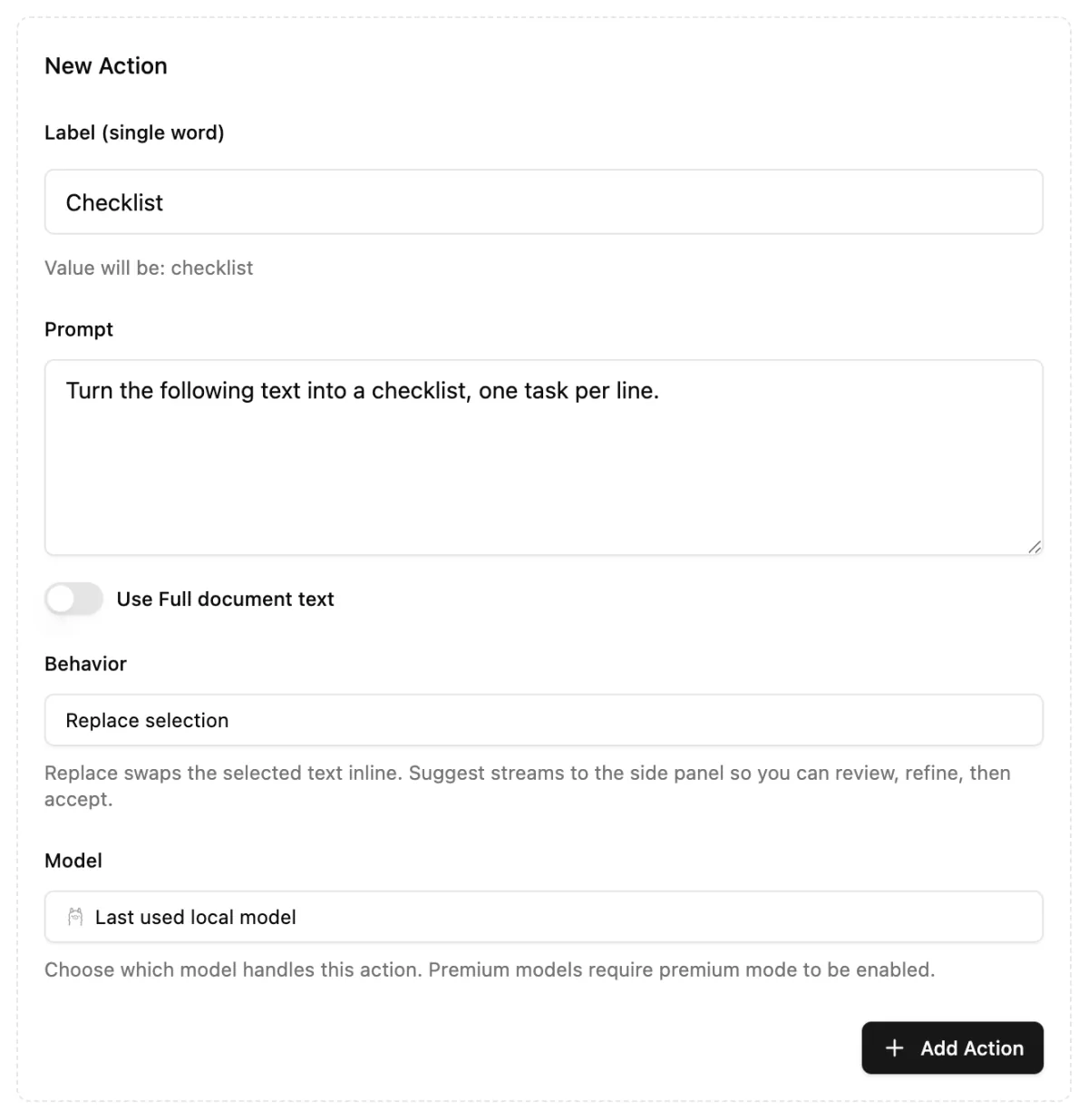
Your actions appear under Custom Actions when you select text. To delete one, use the list on the same settings page. For other ways to tailor the editor, see Customise Hillnote.
AI Memory
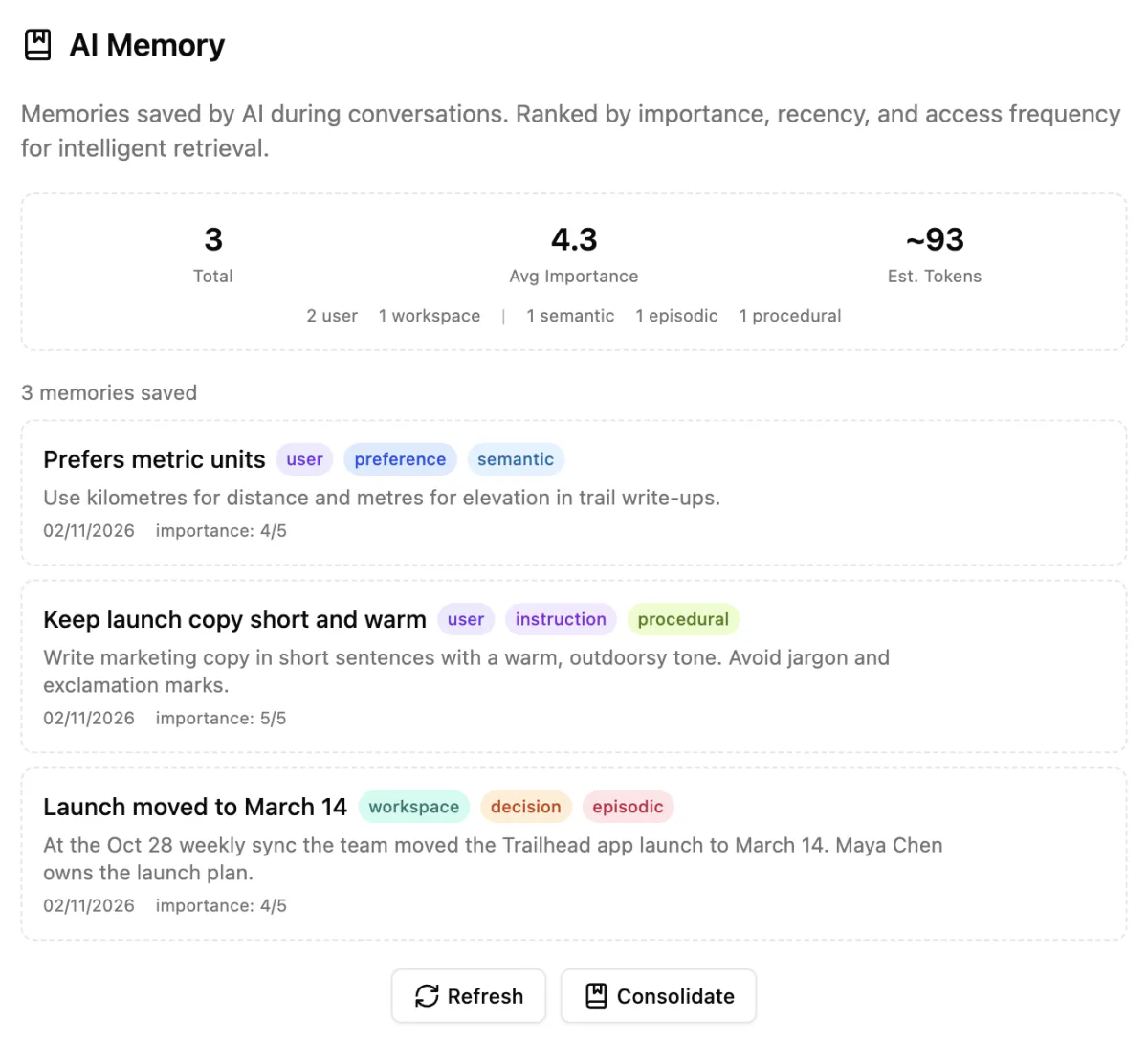
As you chat, the AI saves things worth remembering: your preferences, which it uses everywhere, and decisions in a project, which it uses in that workspace. Relevant memories are added to later chats with cloud models.
Manage them in Settings ▸ Memory (AI Memory):
- Edit a memory's title, Category, Memory Type, importance (1 to 5) and content, or delete it.
- Consolidate finds similar memories and offers to merge them.
- Refresh reloads the list.
Fill collection rows with AI
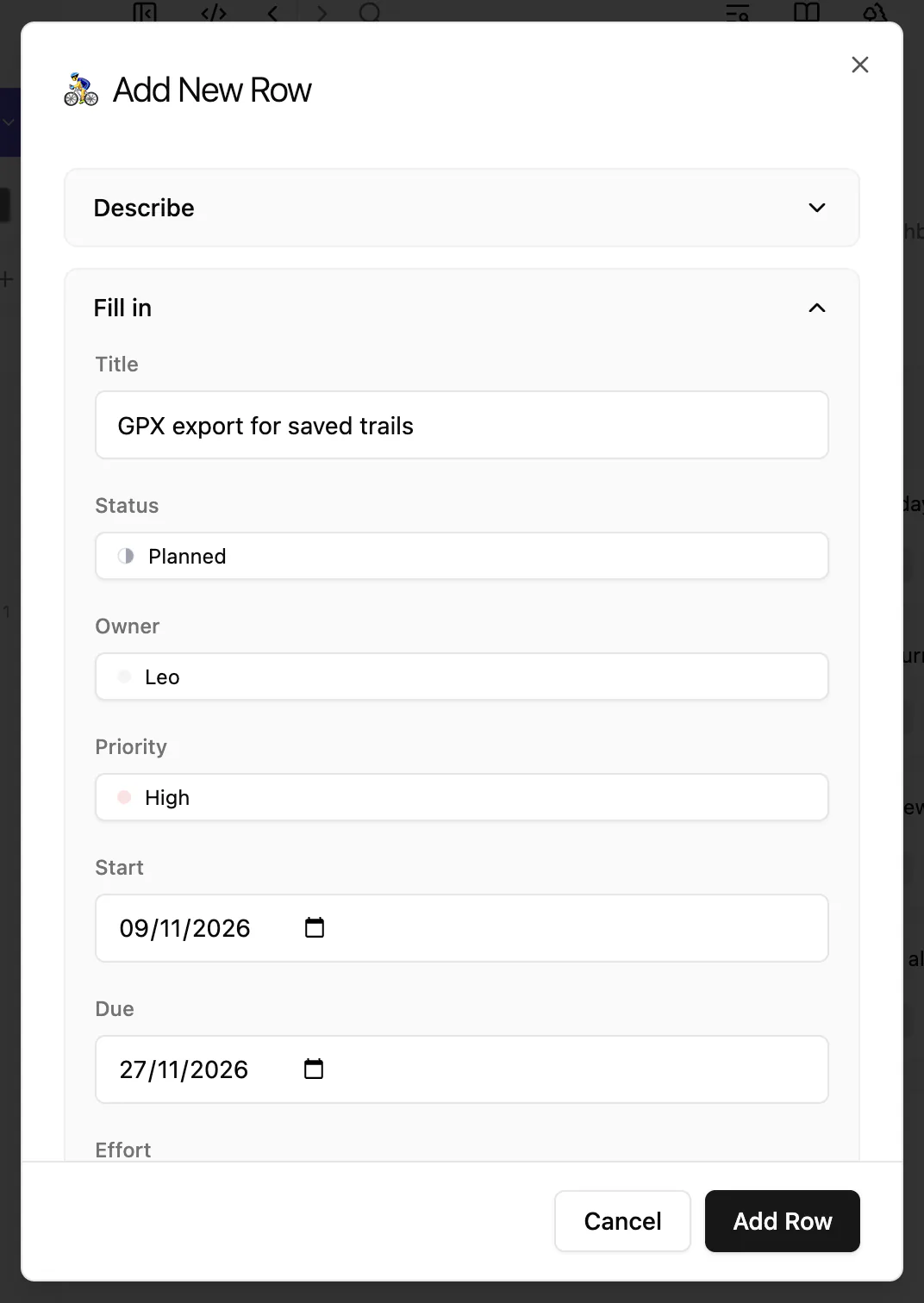
Collections can use AI too. In Add New Row, type a sentence under Describe and click Review: AI fills in the fields for you to check before you click Add Row. AI columns can also fill their empty cells for you. See Database.
For writing basics, blocks and the slash menu, see Pages. To dictate instead of typing, see Dictation and voice.