Links and topics
Links and topics tie your pages together. A link jumps to another page, or straight to one heading or passage in it, and every page lists what links to it. A topic is a hashtag that groups pages about the same subject wherever they live, and the topics graph maps the whole workspace.
Link to another page
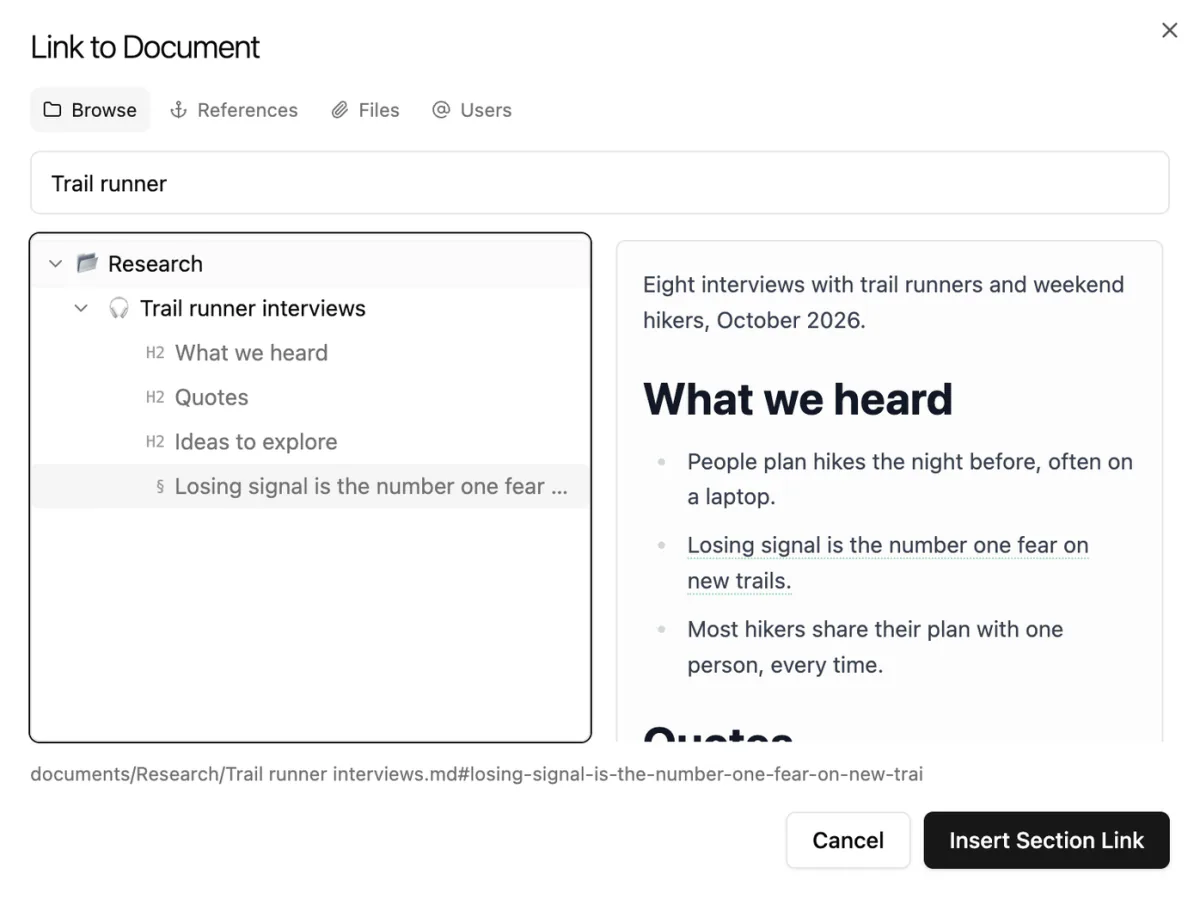
You link pages from the Link to Document dialog. It also links attached files, which open in the Files panel and importing, and mentions people, which Comments and mentions covers.
- Type
[[or@in a paragraph. Link to Document opens. - Type part of a name in the search box, or browse folders on the Browse tab.
- Move with ↑ and ↓, then press ↵ (Enter on Windows) or click Insert Link.
If you close the dialog instead, what you typed stays as plain text. The Files tab links an attached file, and the Users tab mentions a person.
In the desktop app you can also select text, right-click it and choose Add link; Add external link makes a web link.
Link to a heading or passage
A section link opens a page and jumps straight to one heading or marked passage.
- Open Link to Document by typing
@. - Select the page and press →, or click its arrow (Expand to link sections). Its headings and anchors appear beneath it.
- Pick one and click Insert Section Link. ← folds the list again.
The References tab lists every anchored passage in the workspace, so you can link one without remembering its page. No headings or anchors means the page has neither yet.
Mark a passage as a link target
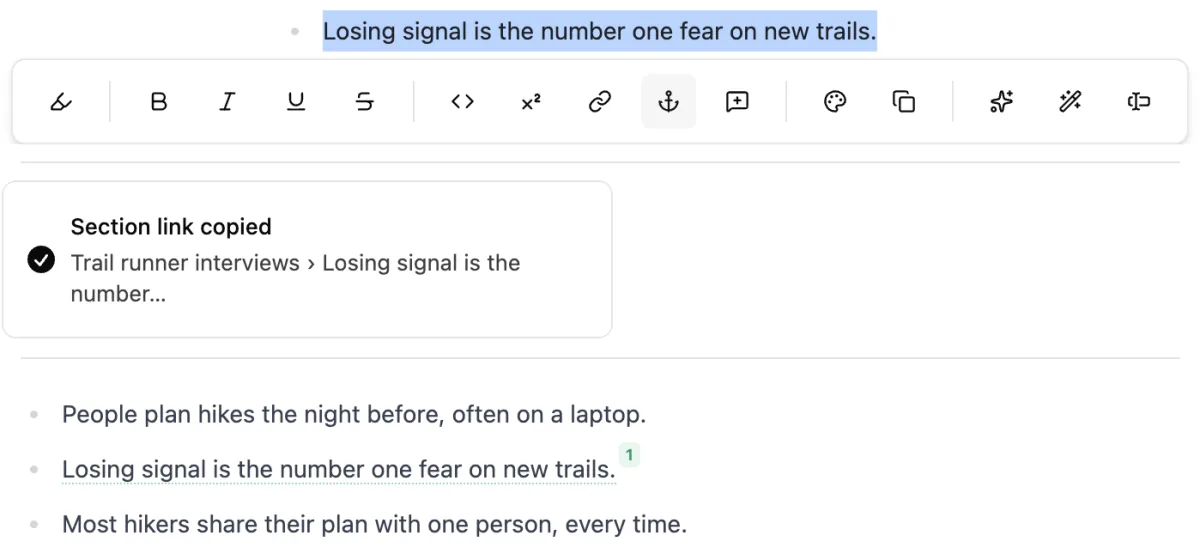
Anchor any passage, not just a heading, so other pages can link to it.
- Select the text.
- In the small menu that appears, click the anchor button (Anchor section & copy link). You see Section link copied.
- Paste the link wherever you need it.
A numbered badge appears after the passage. Click it to copy the link again, or drag it into another page to drop a link there. Links point at the anchor itself, not its number, so they keep working when other anchors come and go. To remove one, select the passage and click the anchor button again (Remove anchor).
Follow and preview links
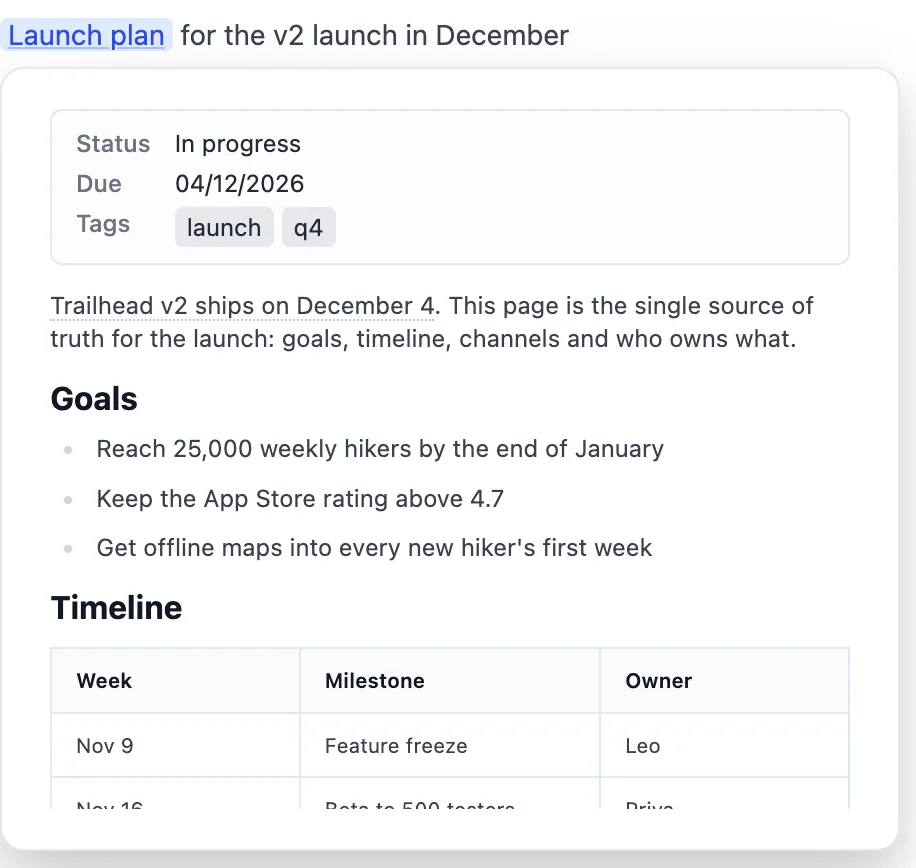
Click a link to open its page. A section link scrolls to the heading or passage and highlights it briefly.
- Hover over a link to a page for a moment to preview it.
- Right-click a link for Open, Open side by side (in Quick View) and Copy link. Links to attached files offer Open in Files panel instead.
- The Go Back and Go Forward arrows at the left of the top bar retrace your steps.
App interface explains Quick View and the top bar.
See what links here
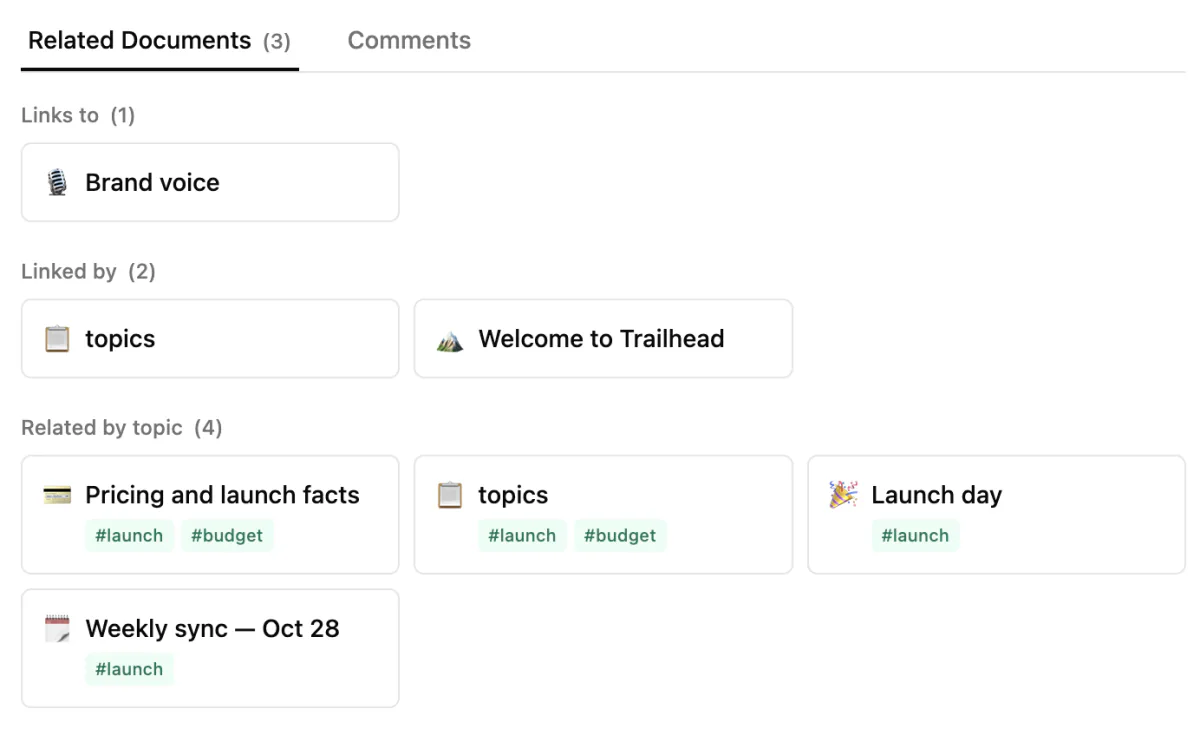
At the bottom of each page, the Related Documents tab shows its connections:
- Links to: pages this page links to.
- Linked by: pages that link here, often called backlinks.
- Related by topic: pages that share a topic with it.
Click any entry to open it. The tab isn't shown for collections, sheets, moodboards or the topics graph, or for slides while you present or design them. The Comments tab sits beside it.
Tag pages with topics
A topic ties together pages about the same subject, wherever they live.
- Type
#and a word, such as#budget, then a space. It turns into a chip. - While you type, matching topics you already use are suggested. Pick one with ↑, ↓ and ↵.
- Click a chip to open the topic in the Search panel, with This document and Related documents tabs. Back to search returns to the search box.
A topic starts with a letter or digit, then letters, digits, - or _. Use the letters a–z without accents, and put the # at the start of a line or after a space. In the file it's plain text: #budget.

Explore the topics graph
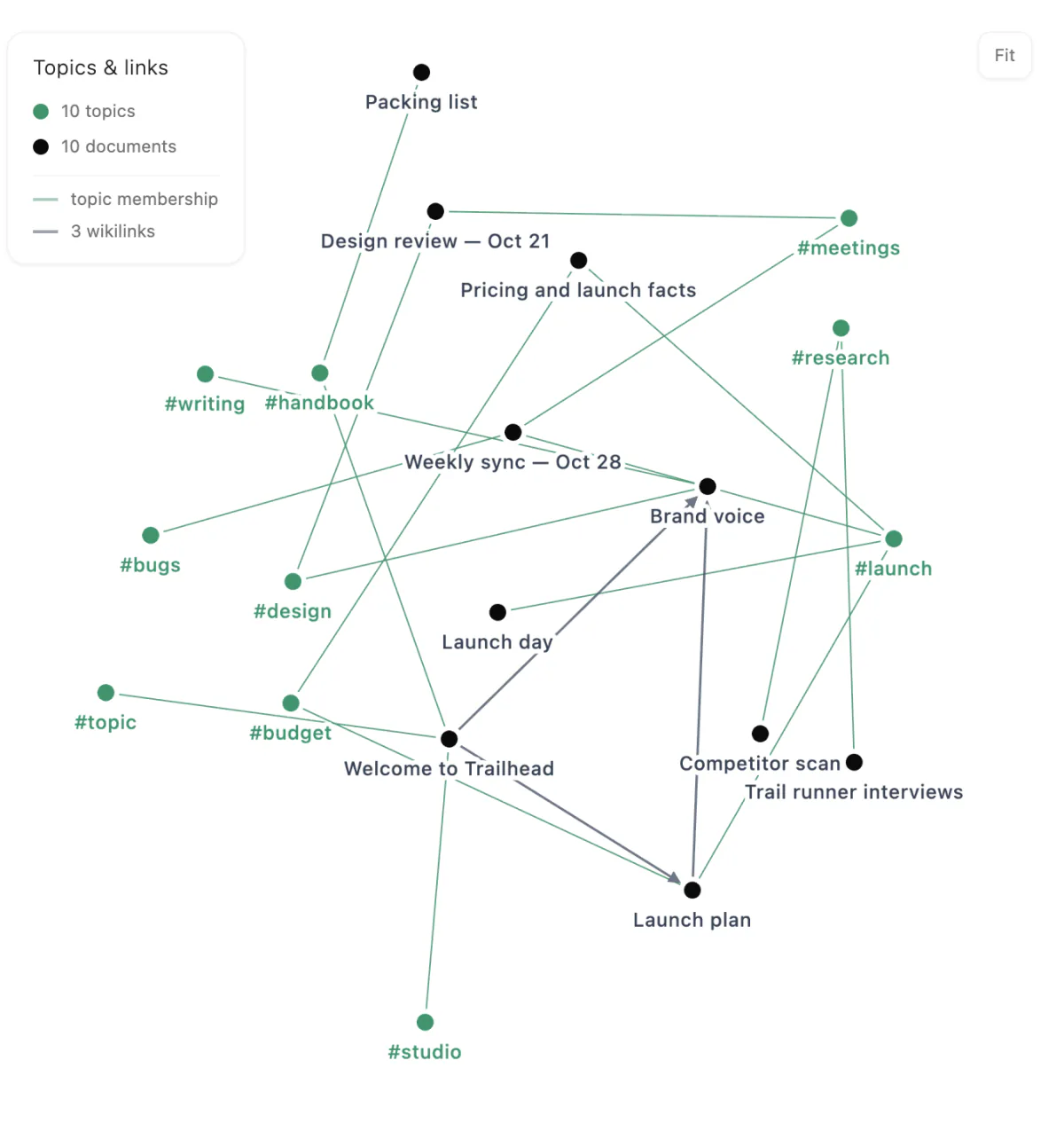
The topics graph maps your workspace: topics, pages and the links between them.
- Click Topics graph in the row of buttons at the top of the sidebar, just before Home.
- Click a page to open it, or a topic to list its pages in the Search panel.
- Click Fit to see the whole graph. Click the sidebar button again to go back.
The Topics & links legend counts topics, documents and wikilinks. Green lines show topic membership; grey lines are links.
Behind the graph is topics.md in documents/, which Hillnote rewrites as pages change. Edit topics in your pages, not there.
How links and topics are saved
Links, anchors and topics are plain text in the page's file, so they survive in any other Markdown app.
- Page link: the page's title and its path, separated by a vertical bar, inside double square brackets. The path starts with
doc:, as indoc:documents/Launch%20plan.md, and spaces become%20. - Section link: the same, with
#and the section's id added to the path. - Anchored passage:
[selected text]{#id}. - Topic: just the hashtag, such as
#budget.
Pages covers the rest of what's in a page's file.