Comments and mentions
Comments let you talk about a page right where the text is. Comment on a passage or on the whole page and reply in threads. In a workspace you share, you can also mention people, so they find the page waiting for them.
Comment on a passage
You need to be signed in to comment; see Sign-in to sync and unlock premium features!.
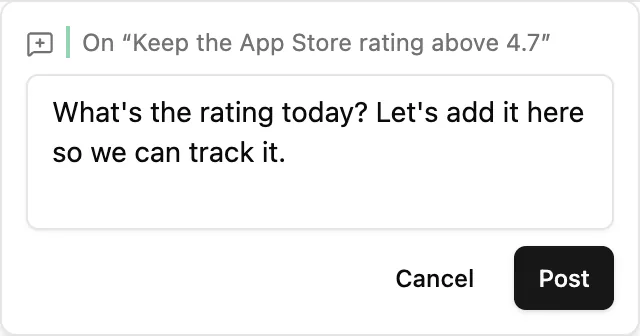
- Select the text you want to comment on.
- Click Comment on selection in the menu that appears.
- Type your comment and click Post, or press ↵ (Enter on Windows). ⇧↵ (Shift+Enter on Windows) adds a new line; Cancel or Esc closes the box.
The passage is tinted and a comment badge appears after it. Click the badge or the tinted text to read the thread. If the text changed while you typed, the comment is still added, just not tied to the passage.
Read and reply
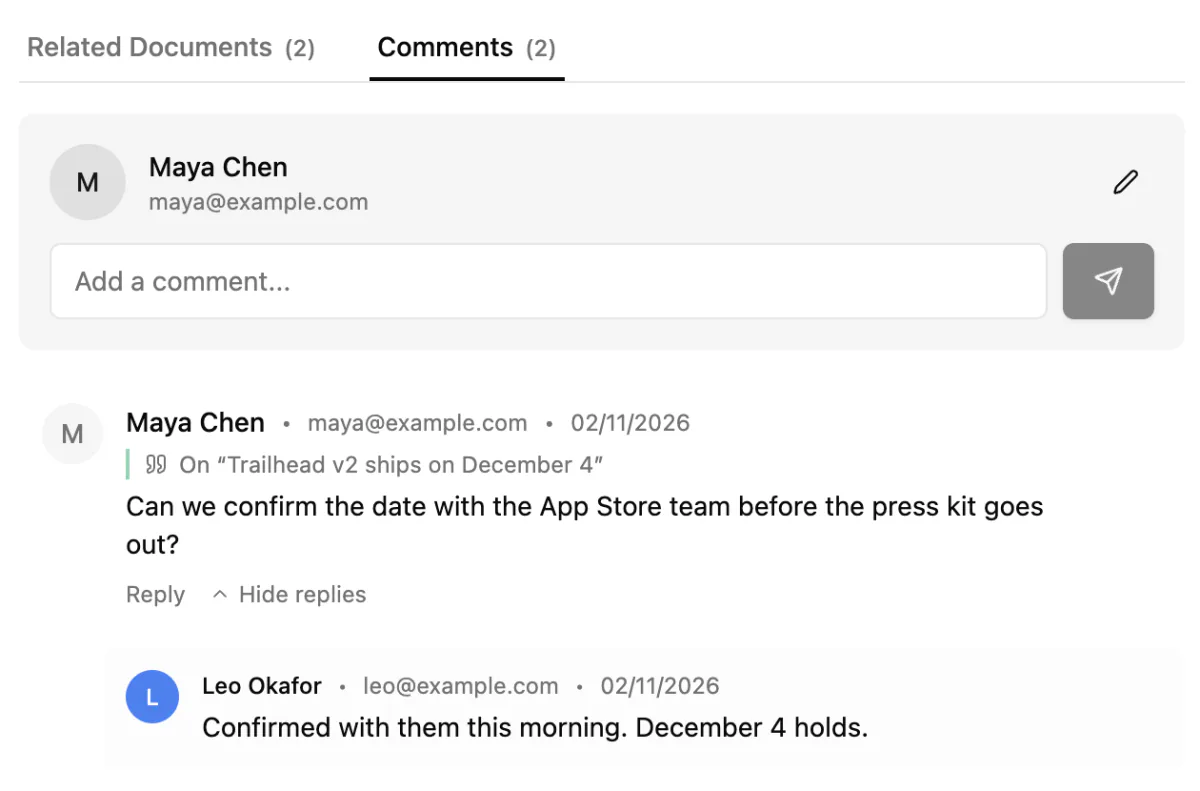
Every comment on a page is in the Comments tab below it, next to Related Documents. The tab shows how many there are.
- A comment on a passage starts with On “…”. Click it to jump to the passage. If that text has been deleted, it shows Text removed.
- Click Reply to answer in a thread. Click the reply count to open a thread, and Hide replies to close it.
- In the thread popover on the page, Show in Comments jumps to the thread in the tab.
Comment on the whole page
In the Comments tab, type in Add a comment... and press ↵ (Enter on Windows) to post. Your name and email show above the box; click the pencil to change them.
While you type a comment:
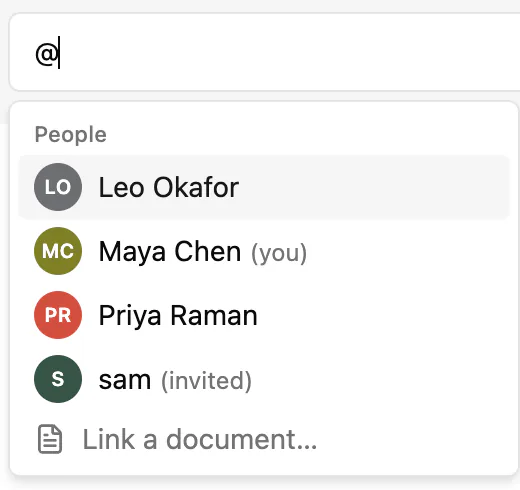
@lists people in the workspace, plus Link a document… to link a page.[opens Select Superscript Reference, to point at a superscript on the page. Clicking it in the posted comment jumps to it.
Delete comments
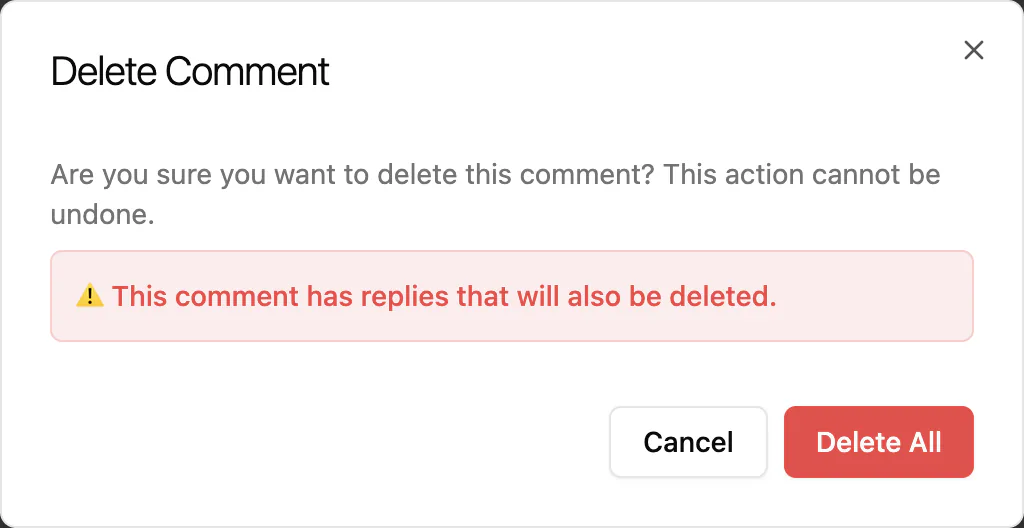
Hover a comment and click the bin button (Delete comment or Delete reply). If it has replies, you're warned they'll go too, and Delete All removes the whole thread.
There's no resolve button, so delete a thread when you're done with it. When a passage's last comment goes, its tint goes too.
Comments are saved at the end of the page's file, with each commenter's name and email, so anyone who can open the file can read them. Leave that part of the file as it is; Pages explains how a page's file is laid out.
Mention someone
Mentions work in workspaces you share with others. To share one, see Sign-in to sync and unlock premium features!.
- Type
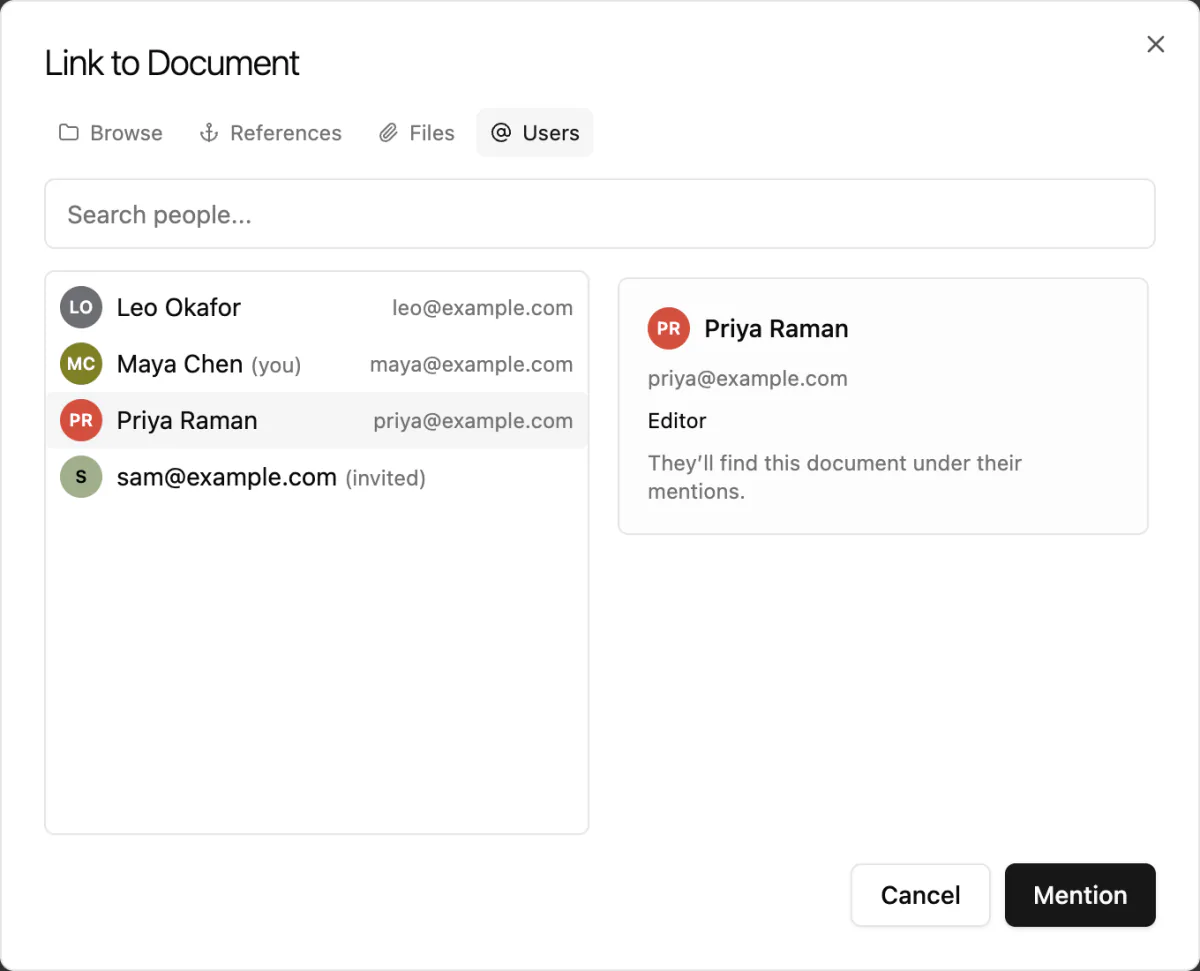
@in a page. Link to Document opens. - Open the Users tab and find the person (Search people...).
- Click Mention.
Their name appears as a highlighted chip, and they find the page under their mentions. Someone you've invited sees it once they accept. If the workspace isn't shared yet, the tab offers Share workspace….
You can mention people in comments too. In the page's file, a mention is saved as a link to the person's email, such as [@Maya Chen](mailto:[email protected]). When a page is published, mentions become plain names without email addresses; see Publish.
The same Link to Document dialog links pages and passages; see Links and topics.
Find mentions of you
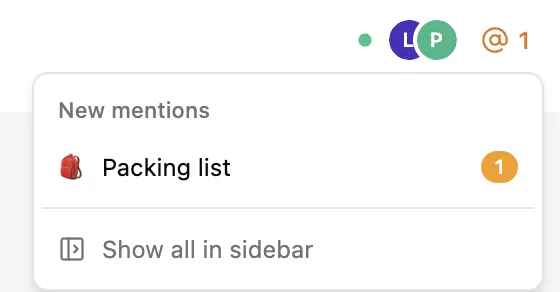
When there are new mentions of you, an amber @ with a count appears in the top bar. Click it to see New mentions, and click a page to open it. If the mention is in a comment, you land on that comment.
The Search files box in the sidebar shows an amber @ count of every page that mentions you. Click it to list them under Mentioning you, then type to Filter mentions. Show all in sidebar in the top-bar list does the same.
Opening a page marks its mentions as seen. This is remembered separately on each computer.