Version history
Hillnote keeps earlier versions of every page while you work. Use them to see what changed and when, to bring back a single change or a whole version, and to sort out a page that changed on two devices at once.
Versions save themselves
Hillnote saves a version of a page as you work, at most once every 10 minutes. You don't have to do anything. This is separate from saving the page itself, which happens about five seconds after you stop typing; see Pages.
It keeps the most useful ones: up to five from each of the last hour, day, week, month and year, plus two older ones. Versions are stored in the hidden .system/versions folder inside your workspace; Files and folders explains the hidden folders. To keep a version however old it gets, bookmark it; see Save, bookmark and delete versions below.
For a password-protected page, unlock it first to browse its versions.
Open Version History
You can open Version History beside the page or full screen.
- Beside the page: click Version History in the top bar (under More tools if it isn't pinned), or press ⇧⌘H (Ctrl+Shift+H on Windows). It's also Window ▸ Toggle Version History.
- Full screen: click ⋮ (More Actions) at the right of the top bar and choose Version History.
- For any page: in the sidebar, click a page's ⋮ menu and choose Version history. Its history opens beside the page you're reading, without opening it.
Open full screen and Open beside the document switch between the two.
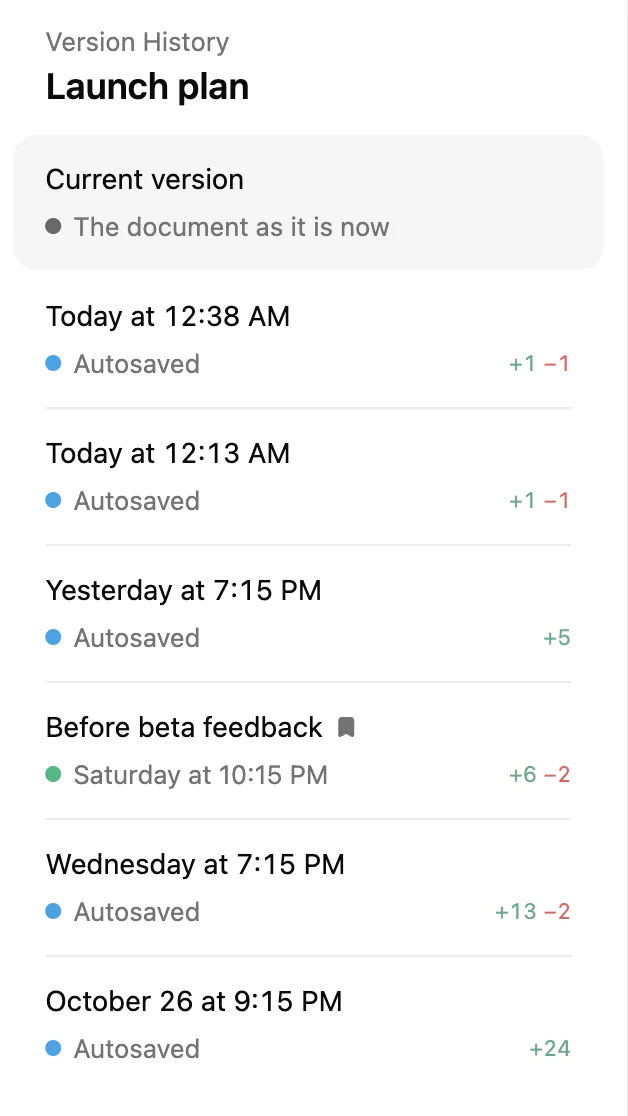
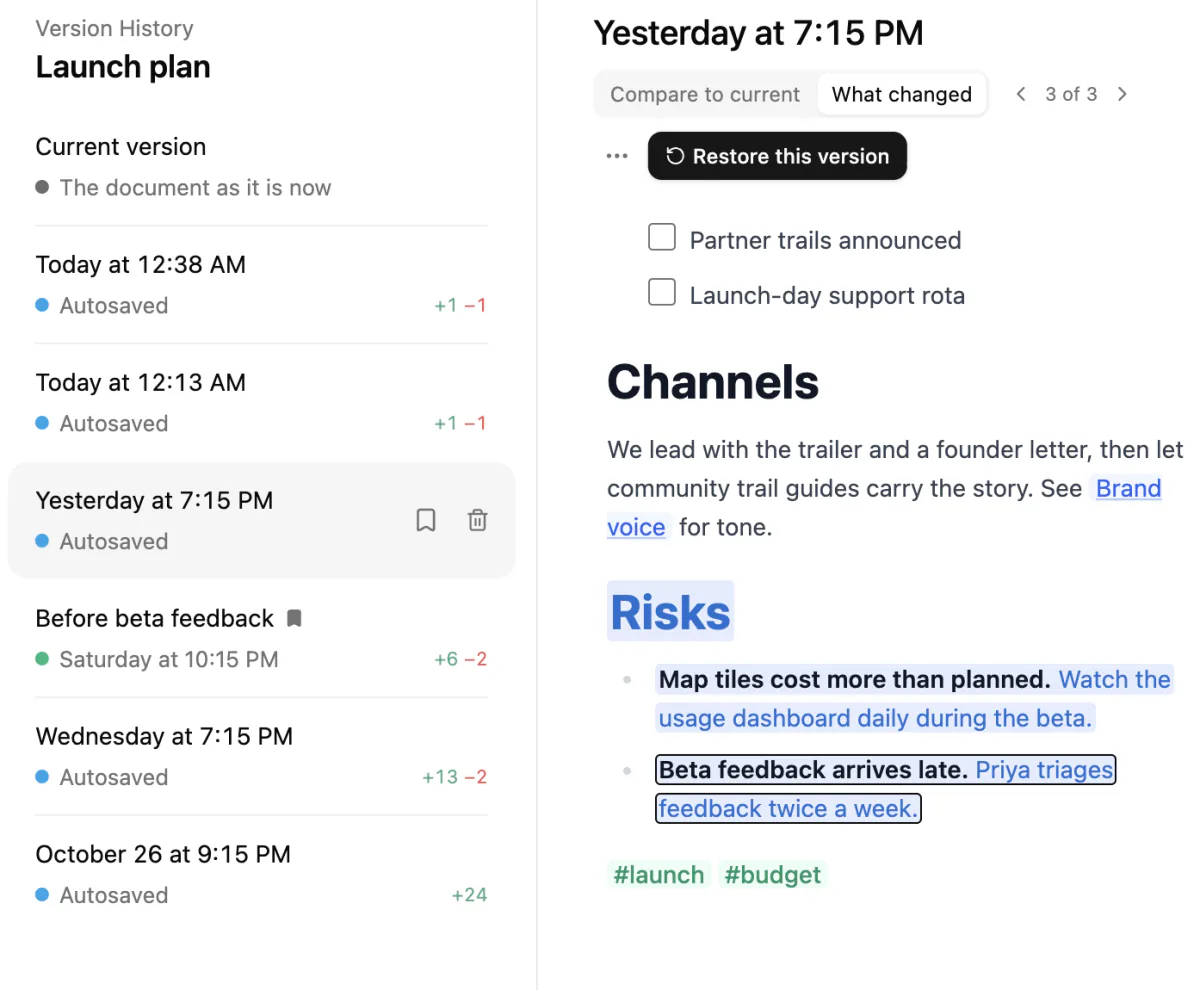
Full screen, the versions are listed down the left. Beside the page, the button at the top names the version you're reading; click it to choose another from the full list. Either way, Current version is at the top and the newest versions come next. Each version names its own day and time, such as Yesterday at 7:15 PM. It's marked Autosaved, Saved by you or Saved before a restore, and shows how many lines it added and removed.
Read and compare
Click a version to read it, then compare:
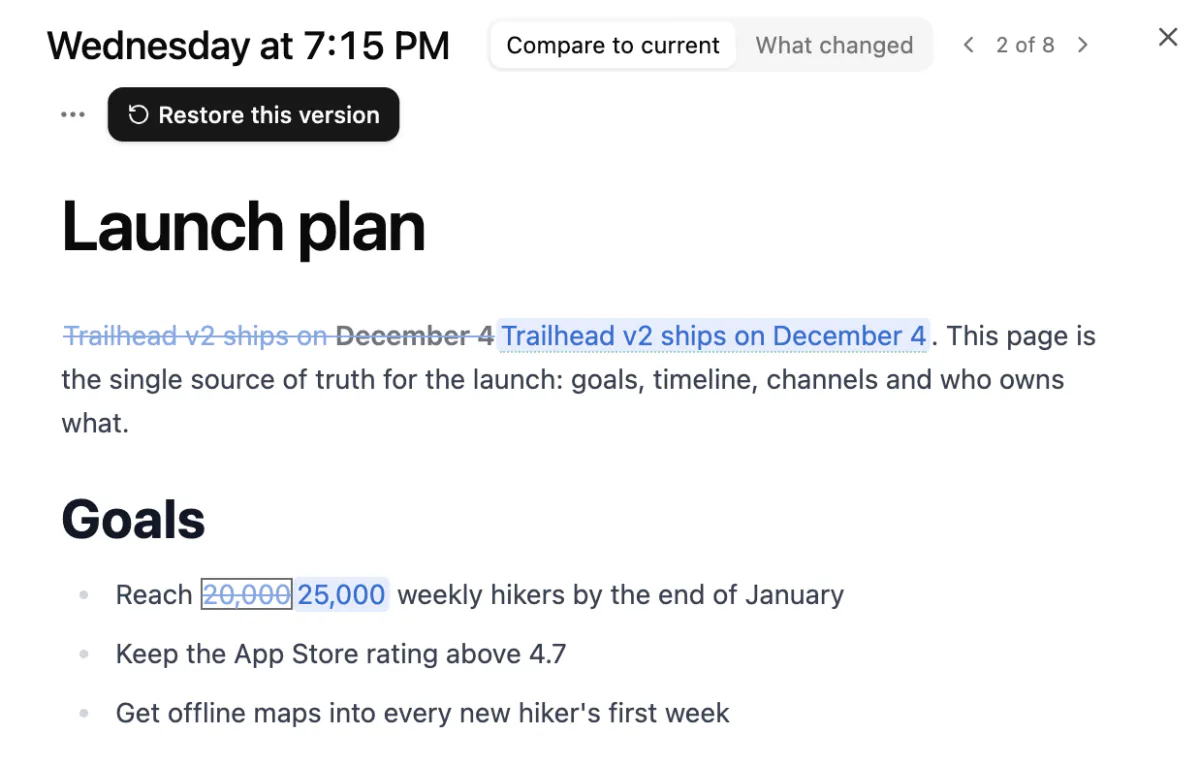
- Compare to current (vs. current beside the page) shows how it differs from the page now.
- What changed shows what it changed compared with the version before.
Click the same button again to go back to reading. Previous change and Next change step through the differences, and a count such as 2 of 8 shows where you are. Show Markdown, in the ⋯ menu, shows the raw text, and Show formatted goes back.
These keys work in Version History:
| Key | What it does |
|---|---|
| N or ] | Next change |
| P or [ | Previous change |
| C | Turns Compare to current on or off |
| D | Turns What changed on or off |
| ↑ and ↓ | Move between versions |
| Esc | Ends a comparison |
Bring back one change
To undo one change without restoring the whole version:
- Go to the change with Previous change or Next change.
- Click Bring this change back.
A review block appears in the page, showing Current (the text now) and Proposed changes (the text from the version). Click Accept changes to use the older text, discard changes to keep what you have, or Both to keep both.
A change inside a code block or table can't be reviewed in place, so Hillnote says so and offers Apply anyway instead. In What changed, Copy this change copies the text so you can paste it wherever you like.
Restore a whole version
- Select the version.
- Click Restore this version (just Restore beside the page).
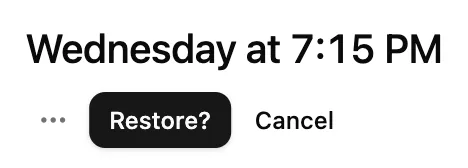
- Click Restore? within a few seconds to confirm, or Cancel.
Your current text is saved first, as a version marked Saved before a restore, and the message that follows has an Undo button.
You can't restore while the page has a sync conflict or is locked with a password. Slides and moodboards can be read and restored, but not compared.
Save, bookmark and delete versions
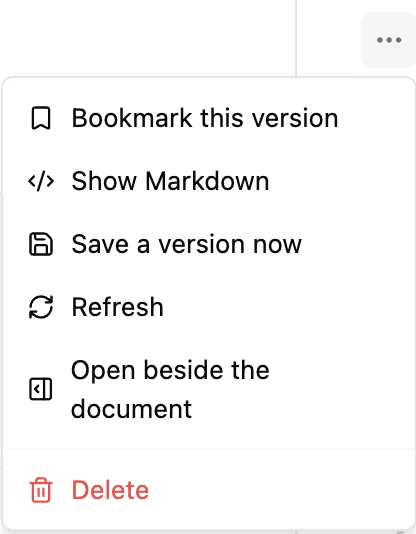
The ⋯ (More actions) menu sits just left of Restore this version (Restore beside the page). Besides Show Markdown and Open beside the document (Open full screen when it's beside the page), it has:
- Save a version now saves the page as it is, marked Saved by you. If nothing has changed since the last version, Hillnote tells you instead.
- Bookmark this version keeps the selected version, so it's never cleared away as it gets older. Bookmarked versions show a bookmark in the list, and Remove bookmark undoes it. A page can have up to 25 bookmarks.
- Refresh reloads the list.
- Delete removes the selected version; click Delete? to confirm.
You can also hover a version in the list to bookmark or delete it.
Sync conflicts
The Conflicts panel is in the desktop app only.
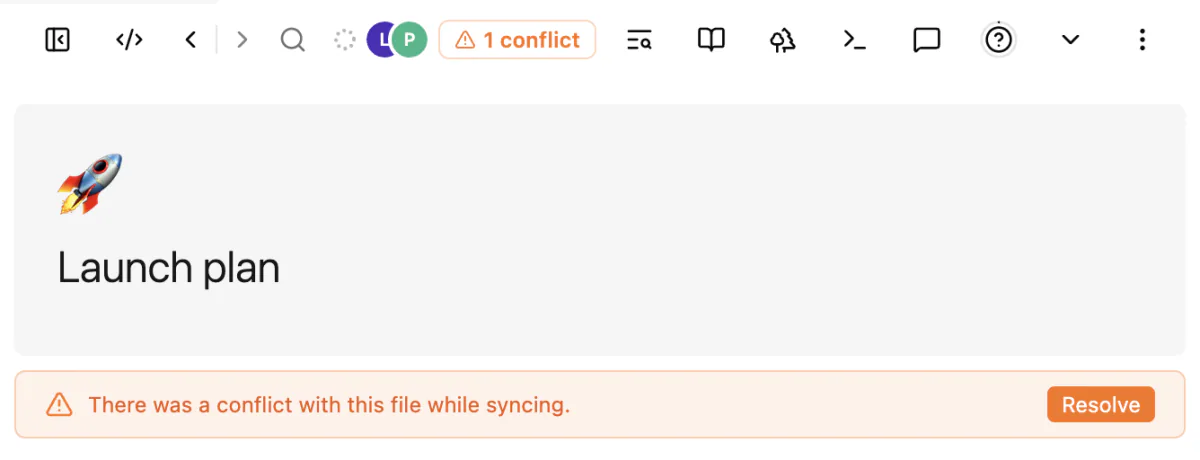
When you sync a workspace, Hillnote merges changes to the same page from different devices by itself. If a page was changed on two devices and the changes couldn't be merged automatically, the page says There was a conflict with this file while syncing. and an orange conflict count appears in the top bar.
- Click Resolve on the page, or the count in the top bar, to open the Conflicts panel.
- Compare the Local and Remote versions, or their Differences.
- Click Keep Local Version, Keep Remote Version or Merge Documents.
Merge Documents puts both versions into the page as review blocks, like the ones in Bring back one change above, so you can settle each difference. To learn how sync works, see Sign-in to sync and unlock premium features!. If something still looks wrong, see Fix common problems.