Coding projects
Make apps and websites with a coding agent, right next to your notes. In the app, this is called Builds. You describe what you want, an agent writes the code while you watch, and you keep or undo each change. GitHub backs your projects up and brings them to your other computers, and your keys and passwords stay out of your code.
Coding projects are desktop app only: the web app at app.hillnote.com doesn't have them. For a small one-page app, such as a timer or a calculator, a tool may be quicker: see Tools.
Start a project
- Click Build at the top of the sidebar, beside Desk.
- Start a New project, or pick a starter such as React or Next.js.
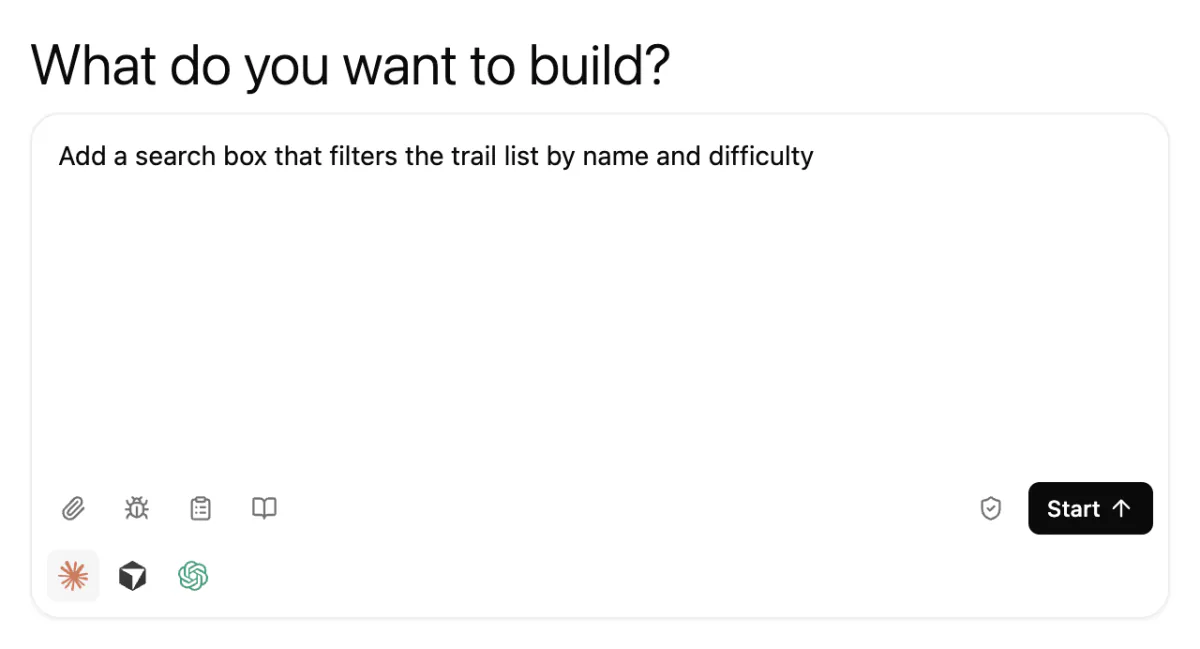
- On the project's start page, describe what you want, pick an agent and click Start.
A coding agent, such as Claude Code, Codex, Cursor, Antigravity or GitHub Copilot, then works on your project in the Terminal panel while you watch. You can keep or undo what it changed. Run starts the project and shows it in the Browser panel.
Projects live in the workspace's builds folder. To set up an agent, see Agents in your workspace.
Work with an agent
While an agent is open in your project, new requests go to it rather than to a new one, so it keeps what it has learned. That goes for a request you type on the project's start page and for Ask agent to fix on a problem. If the agent is busy, your request waits until it's done. To show it a screenshot or another file, drop it into the request box or click the paperclip.
The agent can see which file you have open, the problems Hillnote shows and what your running app prints. When your app shows an error in the preview, Ask agent to fix sends it to the agent. If Hillnote is in the background, you get a notification when an agent finishes or needs your answer.
Review the changes
When the agent finishes, Hillnote says how many files it changed.
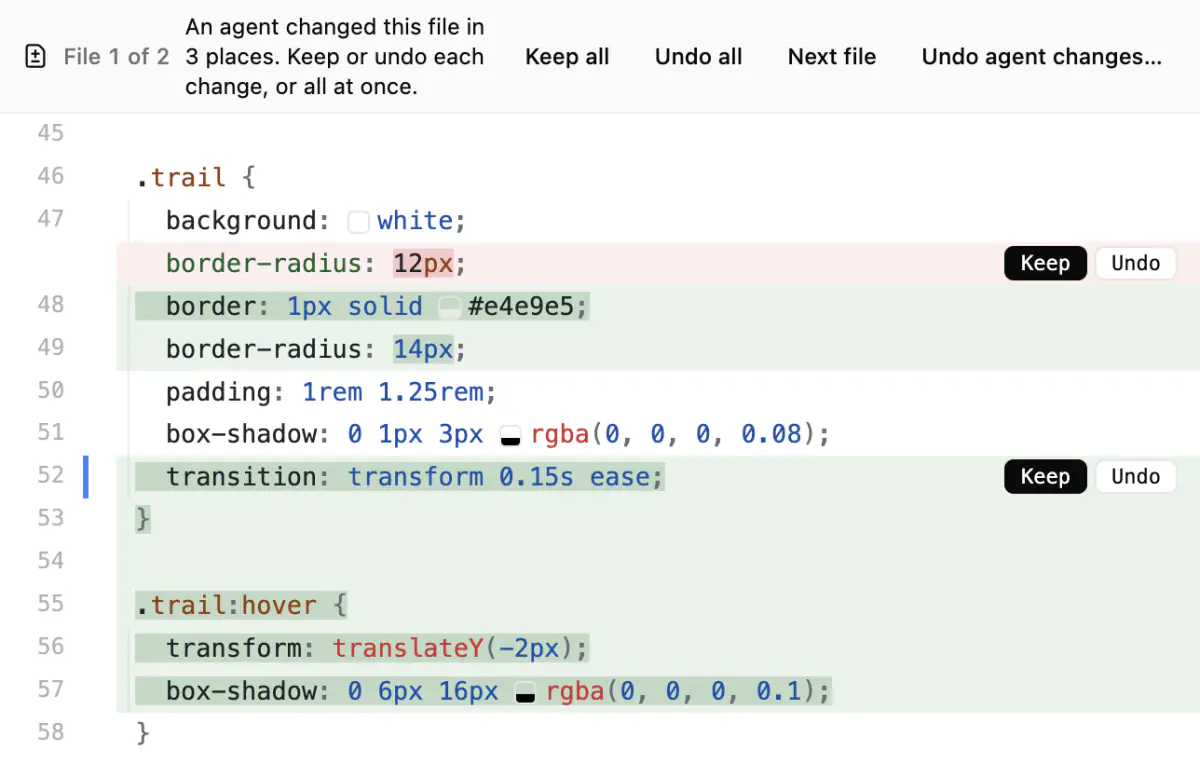
- Click Review. Each change in the file is marked with Keep and Undo. Keep all and Undo all do the whole file at once.
- Click Next file to move on.
Undoing a file the agent added moves it to the Trash. To put the whole project back as it was before a request, choose Undo agent changes….
Choose how much the agent asks
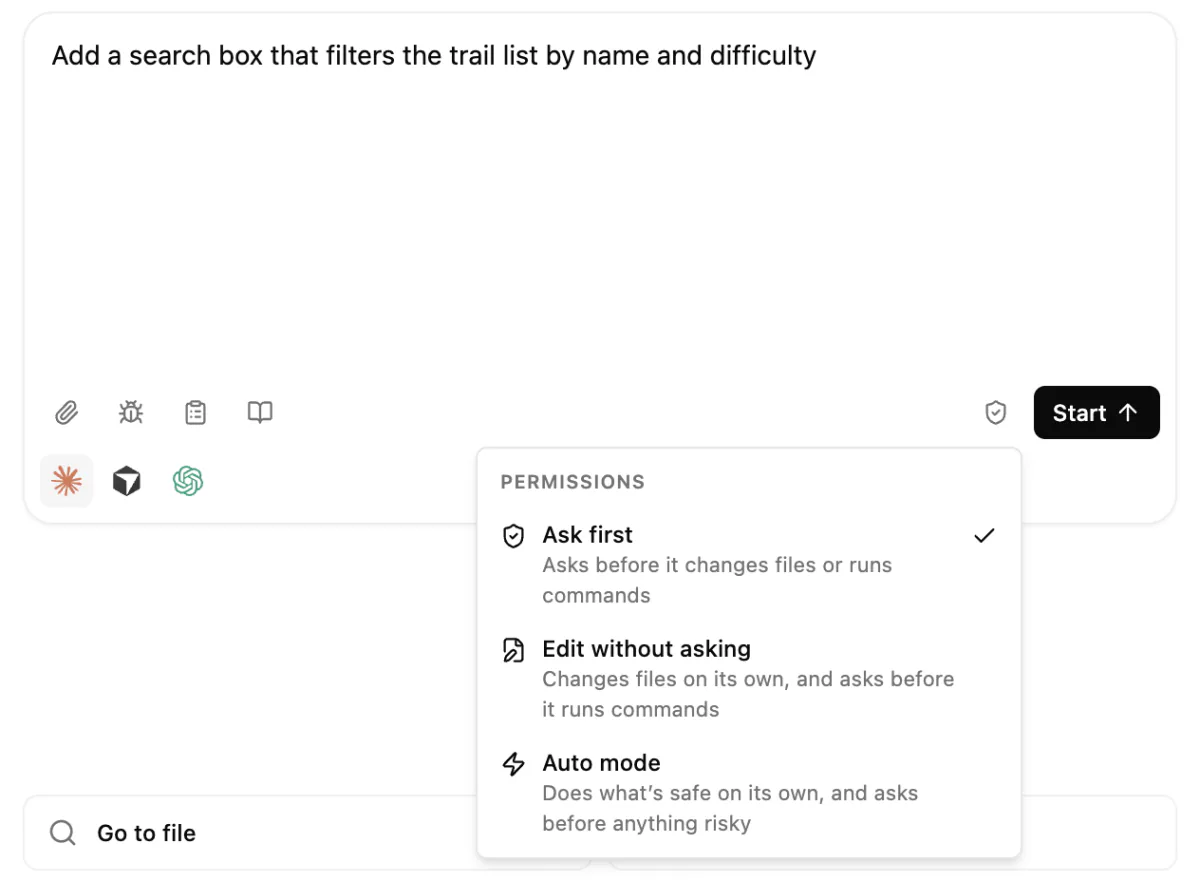
An agent asks before it changes a file or runs a command. To have it ask less, click the shield next to Start and pick one:
- Edit without asking: it changes files on its own, and still asks before it runs a command.
- Auto mode: it does what's safe on its own, and asks before anything risky. In a project from somewhere else, Hillnote first asks whether you trust it (see Projects from somewhere else below).
Hillnote saves a copy of your project before every request, so you can still review each change and undo it. The menu shows only the choices your agent has, and your choice stays for the next request. To go back, pick Ask first.
An agent that's already working keeps the choice it started with. A request with a different choice starts a new agent.
Plan first, then build
- Before you send a request, click Plan first under the request box. The agent doesn't change your code yet. It writes a plan: what it will make, the files it will change and any questions it has.
- When the plan is ready, click Open. The plan is a document in the Plans folder of your documents, so you can change it or comment on it.
- Click Build it. The agent builds what the plan says now, with your changes.
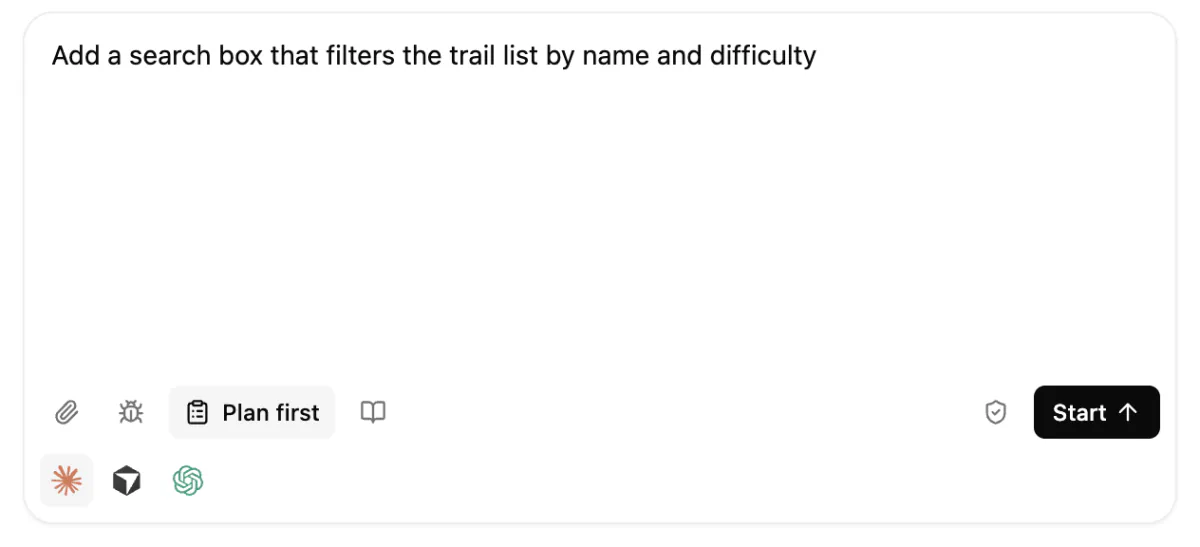
Explain works the same way: the agent writes a document about how your project works, with a map of its parts.
Instructions, reviews and dictation
- Agents read your project's instructions before every request. Click Agent instructions on the project's start page to see them, or Let the agent write it to have them filled in.
- Before you sync, Ask agent to review my changes in Branches gets a second look at your work.
- To say a request instead of typing it, press ⌘D (Ctrl+D on Windows) in the request box. Nothing is sent until you send it. See Dictation and voice.
Point at your app
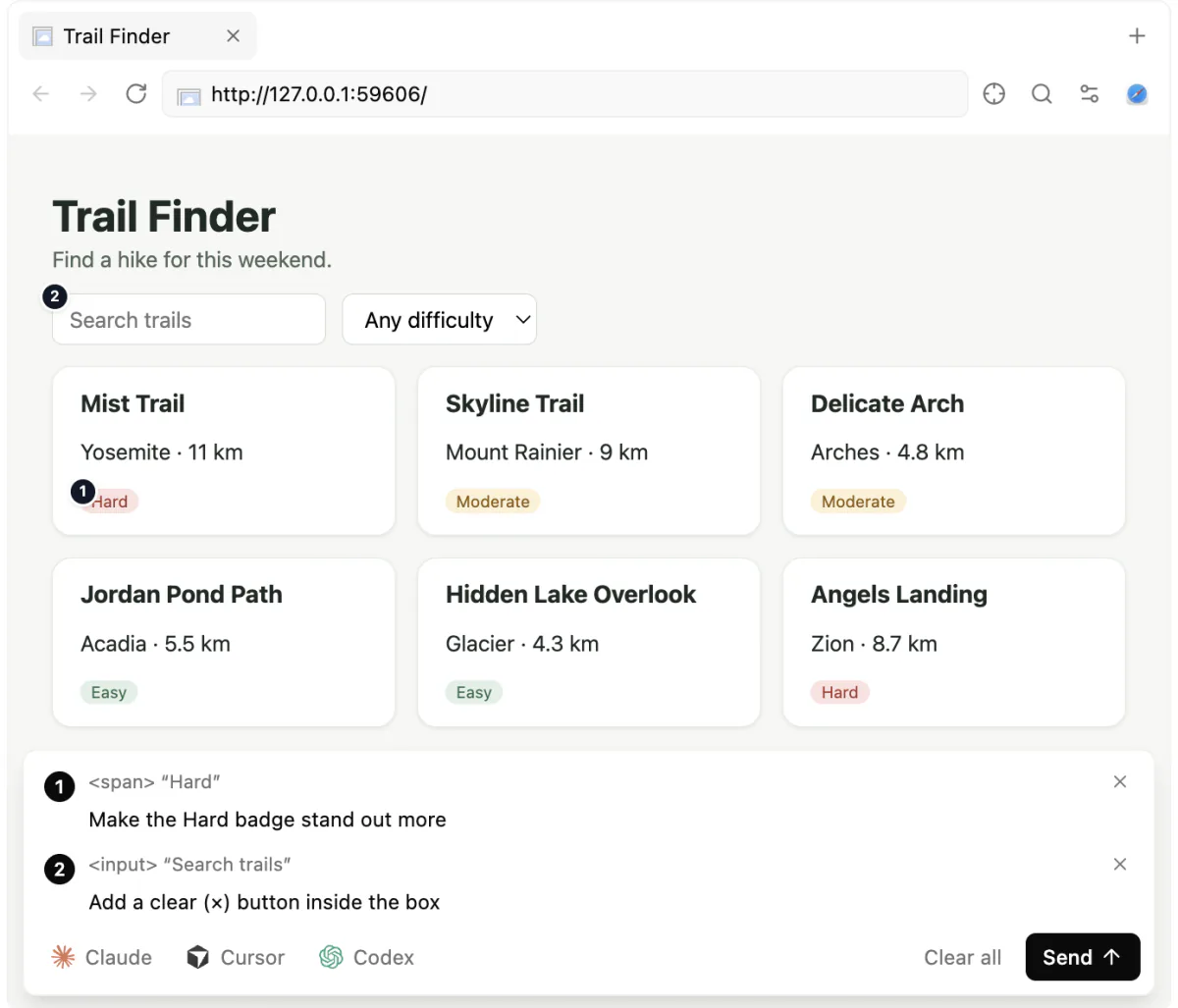
When your app runs in the Browser panel, you can show the agent what to change.
- Click the crosshair in the panel's toolbar, then click something on the page. It gets a numbered pin, and Hillnote saves a picture of it.
- Next to each pin, write what should change.
- Click Send. One request takes every pin to the agent.
Press Esc to stop pointing.
Find and fix bugs
To track down a bug, turn on Find and fix bugs (the bug next to the paperclip) before you start a request. The agent reproduces the problem, adds temporary log lines, fixes the cause and takes the lines out again. If it leaves any behind, Hillnote tells you, and Remove asks the agent to clear them.
Agents can check their own work too. With the hillnote command or Hillnote's tools, they open a page of your running app in a hidden window and see its errors and a screenshot. See Connect your tools.
Let the editor help with your code
In JavaScript and TypeScript files, the editor knows your whole project.
- Put the cursor on a name and press F2 to rename it everywhere it's used. ⇧F12 (Shift+F12 on Windows) lists every place that uses it.
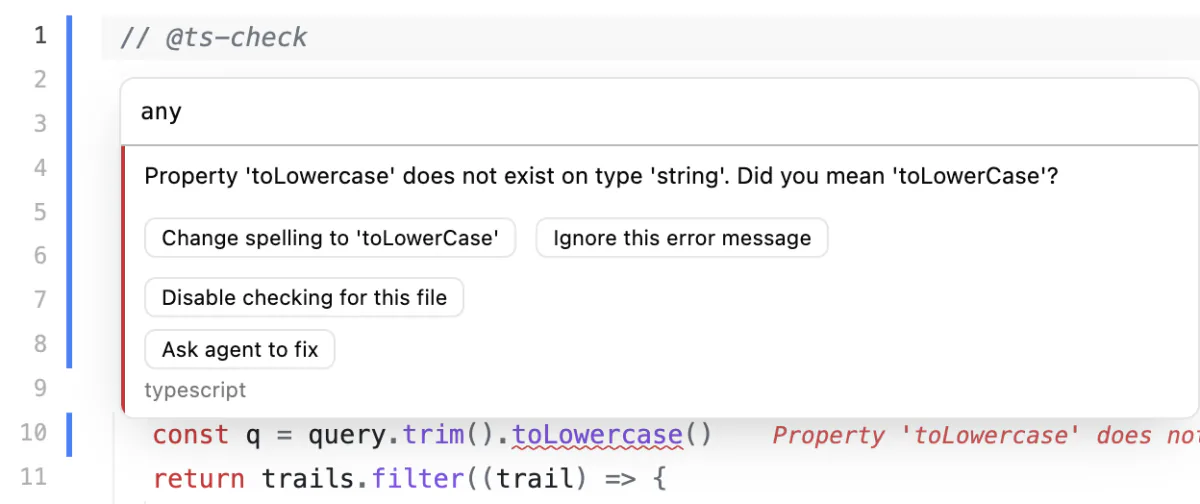
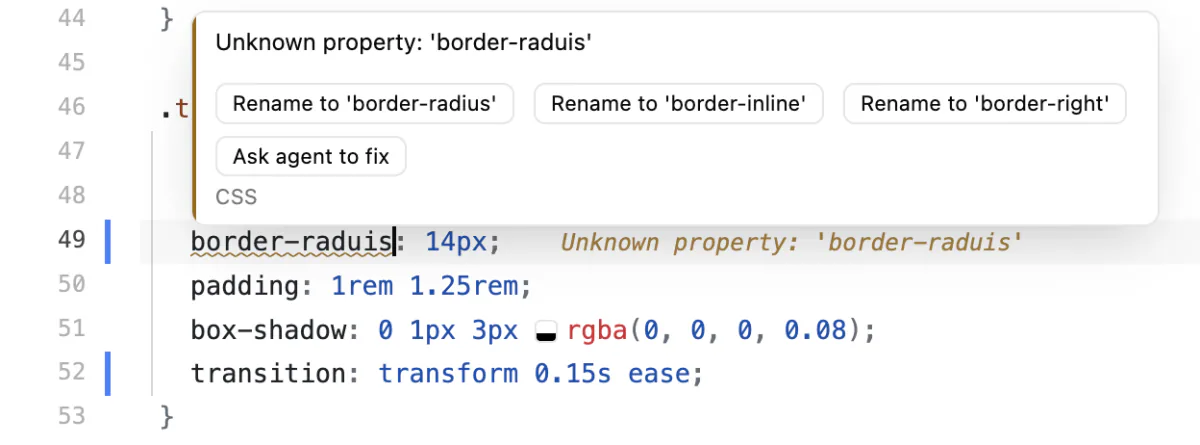
- Hover over a problem. Besides Ask agent to fix, there may be a quick fix, such as adding a missing import. Picking a suggestion that comes from another file adds its import for you.
- Moving or renaming a file in the explorer updates the imports that point to it.
- The status bar counts the problems in the open file and, next to them, in your other files. Click a count, or press ⇧⌘M (Ctrl+Shift+M on Windows), to see them all. Fix all with agent hands them to your agent.
To jump to a function, class or heading in the open file, press ⌘K (Ctrl+K on Windows) and type @. As you scroll, the first line of the function you're in stays at the top. Click it to go there.
Do more with selected code
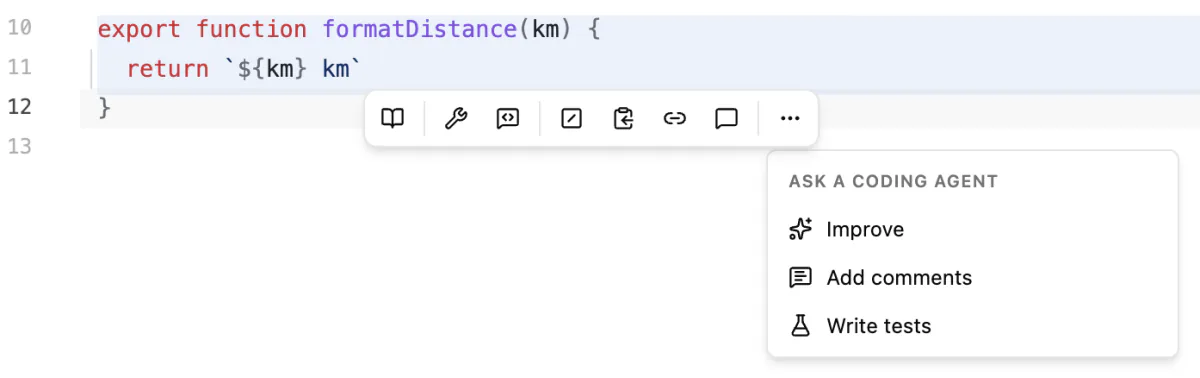
Select some code and a small menu appears next to it.
- Explain says in plain words what the code does. Hillnote's AI answers next to the code and changes nothing. It runs on this computer unless premium models are on (see Local models).
- Ask agent to fix hands those lines to your coding agent, and Ask about the selected lines… lets you say what you want. Under More actions, the agent can also Improve the code, Add comments or Write tests.
- Comment out, Copy as Markdown, Copy link and Ask in Chat are on the menu too. Paste a copied link into a page: clicking it opens those lines beside the page. For Chat, see Chat with AI.
- For a name, More actions also has Rename and Find where it’s used.
Press Esc to hide the menu. To stop it from appearing, open Editor settings on the status bar and turn off Menu for selected code.
Go back to an earlier version of a file
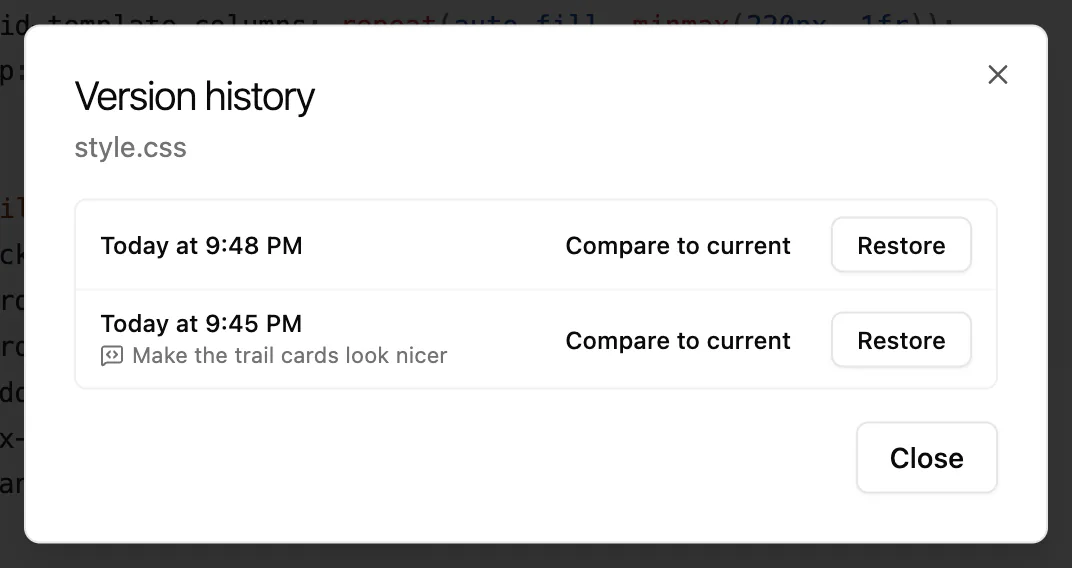
Hillnote keeps earlier versions of your files on this computer for 14 days. It saves one when you save (at most once every 5 minutes), and before an agent, a rename or Replace all changes the file.
- Right-click a file in the explorer and choose Version history.
- Compare to current shows what has changed since that version.
- Restore puts that version back.
What the file held just before becomes a version too, so a restore can be undone. Pages in your workspace keep their own history: see Version history.
More for your files
- A Markdown file opens as a page you can edit like a document. To see its text, click Source beside the file's name at the top. In the same place, the eye shows an SVG file as it looks, or an HTML page in the Browser panel.
- Drag files from your computer onto a folder in the explorer to copy them in. Right-click a file to Duplicate it.
- Font size, in the editor settings (the gear in the status bar), makes the code bigger or smaller.
- When installing your project's packages finds serious security problems, a bar offers Fix.
Python, CSS and JSON
Python files get help too: problems, suggestions as you type, descriptions on hover, F2 to rename and ⇧F12 (Shift+F12 on Windows) to see where a name is used. The first time you open one, Hillnote downloads the Python helper it needs, about 4 MB. In a project you trust, the editor also knows the packages installed in its .venv folder.
CSS files get suggestions and warnings about mistakes, such as a misspelt property. In package.json, tsconfig.json and jsconfig.json, the editor knows which settings exist: hover over one to see what it does, and it suggests them as you type.
Run your tests
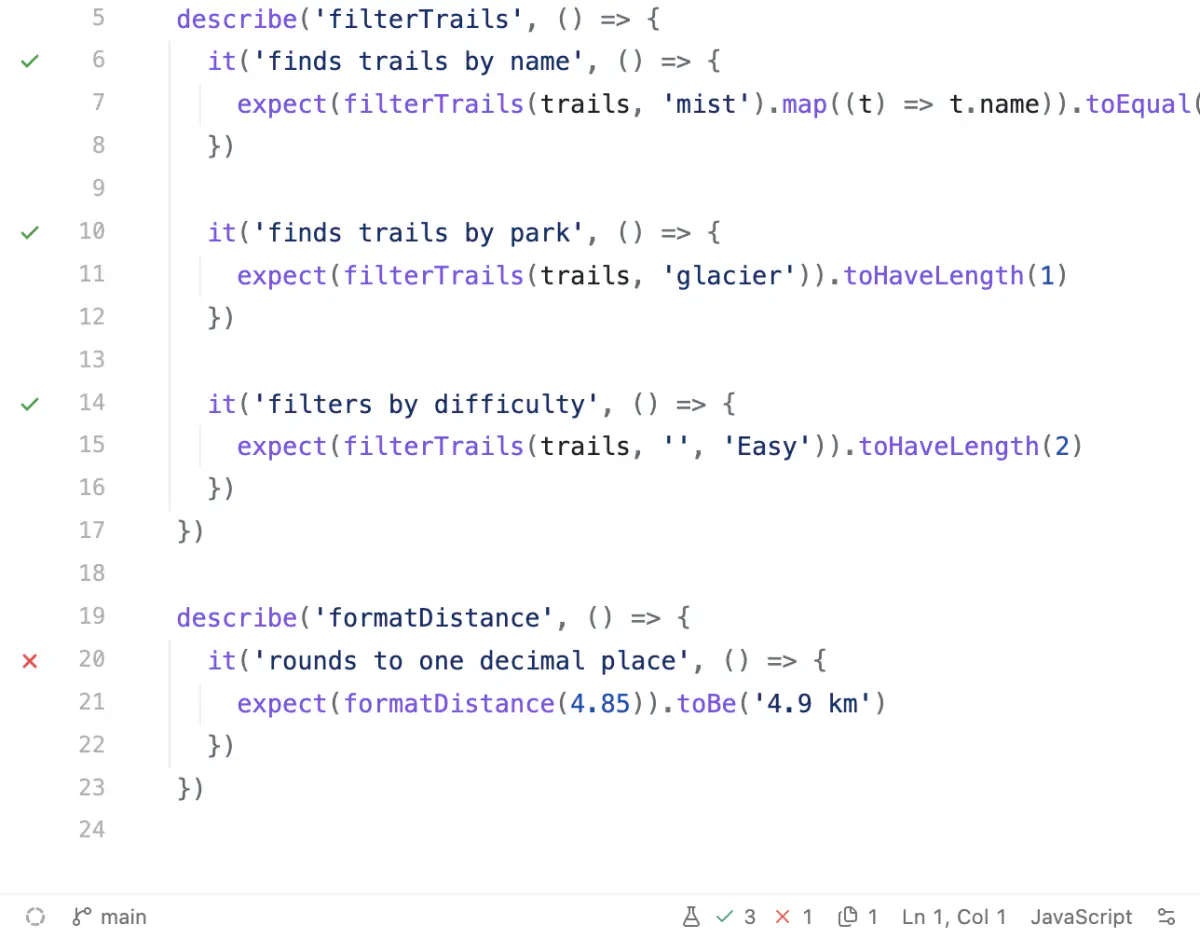
When your project uses Vitest, Jest, Playwright or pytest, its tests appear under Tests in the menu next to Run. Pick them to run them in the Terminal panel.
When they finish, each test gets a ✓ or ✗ beside it, and each failure shows up as a problem in its file, with Ask agent to fix. The status bar counts the tests that passed and failed. Click it to see every failure, and Fix all with agent to hand them to your agent.
Back up and sync with GitHub
Projects don't sync through Hillnote, even in a synced workspace. GitHub keeps them instead, so they're backed up and reach your other computers.
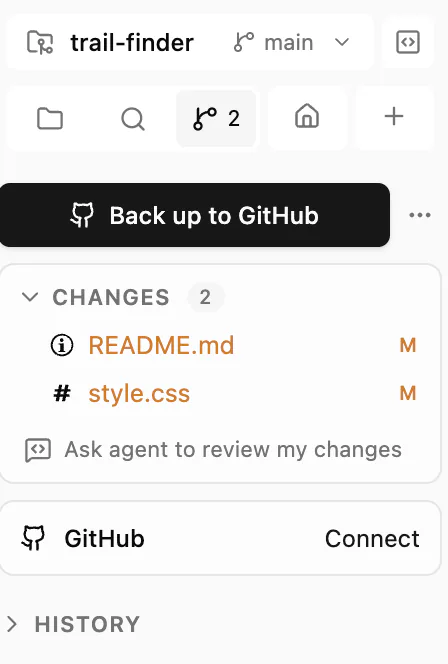
- In the project, open Branches and click Back up to GitHub. Connect your GitHub account if asked, check the name, and keep the repository Private unless you want everyone to see it.
- From then on, click Sync to send your changes to GitHub and bring in changes from your other computers. ↓ counts changes waiting on GitHub, and ↑ counts changes waiting here. The mark at the bottom left turns into a green dot when everything is on GitHub.
- On another computer with this workspace, click Build at the top of the sidebar. The workspace's projects that aren't there yet are listed with the others, marked Not on this computer yet. Click one to download it. Your other GitHub projects are under GitHub.
When Sync finds a conflict
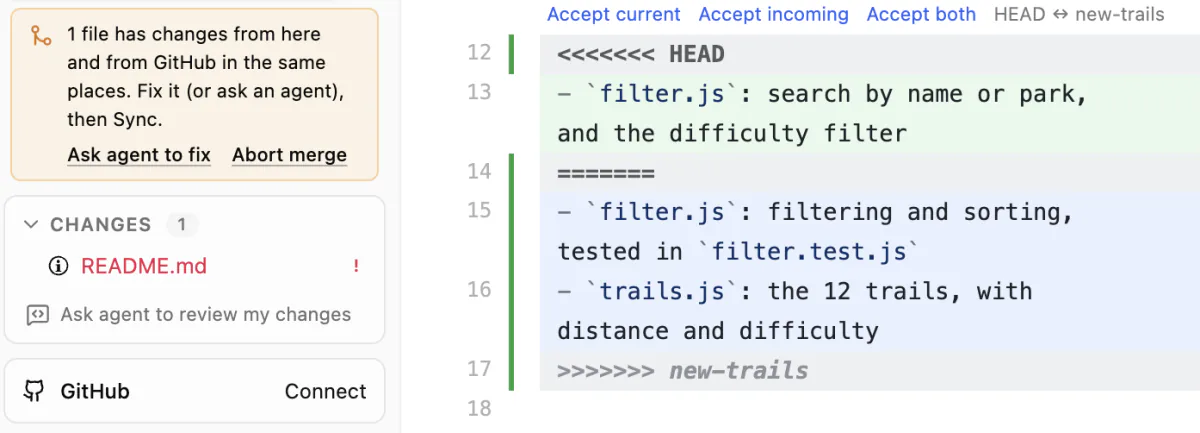
If the same lines changed here and on GitHub, Sync stops and lists the files it couldn't combine. Each one holds both versions, between the marker lines git adds: one starting with <<<<<<<, a line of = signs, and one starting with >>>>>>>.
- Keep what you want, and delete the marker lines. Accept current, Accept incoming and Accept both, above the two versions, do this for you.
- Click Sync again.
Ask agent to fix hands the conflict to a coding agent. Abort merge leaves out the changes from GitHub and keeps yours.
Keep keys and passwords safe
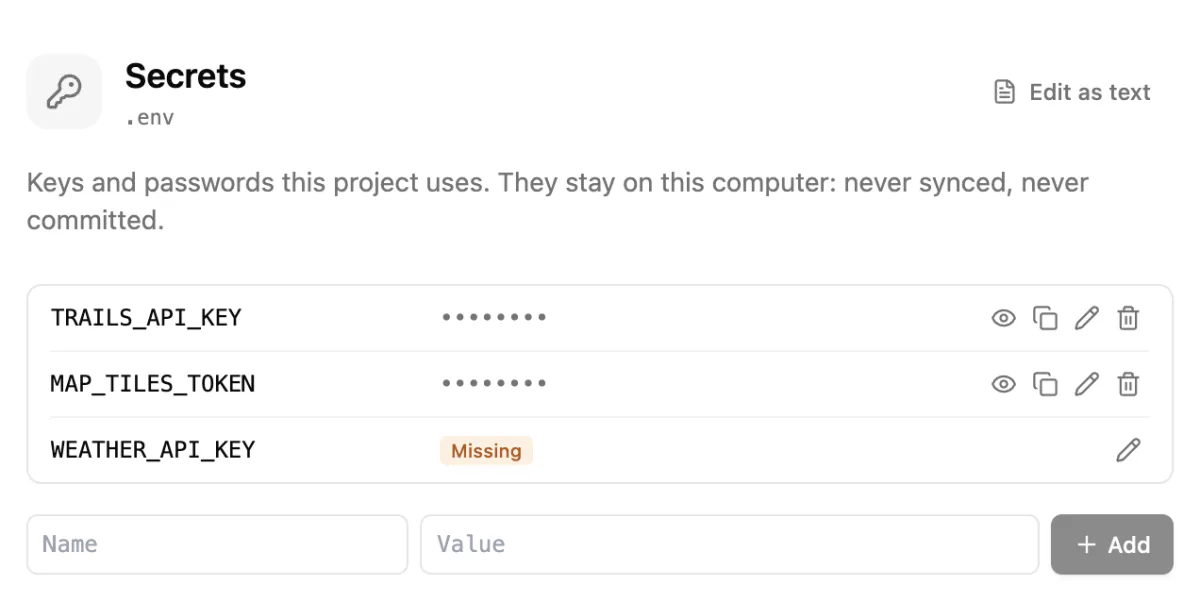
Click Secrets on the project's start page, or open its .env file, to add API keys and passwords. They stay on this computer: they never sync and never go to GitHub. Your code reads them as environment variables, and Hillnote tells coding agents their names, never their values.
Each new name is also added to .env.example, which does go to GitHub. On another computer, the project lists those names as Missing until you add the values there.
Before Sync or Back up uploads anything, Hillnote checks your changes for keys and passwords. If it finds one, you can Ask agent to fix it, Continue anyway or cancel. For more on what stays on your computer, see Privacy and your data.
Projects from somewhere else
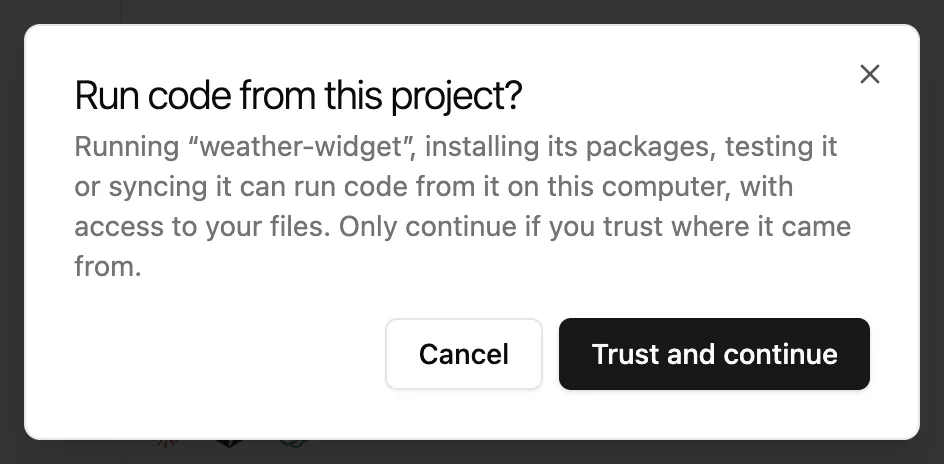
Running a project runs its code on your computer, with access to your files. So before Hillnote runs, installs or tests a project you cloned from someone else's repository or opened from another folder, it asks once: Run code from this project? Click Trust and continue only if you trust where it came from.
Hillnote remembers your answer for that project folder, on this computer and in this profile, and never syncs it. A project you made in Hillnote doesn't ask on the computer you made it on, and a project you download in Hillnote from your own GitHub account doesn't ask either. Anywhere else, such as on another computer the folder reached some other way, or in a fresh profile, it asks once.
Until you trust a project, the editor uses Hillnote's own TypeScript and Python tools rather than the ones in the project.
Branches, commits and pull requests
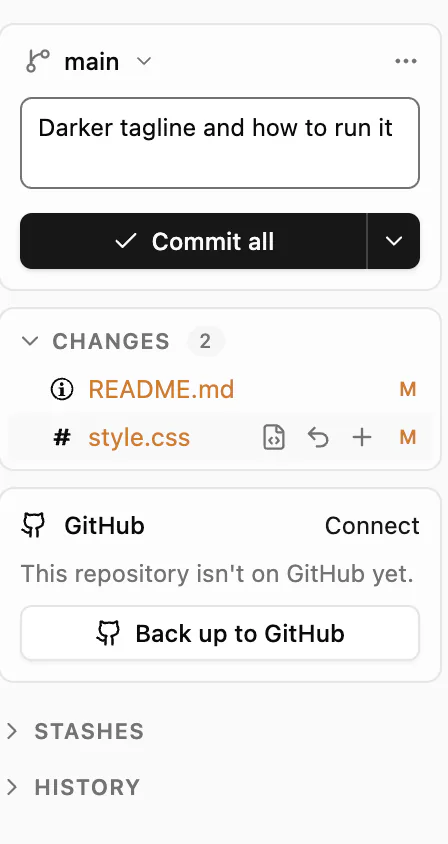
Branches shows git in full: branches, staging, commit messages, stashes and pull requests. For something simpler, turn off Advanced Git in its ⋯ menu. You then get one Sync button and a list of changes you can undo one file at a time.