Fix common problems
Most problems in Hillnote have a quick fix. Find yours below: sync that seems stuck, sync conflicts, AI that doesn't answer, AI apps that can't see Hillnote, a page you need back, or an error screen. If nothing here helps, see Report a problem at the end. For publishing errors, see the troubleshooting list in Publish.
Sync seems stuck
Hover over the sync symbol in the top bar to see what's happening. For more detail, open the Sync tab in the sidebar.
| The tooltip says | What to do |
|---|---|
| Changes pending — will sync automatically or Syncing… | Give it a moment. |
| Offline — changes saved locally | Nothing. Your edits are safe and go up when you reconnect. |
| Sync paused — sign in to resume | Sign in again. |
| Sync paused — cloud storage is full | Make room, or get more storage. |
| Sync paused — rename the document to save it | Rename the page. |
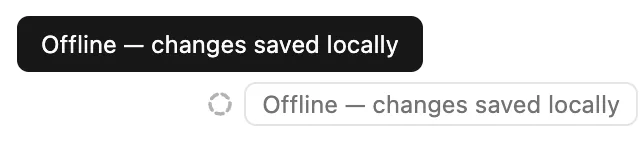
Uploads also wait while a conflict is open (see Resolve a sync conflict below). If automatic sync is off, click Sync changes in the top bar. Quitting then asks whether to Sync and Quit.
To add storage, see Extra credits and storage in Sign-in to sync and unlock premium features!.
Resolve a sync conflict
A conflict means a page changed on two devices at once. Hillnote merges what it can. Where both sides changed the same lines, it shows both in the page:
- Current is this computer's text; Proposed changes is the other version.
- Hover over the block, then click Accept changes, Both or discard changes (keeps yours).
If a page can't be merged, an orange conflicts badge appears in the top bar. This part is desktop app only.
- Click the badge, or Resolve in the page's banner, to open the Conflicts panel.
- Compare Local, Remote and Differences.
- Choose Keep Local Version, Keep Remote Version or Merge Documents.
See Version history for more on conflicts.
AI isn't answering
Local models need Ollama, the local AI runtime, to be running. This is desktop app only.
- If the model menu shows (Ollama not running), open the home screen's AI tab. From a workspace, click All Workspaces at the top of the sidebar to get there.
- On the Available tab, under Settings, turn the switch on so it reads Ollama on.
- If one model still won't run, uninstall it and download it again.
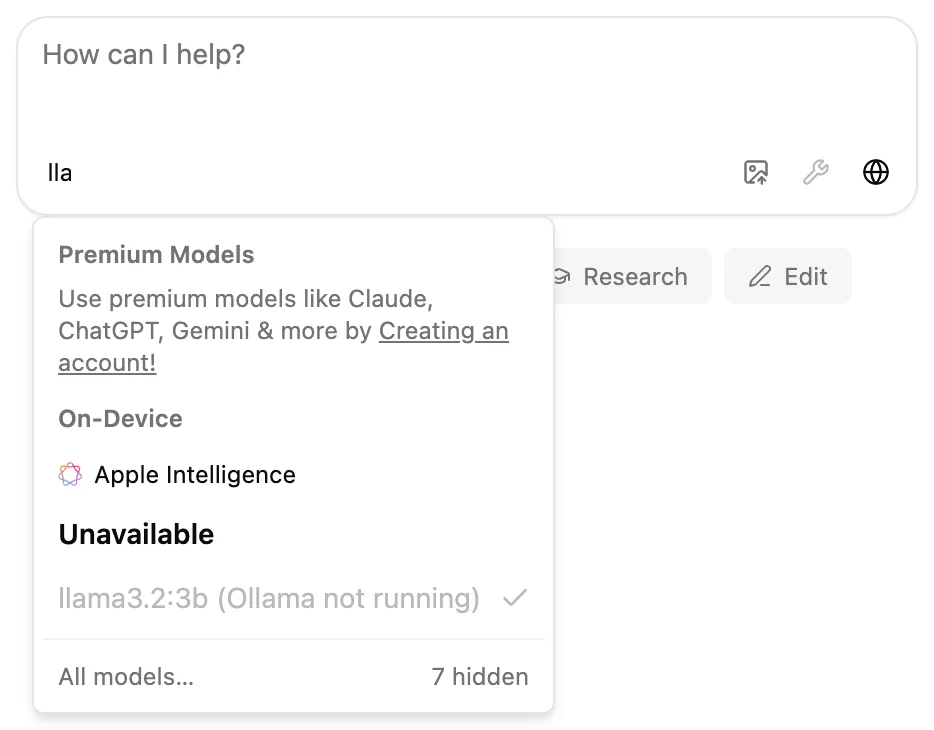
The first reply after a pause can be slow while the model loads again. Unload model when idle in Settings ▸ AI frees memory between chats. On a slower computer, set Performance profile to Low — gentle on CPU/RAM. See Local models.
With a premium model, check your credits or pick a local one. See Sign-in to sync and unlock premium features!.
An AI app can't see Hillnote
This is desktop app only. After you connect an app in Settings ▸ Connections, it finds Hillnote only once it reloads its settings:
| App | What to do |
|---|---|
| Claude Desktop, Cursor and Zed | Quit and reopen the app. |
| Windsurf | Refresh MCP servers in its Cascade settings, or restart it. |
| VS Code (Copilot) | Run MCP: List Servers, or restart it. |
| Claude Code, Gemini CLI and Codex CLI | Start a new session. |
Still missing? Click Reconfigure for that app in Settings ▸ Connections, for example after moving Hillnote to another folder. If the app's settings file has comments, Hillnote won't edit it: click Copy Snippet and paste it in yourself.
To check the connection from a terminal, run hillnote doctor. It checks the hillnote command, the workspace and the link to the running app, and says what to fix.
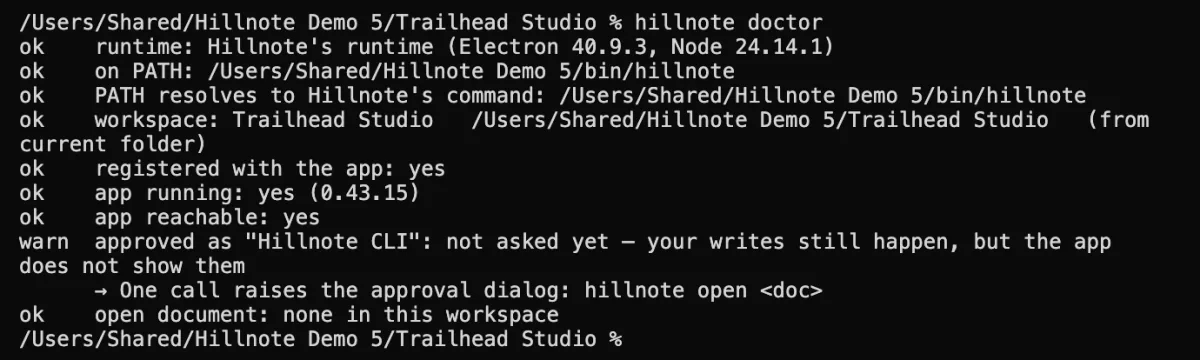
For Cloud MCP, check that the workspace is synced and that you allowed read & write access. See Connect your tools.
Get a page back
Every page keeps a version history.
- Open Version History from the top bar, or choose Version history in the page's ⋮ menu in the sidebar.
- Pick a version. vs. current compares it with the page now; What changed shows what that version changed.
- Click Restore (Restore this version in full screen), then confirm. Your current text is saved as a version first, so you can go back.
To recover a single change, go to it and click Bring this change back.
Deleting a page from the sidebar can't be undone in the desktop app. If the workspace syncs, the web app's Recently deleted list may still have it for 30 days. See Version history.
The app shows an error screen
If you see Something went wrong, your saved documents are safe.
- Click Reload, or Back to workspaces. When only one area fails, you may see Try Again and Go Back instead.
- If the error keeps coming back, quit Hillnote fully and reopen it. Right-click its icon in the menu bar or system tray and choose Quit Hillnote, or hold down ⌘Q (Ctrl+Q on Windows) until it quits. After a crash, the next start skips reopening your last pages.
- Click Copy error details and email them to the address shown on the screen.
Report a problem
Choose Help ▸ Report a Problem to open Hillnote support in your browser. There you can email the team or ask on Discord, and see the known bugs.
Say which system you use, what you were doing and what you expected to happen. Copied error details help too.