Library
A library holds long documents, such as books, papers and manuals, split into searchable, citeable sections. Each document becomes a volume, broken into one editable page per heading, so you open and link to a chapter instead of a 400-page file. Use a library for reference material you want to search by meaning, ask questions of with cited answers, or share with other people.
Libraries need the desktop app. The web app at app.hillnote.com doesn't have them, though it can still open a library's section pages from the sidebar.
What a library is
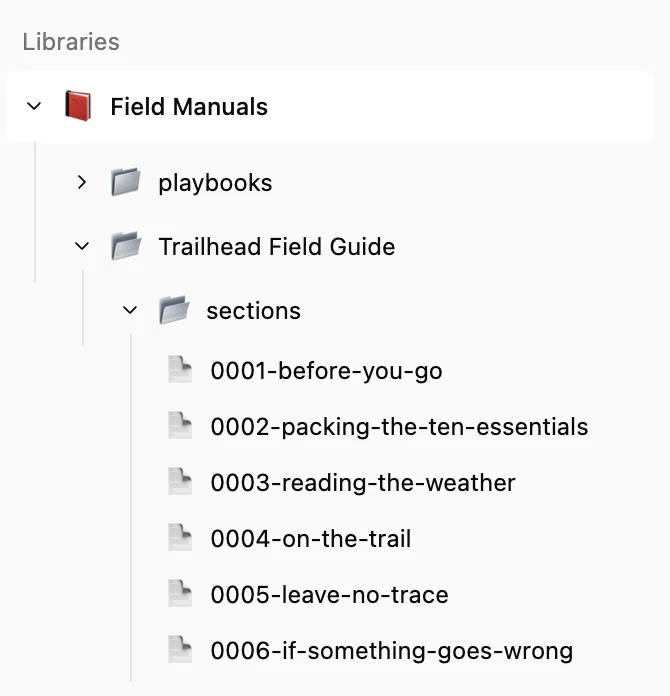
A library is a folder in your workspace, shown in the sidebar's Libraries group. Each volume inside it has a sections folder with one page per heading, and the library keeps its playbooks in a playbooks folder (see Playbooks below). The original files are kept in resources/pdfs/ and the figures in resources/images/, in folders named after the library. Originals over 100 MB stay on this machine and are never synced or shared.
Create a library and add volumes
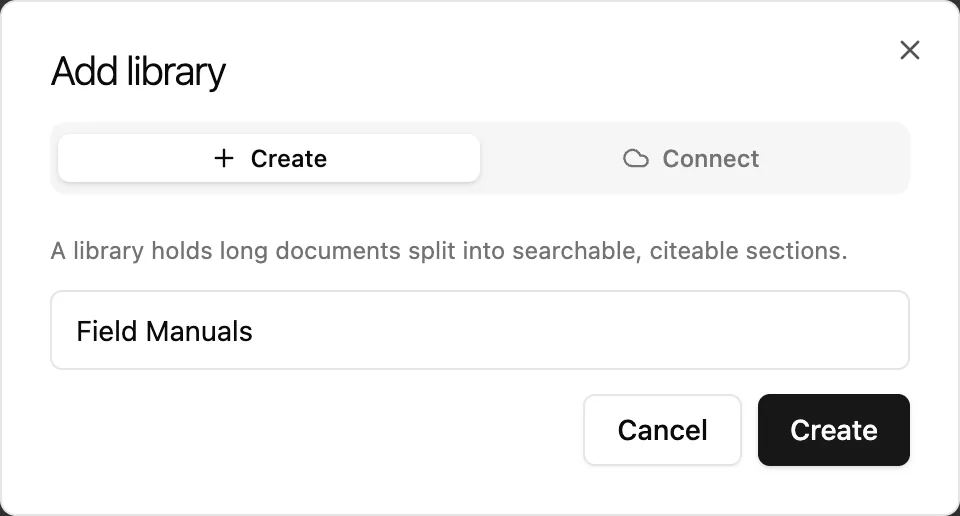
- Click + (Create new) in the sidebar and choose Library, under Datasets.
- Type a name and click Create. The library's page opens.
To add volumes, open the library's Files tab and click Import. This opens the Import Files dialog, set to import into this library (Change… picks another one). Choose PDF, Word or EPUB files, or a shared library .zip. Each long document comes in as volume unless you switch it to as document. An original over 100 MB never syncs, so for a file that size choose Keep original on this machine or Skip original. Then click the import button, which counts the files (Import 2 files, for example). For more on this dialog, see Files panel and importing.
You can also:
- Choose Add to library… on a document, folder, collection or sheet in the sidebar, or drag it onto the library. Then pick As a new volume or an existing volume. A folder's documents and a collection's rows become sections, and a sheet's rows become searchable tables. Keep the original in place leaves the item where it is; with it off, the original moves into the library. A copy is always kept inside the volume.
- Drop a long PDF or an EPUB onto the Hillnote window, and Hillnote offers to add it to a library. What counts as long is set by Import as a library above (see Defaults for new imports below).
- Open a PDF or Word file in the Files panel and click Add to library… in its header.
Browse and manage
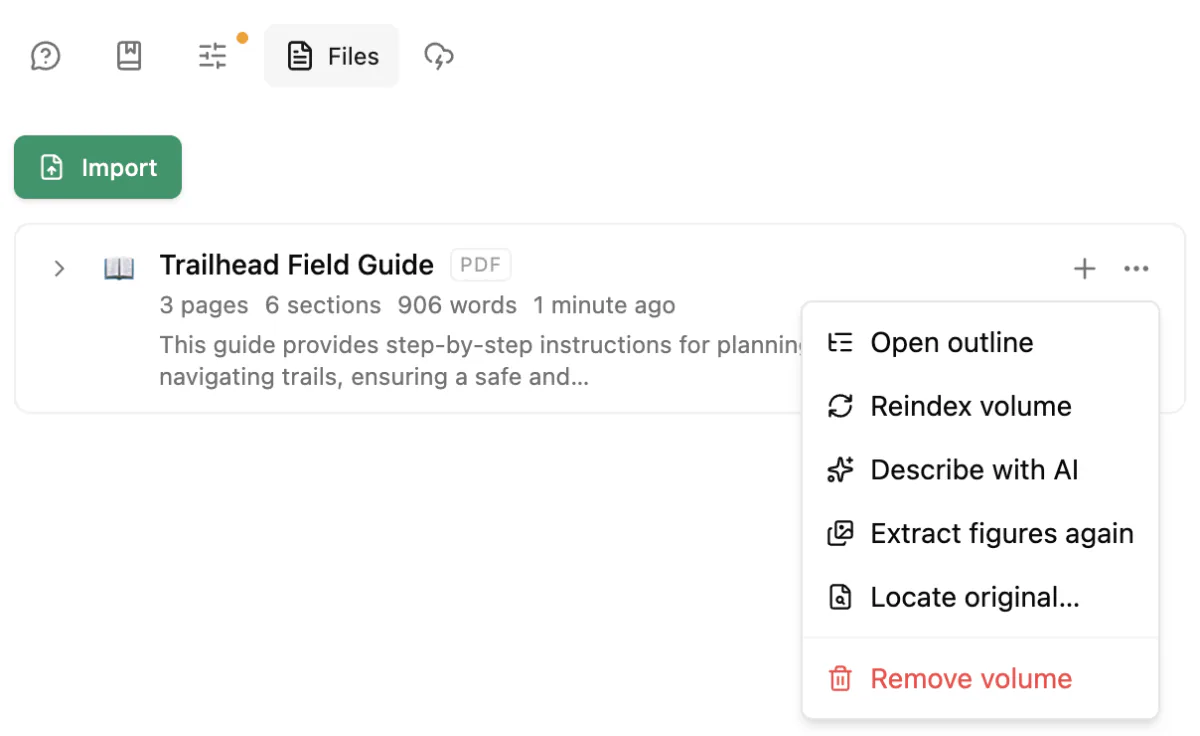
The library's page has five tabs: Ask, Playbooks, Manage, Files and Cloud.
On Files, each volume's ⋯ menu has:
- Open outline, to see its sections in order
- Reindex volume
- Describe with AI, which adds topics, a short summary and a one-line description to the volume
- Extract figures again (Extract figures if it has none yet)
- Locate original…, to attach the original file when it isn't on this computer
- Remove volume, which moves the volume and its sections to the trash
The + on a volume (New section) adds an empty section at its end for your own notes.
Manage lays out everything else:
- Search index: how many sections are indexed, with Reindex and Semantic search (see Search by meaning below).
- AI: Describe with AI for every volume at once, and Generate section summaries…, which writes a one- or two-sentence summary for each section, then one for the whole volume.
- Library: Share, which exports the library as a
.zipthat another Hillnote user can bring in with their library's Import button; Reveal in Finder (Reveal in File Explorer on Windows); and Delete library.
The AI actions can run on Apple Intelligence, on a local Ollama model (see Local models) or, if you're signed in, on a premium model, which uses credits.
A section page has a bar to step to the previous or next section, open the original at that page, or go Back to library. To browse a library and ask it questions from any page, open the Library panel from the top bar. No button? Look in the top bar's ⋮ menu, or turn on Library in Settings ▸ Editor.
Search by meaning
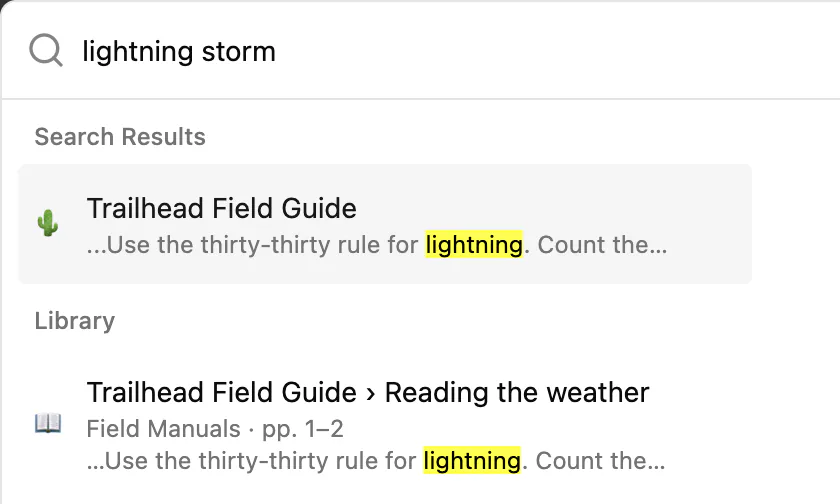
Every section is indexed, so ⌘K (Ctrl+K on Windows) search shows matches in a Library group. On the Manage tab, enable Semantic search to match by meaning, not only keywords: a question can then find the right passage even when it shares no words with it. A small local model builds the index on this device, and it never leaves it.
Defaults for new imports
Settings ▸ Editor has a Library group with defaults for new imports. Each library can override them.
| Setting | Does |
|---|---|
| Import as a library above | Documents at least this many pages or words are offered as a library volume instead of a single document. |
| Section size | The target and maximum words per section when a volume is split. |
| Semantic search | Off, Ask on import, or Lazy (build on first search). |
| Extract figures | Saves figures and diagrams from imported PDFs as images next to their sections. |
| OCR scanned pages | Reads the text on pages that have no text layer, so they can be searched and cited. |
| Caption figures with AI | Writes a short caption for each figure with the local model. Imports take longer. |
| Enrich imports with AI | Adds topics, a summary and a description after each import: Off, Local engines only or Any model (may use credits). |
Ask and cite
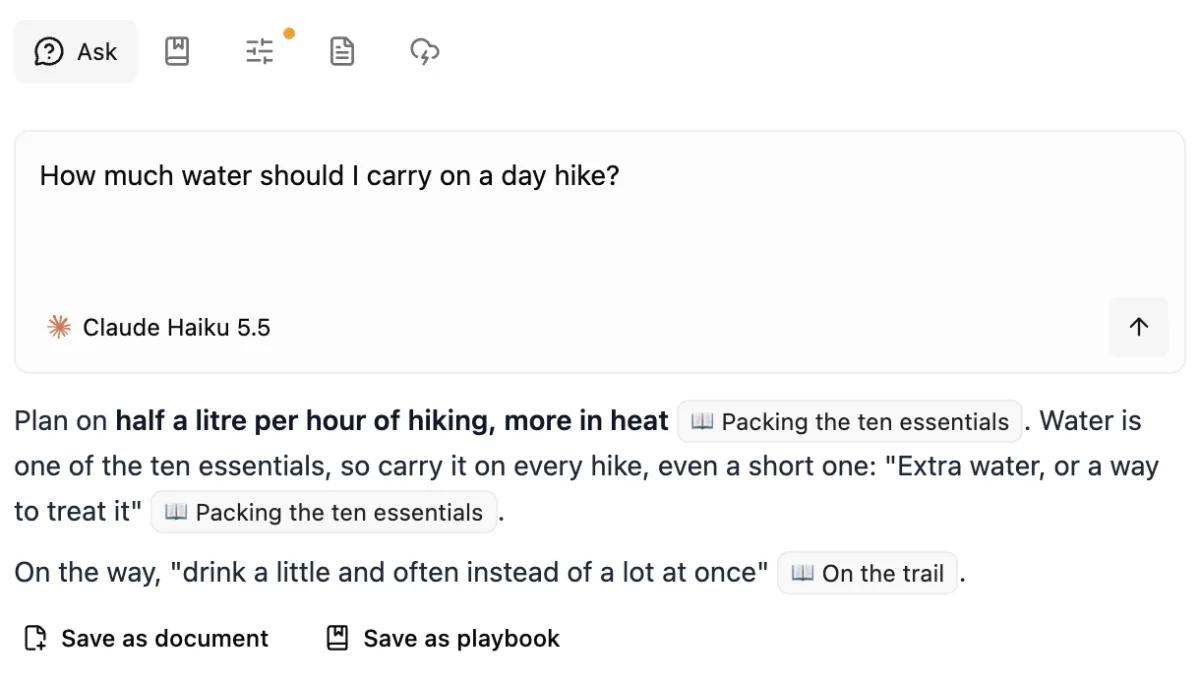
On the Ask tab, or in the Library panel, type a question and press ↵ (Enter on Windows). Pick a model and, if you like, a playbook (see Playbooks below). Local models answer on your computer; premium models need you to be signed in and use credits. Every point in the answer cites its section: section citations open side by side, and page citations open the original in the Files panel.
- Save as document saves the question, answer and sources as a page in an
answersfolder. - Save as playbook turns it into a reusable playbook.
If nothing matches, try different words, or click Reindex on the Manage tab if the library is new.
You can ask from other places too:
- In any page, type
/and choose Ask Library to insert a cited answer. - The Quick Menu has an Ask a library tab (see Quick capture).
- Chat can search your libraries (see Chat with AI).
- AI tools connected to Hillnote can search your libraries and read their sections (see Connect your tools).
Playbooks
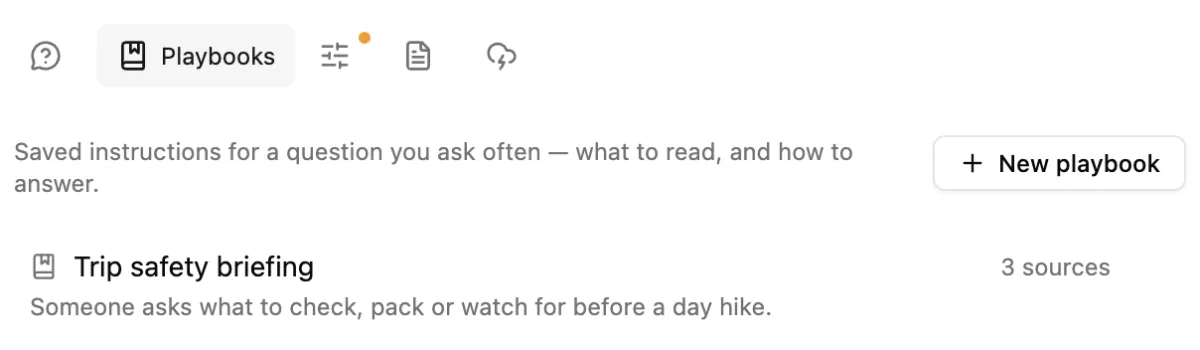
A playbook is saved instructions for a question you ask often: what to read, and how to answer. On the Playbooks tab, click New playbook to write one, or save one from an answer with Save as playbook, which keeps the sources and the approach that worked. Give each playbook a "when" line so an assistant knows when to use it. Playbooks that an assistant saved are marked for you to review, or to delete if they're wrong.
Cloud libraries
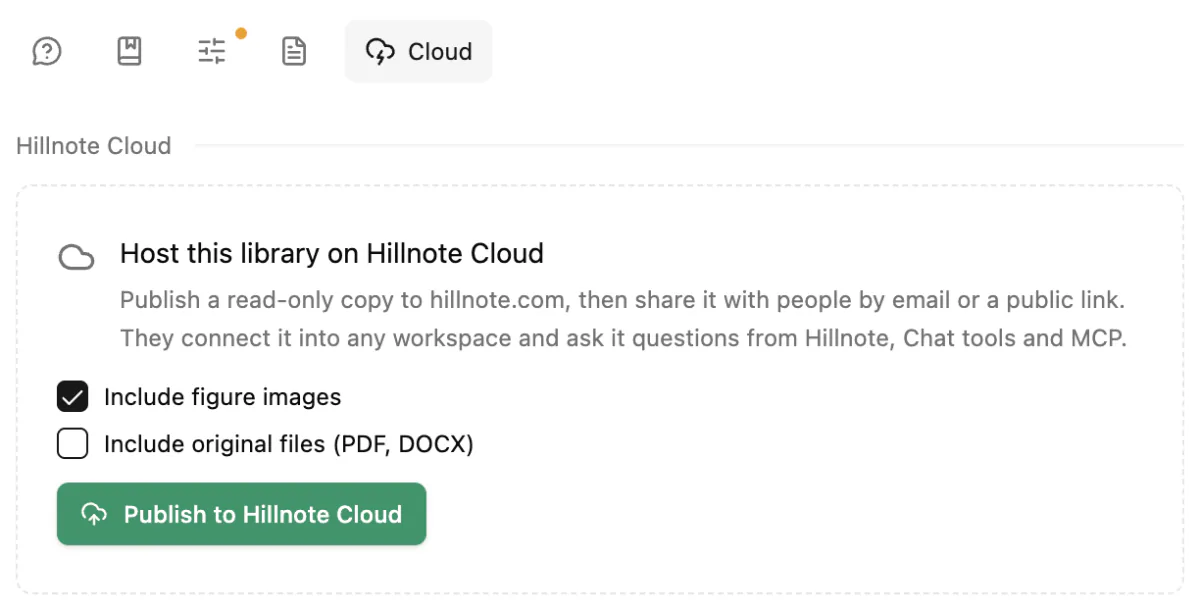
To share a library read-only, sign in (see Sign-in to sync and unlock premium features!) and open the library's Cloud tab. Decide whether to Include figure images and Include original files (PDF, DOCX), then click Publish to Hillnote Cloud. After that:
- Invite people by email, or Make public and Copy link.
- Click Update to publish your changes. The tab tells you when the library has changed since you last published it.
- Make private stops the public link working. People you invited by email keep their access.
- Remove from cloud takes the library down for everyone you shared it with. Your library here isn't touched.
Readers can search and read the library, never change it. Hosting is part of the Plus, Pro and Ultra plans: see the pricing page.
To use a library shared with you, click + (Create new) in the sidebar, choose Library and open the Connect tab. It lists the cloud libraries you own or that were shared with you: click Add beside one, or paste a link or id and click Connect. The library opens in the Library panel. It's read-only: you can search it, ask it questions and cite its sections. On its page, Check for updates fetches new versions, and Disconnect removes it from your workspace. It stays on Hillnote Cloud, so you can connect it again.
Settings ▸ Libraries lists both kinds: the libraries you host and the ones shared with you.