Keyboard shortcuts
Hillnote has a keyboard shortcut for most things you do often. This page lists the menu shortcuts, and the ones you won't find in any menu: tabs, formatting, typing, search, voice, capture and presenting. Each table shows the keys on a Mac and on Windows.
About these shortcuts
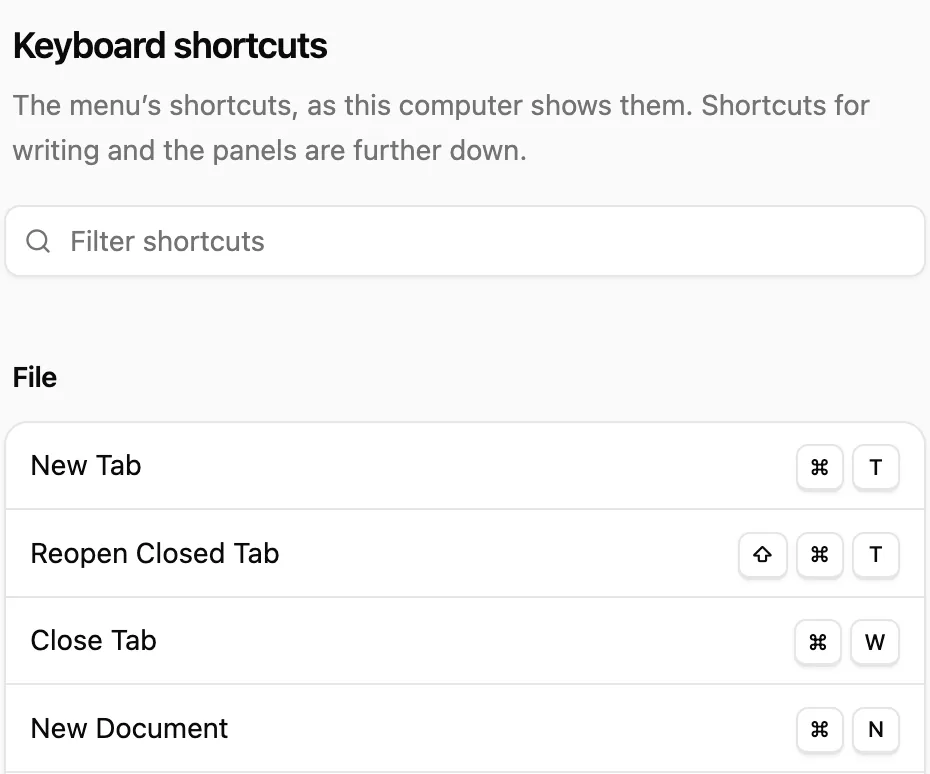
Menu commands show their shortcuts beside them in the menus, and Help ▸ Keyboard Shortcuts lists them all for your computer. Type in its Filter shortcuts box to find one.
You can change some of them: the Quick Menu, dictation, Notepad and screenshot keys in Settings ▸ Hillnote, and the voice keys in Settings ▸ Voice. Where a table says "by default", yours may differ.
Menu shortcuts
| Menu command | Mac | Windows |
|---|---|---|
| File ▸ New Tab | ⌘T | Ctrl+T |
| File ▸ Reopen Closed Tab | ⇧⌘T | Ctrl+Shift+T |
| File ▸ Close Tab | ⌘W | Ctrl+W |
| File ▸ New Document | ⌘N | Ctrl+N |
| File ▸ Open... | ⌘O | Ctrl+O |
| File ▸ Open File… | ⌥⌘O | Ctrl+Alt+O |
| File ▸ Save | ⌘S | Ctrl+S |
| File ▸ Save As... | ⇧⌘S | Ctrl+Shift+S |
| File ▸ Export as PDF | ⌘E | Ctrl+E |
| AI ▸ Toggle Chat | ⌘L | Ctrl+L |
| AI ▸ Toggle Ollama | ⇧⌘O | Ctrl+Shift+O |
| View ▸ Play Slideshow | ⌥⌘P | Ctrl+Alt+P |
| View ▸ Play Slideshow from Start | ⌥⇧⌘P | Ctrl+Alt+Shift+P |
| Window ▸ Toggle Sidebar | ⌘\ | Ctrl+\ |
| Window ▸ Toggle Format Toolbar | ⇧⌘F | Ctrl+Shift+F |
| Window ▸ Toggle Version History | ⇧⌘H | Ctrl+Shift+H |
Window ▸ Toggle Notepad uses the Notepad key you set in Settings ▸ Hillnote.
The web app at app.hillnote.com has no Open File… or Toggle Ollama. Browsers keep some keys for themselves, so in the web app New Tab, Reopen Closed Tab, Close Tab and New Document use ⌃⌥ on a Mac and Alt on Windows: ⌃⌥T / Alt+T, ⌃⌥⇧T / Alt+Shift+T, ⌃⌥W / Alt+W and ⌃⌥N / Alt+N.
Tabs and the window
| What it does | Mac | Windows |
|---|---|---|
| Next tab | ⌃⇥ | Ctrl+Tab |
| Previous tab | ⌃⇧⇥ | Ctrl+Shift+Tab |
| Go to tab 1 to 8 | ⌘1 to ⌘8 | Ctrl+1 to Ctrl+8 |
| Go to the last tab | ⌘9 | Ctrl+9 |
| Quit (keep holding for 3 seconds) | Hold ⌘Q | Hold Ctrl+Q |
A quick tap of ⌘Q (Ctrl+Q on Windows) only shows a reminder.
On the New Tab page, ← and → move between workspaces, ↵ (Enter on Windows) opens one, and 1 to 9 open that workspace. A two-finger sideways swipe on the sidebar opens the same switcher.
Some tab keys differ in the web app, because the browser keeps keys such as Ctrl+Tab for its own tabs. There, Hillnote's tabs also answer to these:
| What it does | Mac | Windows |
|---|---|---|
| Go to tab 1 to 9 (9 is the last tab) | ⌃⌥1 to ⌃⌥9 | Alt+1 to Alt+9 |
| Next tab / previous tab | ⌃⌥] / ⌃⌥[ | Ctrl+Alt+] / Ctrl+Alt+[ |
For more on tabs and the sidebar, see App interface.
Formatting
In the page editor:
| What it does | Mac | Windows |
|---|---|---|
| Bold | ⌘B | Ctrl+B |
| Italic | ⌘I | Ctrl+I |
| Heading 1 to 6 | ⌥⌘1 to ⌥⌘6 | Ctrl+Alt+1 to Ctrl+Alt+6 |
| Bullet List | ⇧⌘8 | Ctrl+Shift+8 |
| Numbered List | ⇧⌘7 | Ctrl+Shift+7 |
| Task List | ⇧⌘9 | Ctrl+Shift+9 |
| Quote | ⇧⌘B | Ctrl+Shift+B |
| Code Block | ⌥⌘C | Ctrl+Alt+C |
| Scratch Space | ⌥⌘S | Ctrl+Alt+S |
| Tabs block | ⌥⌘T | Ctrl+Alt+T |
| New line in a paragraph (press twice for a new paragraph) | ↵ | Enter |
For these blocks, see Pages. For the Markdown you can type, see the Complete formatting guide.
Typing shortcuts and AI
As you type in a page:
- Type
/to open the slash menu of blocks. - Type
[twice, or@, to open Link to Document. - Type
#wordand a space to make a topic.
| What it does | Mac | Windows |
|---|---|---|
| Open the AI prompt for the selection, or at the cursor | ⌘K | Ctrl+K |
| Accept an autocomplete suggestion | ⇥ | Tab |
| Dismiss the suggestion | Esc | Esc |
See Pages, Links and topics and AI while you write.
Search, chat and dialogs
| What it does | Where | Mac | Windows |
|---|---|---|---|
| Search the workspace | In a workspace, outside a page | ⌘K | Ctrl+K |
| Search every workspace | Home screen | ⌘K | Ctrl+K |
| Ask AI | Home screen search, workspace home | ⌘↵ | Ctrl+Enter |
| Open or close the Search panel | In a workspace | ⌘F | Ctrl+F |
| Next match / previous match | Search panel | ↵ / ⇧↵ | Enter / Shift+Enter |
| Next match | Search panel | F3 or ⌘G | F3 or Ctrl+G |
| Send / new line | Chat box | ↵ / ⇧↵ | Enter / Shift+Enter |
| Show / hide a page's sections | Link to Document | → / ← | → / ← |
See App interface for search, and Chat with AI for Chat.
Voice and capture
| What it does | Mac (by default) | Windows (by default) |
|---|---|---|
| Dictate: press to record, again to stop, again to insert | ⌘D | Ctrl+D |
| Voice mode: listens until you press again or Esc | ⇧⌘V | Ctrl+Shift+V |
To talk to the assistant, hold the hold-to-talk key (by default a right-hand modifier key; see Settings ▸ Voice), speak, then let go. See Dictation and voice.
These work from any app. They're desktop app only: the web app at app.hillnote.com doesn't have them.
| What it does | Mac (by default) | Windows (by default) |
|---|---|---|
| Show or hide the Quick Menu | ⌥Space | Alt+Space |
| Switch Quick Menu tabs | ⌘1 to ⌘6 | Ctrl+1 to Ctrl+6 |
| Start or stop a recording | ⌃⌥M | Ctrl+Alt+M |
| Screenshot to a quick note (needs Use outside Hillnote in Settings ▸ Voice) | ⇧⌘2 | Ctrl+Shift+2 |
See Quick capture.
Slideshows and moodboards
While a slideshow plays:
| What it does | Mac | Windows |
|---|---|---|
| Next slide | →, Space or N | →, Space or N |
| Previous slide | ←, ⌫ or P | ←, Backspace or P |
| Go to a slide | Its number, then ↵ | Its number, then Enter |
| Black screen | B or . | B or . |
| White screen | W or , | W or , |
| All slides at a glance | G or - | G or - |
| Laser pointer | L | L |
| Swap displays (presenter view) | X | X |
| First slide / last slide | Home / End | Home / End |
| End the show | Esc | Esc |
Press ? or / during the show to list these keys. On a moodboard, press ? or ⌘/ (Ctrl+/ on Windows) for its own list. See Slides and Moodboards.