Privacy and your data
Hillnote keeps your work on your own computer unless you decide otherwise. This page explains where your files live and what sync uploads. It also covers who can see what you share or publish, which AI features send your words to the cloud, and how Hillnote stores your keys and sign-ins.
Your files stay on your computer
A workspace is a folder of plain Markdown files on your computer. Nothing is uploaded unless you choose to sync, publish or use a cloud AI.
- Search builds its index on this computer, and password-protected pages are never added to it.
- Each page's version history is kept in the workspace folder on this computer. See Version history.
- Any app can open, copy or back up your files. See Files and folders.
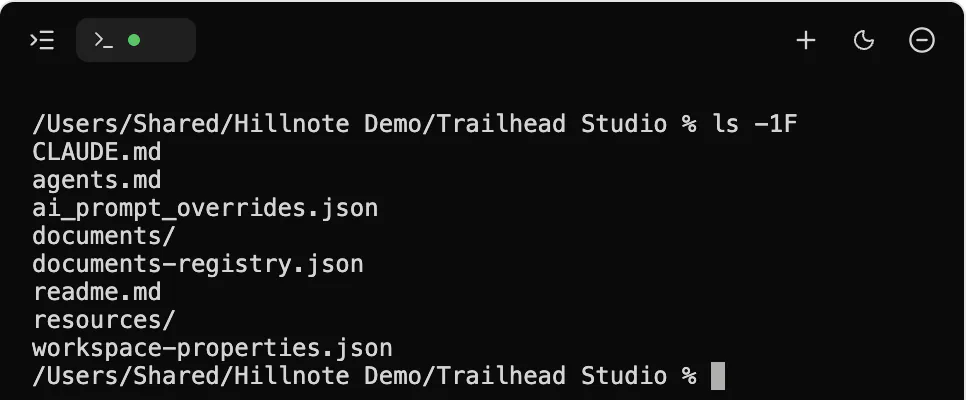
The web app at app.hillnote.com works on your synced workspaces, and its changes save straight to your Hillnote cloud.
What sync uploads
Sync is off for each workspace until you turn it on. Until then, the Sync tab says the workspace is only available offline on this device.
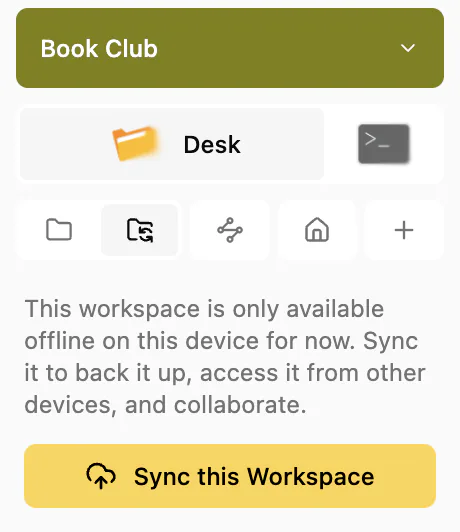
When you click Sync this Workspace, all its documents and resources upload to the cloud storage of the account you pick, and then stay in step. These never sync:
- your Notepad (
Notepad.md) - Hillnote's own folders, such as
.systemand.hillnote .gitandnode_modulesfolders,.DS_StoreandThumbs.db- any file over 100 MB
Deleted documents can usually be restored from the web app's Recently deleted list for 30 days. If you disconnect sync, your local files stay. If you own the workspace, disconnecting also deletes the cloud copy for everyone. See Sign-in to sync and unlock premium features!.
Sharing and publishing
You can only share or publish a synced workspace, and each choice decides who else can read your pages:
- Sharing a workspace gives the people you invite everything in it. They download it to their own computers.
- Sharing one page gives access to that page only, by email or by link. A link can be Restricted, open to Anyone with the link who signs in to Hillnote, or protected with Link + password. When someone opens a page you shared, you see their name and email address.
- Removing someone's access doesn't delete a copy they already downloaded to the desktop app.
- Publishing turns a whole workspace into a public website that anyone with the address can read. Comments show names but no email addresses. Pages you lock with Lock with password, moodboards, the contents of libraries and files outside
documents/are left out.
See Sign-in to sync and unlock premium features! for sharing and Publish for websites.
Local AI and cloud AI
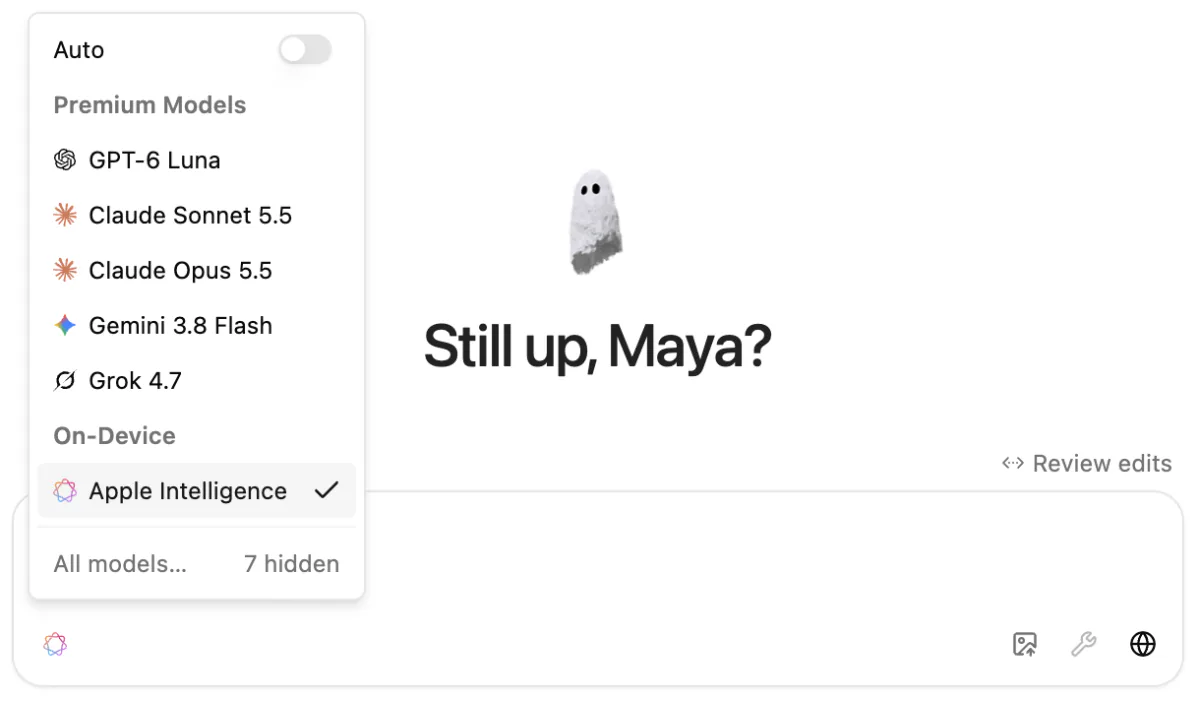
The model you pick decides where your words go:
- On-Device (Apple Intelligence) and Local Models run on your computer. Your text stays there, and they work offline.
- Premium Models run in the cloud. Your message, plus any page or text you attach, is sent over the internet to the model. They need an account, and use credits or your own key.
- Auto balances local and premium models. When something must stay on your computer, pick a local model.
On the home screen, search answers a question by itself only when it can use Apple Intelligence or a local model. Ask AI in search sticks to local models unless you pick another. Library search by meaning builds its index on this computer, with a small local model. See Local models and Chat with AI.
Voice, clipboard and selected text
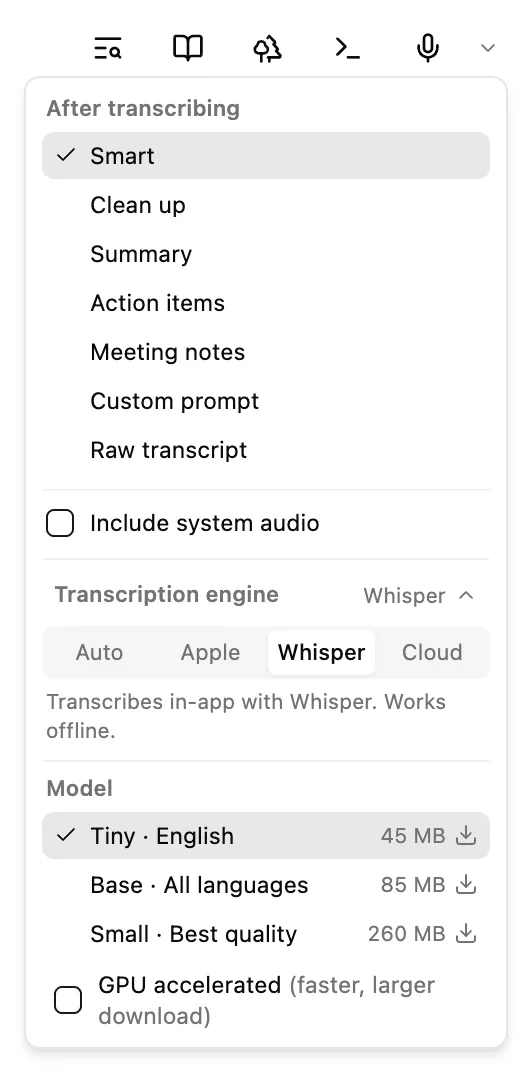
- In the desktop app, transcription can stay on your computer: Whisper works offline, and Apple transcribes on the Mac. Cloud uploads your audio and uses credits.
- With the Auto engine, audio stays on your computer too, except that with Whisper, recordings over 10 minutes go to the cloud if you're signed in.
- Tidying a transcript with AI uses free on-device AI when it can, and a cloud model for very long recordings if you're signed in.
- The voice assistant runs its voice session in the cloud (Hillnote cloud, or your own key), so what you say leaves your computer while it listens.
- With Read and write the clipboard on, a short preview of your clipboard goes to the assistant each time you hold the shortcut. Turn it off in Settings ▸ Voice to stop that.
- On a Mac, Accessibility access lets Hillnote notice your shortcut and read text you've selected while another app is in front. Nothing is recorded: keys are only compared against the shortcut.
See Dictation and voice and Quick capture.
Keys and sign-in
- Your sign-in is kept in an encrypted store on this computer.
- Provider keys in Settings ▸ API Keys are saved with your Hillnote account and encrypted at rest (AES-256-GCM). Hillnote checks each key with the provider first, never shows it again, and only uses it for your own requests. See Sign-in to sync and unlock premium features!.
- A voice key saved in Settings ▸ Voice stays encrypted on this computer and is never exported with your settings profile.
- Plugin secrets are encrypted on this computer, and removing the plugin wipes them.
- Account Sync, on by default when you're signed in, copies your app preferences to your account. Turn it off in Settings ▸ Advanced. See Customise Hillnote.
AI apps you connect
When you connect an AI app through local MCP (Claude Desktop, Claude Code, Cursor, Windsurf, VS Code (Copilot), Gemini CLI, Zed or Codex CLI), the connection runs on your computer. The app can then read and change the files in your workspaces, and what it does with them follows its own privacy terms. Terminal agents that use the hillnote command get the same access.
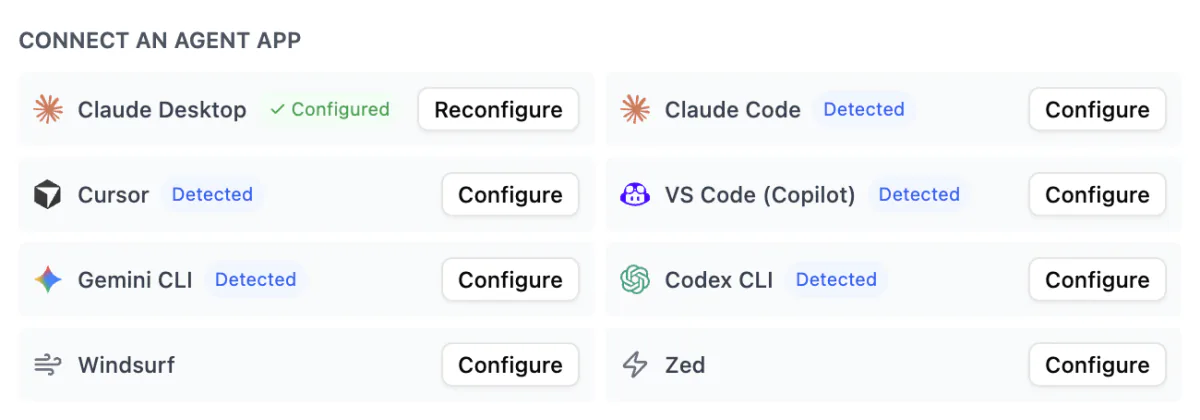
Hillnote asks for your approval before an agent can drive its interface. Review allowed and blocked agents under Agent interface control in Settings ▸ Connections.
Cloud MCP works over the web instead. An AI app connected this way can reach the synced workspaces you own or were invited to, once you sign in and click Allow access. To disconnect it, remove Hillnote from the AI app's connectors. See Connect your tools.
No tracking in Help
The Help panel never sends usage anywhere. What it remembers, such as the guides you've read, the tips you've dismissed and the features you've tried, stays on this device and never syncs.
Questions you ask Help are answered the same way as search: on your computer by default, and by a cloud model only if you pick one.
More details
For the details, read the Privacy Policy and how Hillnote keeps your files secure.