Local AI
The AI tab on the home screen is where you manage and download your local models. Hillnote has Ollama built in and supports models from Ollama and Hugging Face. Local models are free, work offline and keep your text on your computer.
Local AI is in the desktop app only: the web app at app.hillnote.com doesn't have it.
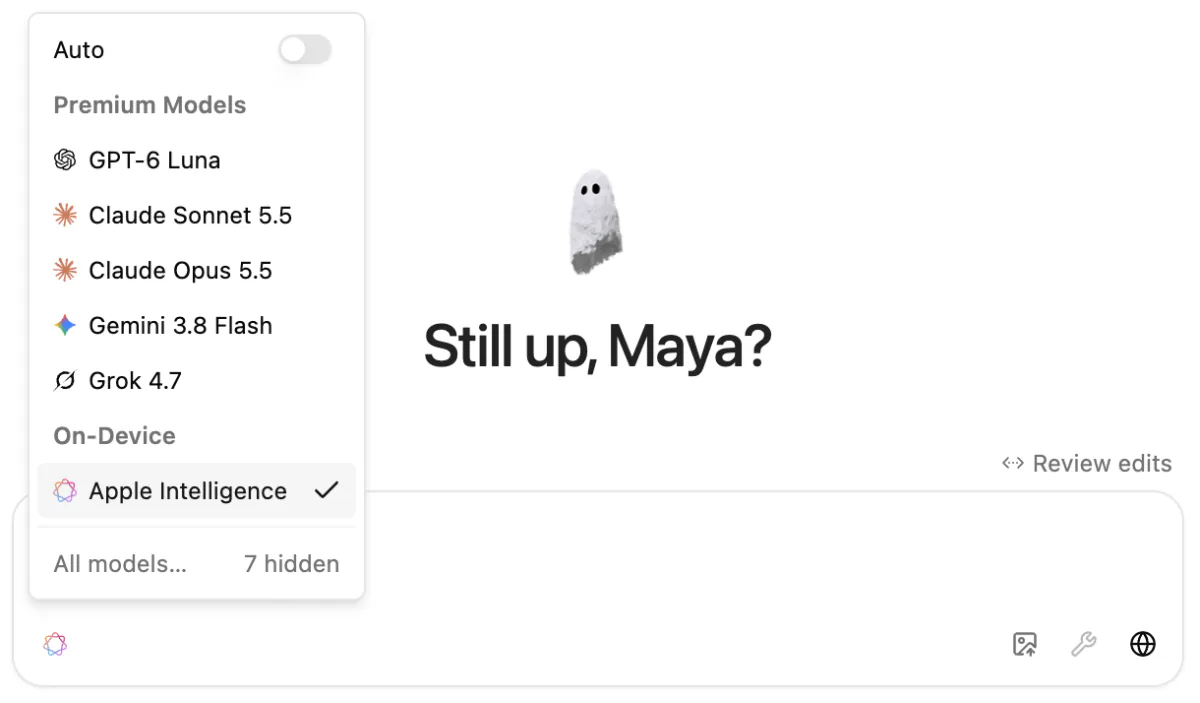
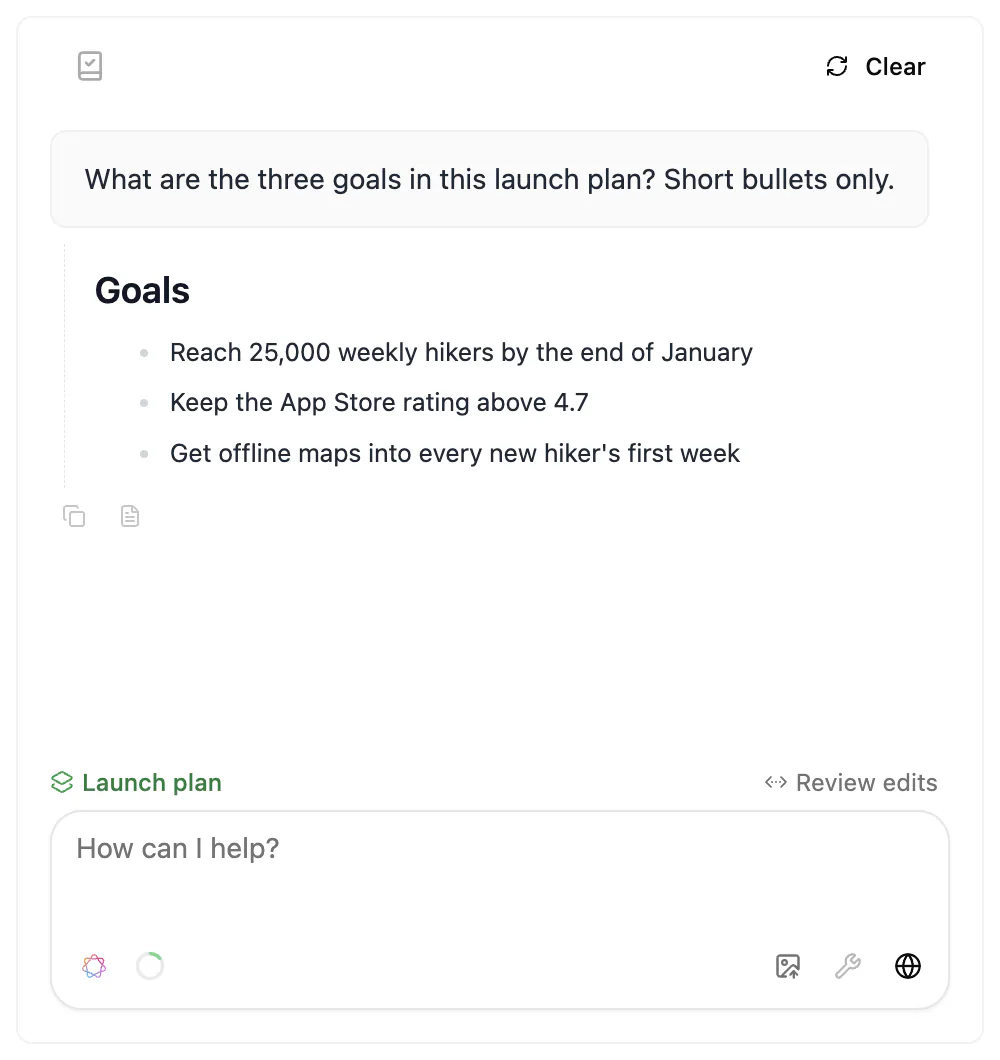
Local models work in Chat, the AI buttons in the editor, Ask AI in search and transcript clean-up. Pick them in any model menu under Local Models or On-Device. See Chat with AI, AI while you write and Dictation and voice for how each one uses them.
Downloading a model
When you set up Hillnote, the AI your way screen offers Gemma 4. Click Download Gemma and it downloads in the background while you carry on.
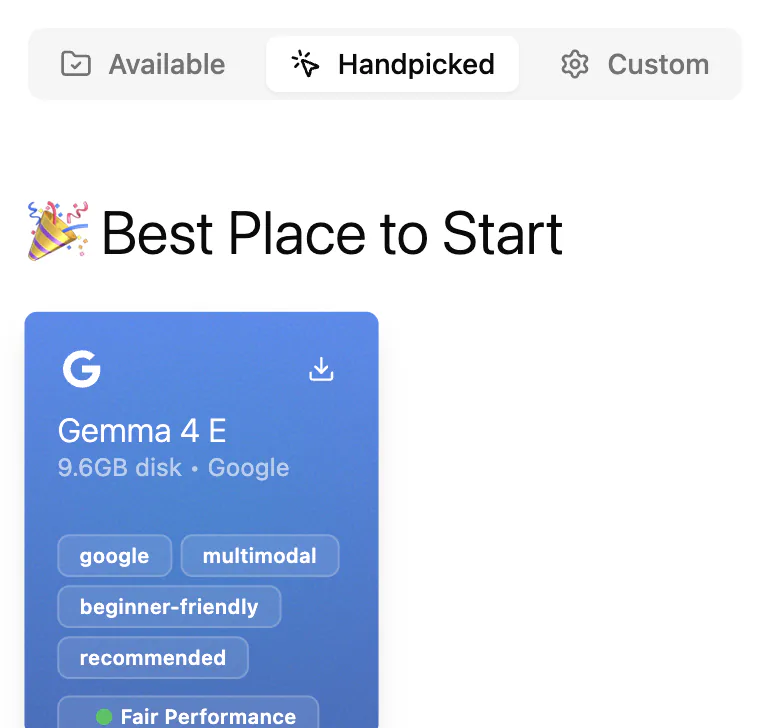
To download a handpicked model later, open the AI tab and click Handpicked. Hover a model and click its download button. 🎉 Best Place to Start is a good first pick. Each tile shows its disk size and how well it should run on your computer, from Excellent to Limited. Models that would run poorly stay hidden until you click Show All Models.
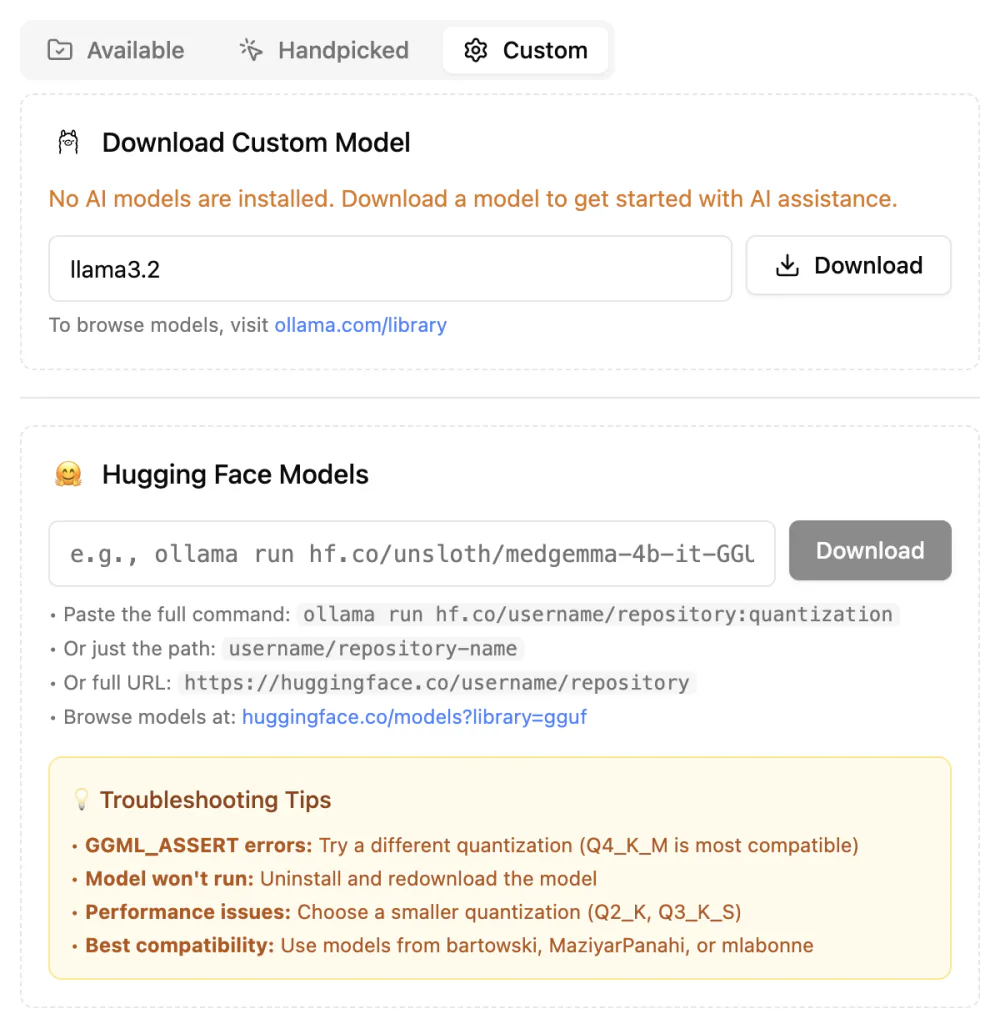
To download a custom model, open the Custom tab. Under Download Custom Model, type a name from the Ollama library, such as llama3.2, and click Download. Under Hugging Face Models, paste the model's path or its ollama run hf.co/… command. If a model won't run, 💡 Troubleshooting Tips suggests fixes. System Performance shows what your computer can handle.
Switching or removing a model
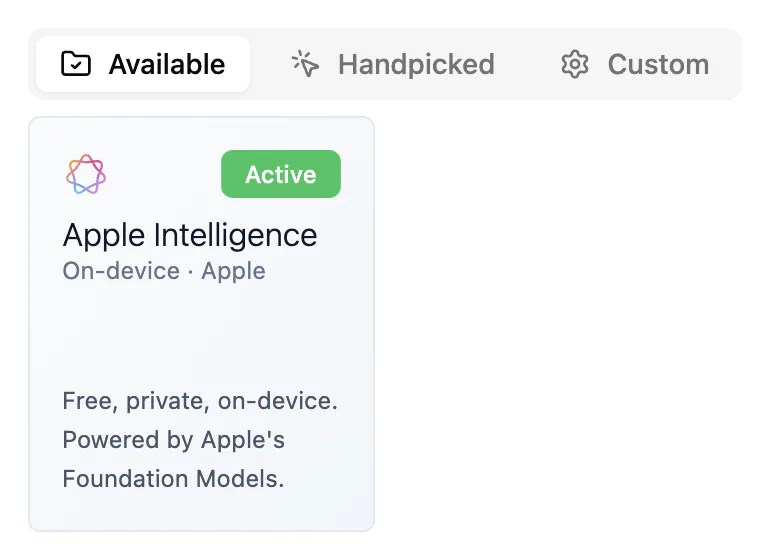
The Available tab lists the models on your computer. Hover a model and click the power button to make it active, or the bin to uninstall it. The active model's tile shows Active. You can't remove the active model, so switch first. You can also switch in Chat's model menu, or with Active Model in Settings ▸ AI. The Ollama on switch on the Available tab stops and starts the local AI engine.
To see every model you have in one list, open the Custom tab: Manage Installed Models has an Uninstall button for each one.
Using my Ollama
If you already have Ollama running on your machine, just restart Hillnote to switch to your system Ollama, with all the models you've downloaded. Hillnote checks whether Ollama is already running before starting its own, so there's no performance hit from a duplicate copy.
If your Ollama can't see the models Hillnote downloaded, Hillnote asks Can't find your models? Click Move models so both share one set, then restart Ollama from its menu bar or tray icon.
After an Ollama update, the AI tab may list some models under Stored twice by Ollama 0.40. Click Delete legacy copy to free the space; the model keeps working. Hillnote may also ask Update your local AI models? and offer fresh downloads.
Apple intelligence
On Macs where Apple Intelligence is available, the Available tab shows an Apple Intelligence tile (Free, private, on-device). Click Select Apple Intelligence to use it, or pick it under On-Device in any model menu in the App interface. There's nothing to download. It reads less at once than most local models, so very long pages are shortened to fit.
Configuring temperature and defaults
Settings ▸ AI lets you configure the model temperature, the default model and more:
- Active Model: the model Hillnote uses by default.
- Temperature: how focused (0) or creative (2) answers are.
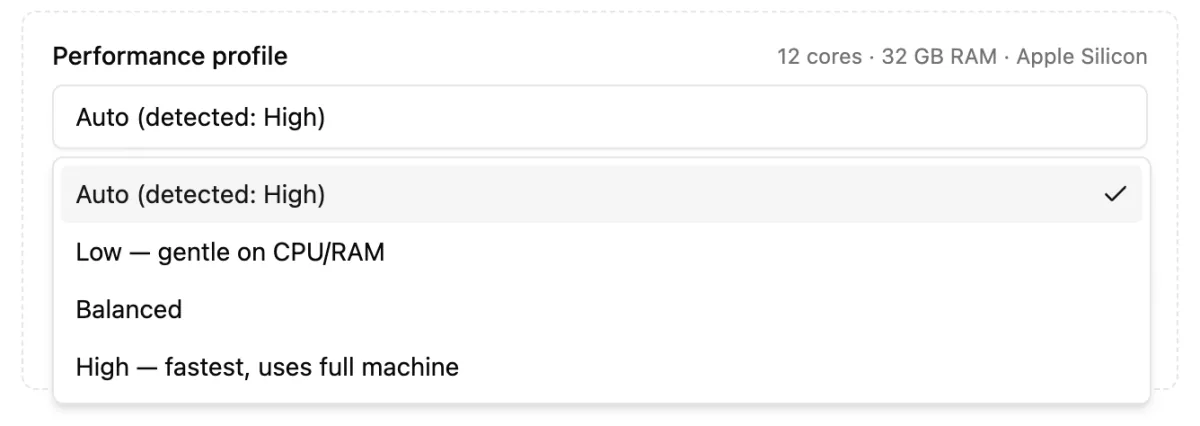
- Performance profile: Low — gentle on CPU/RAM, Balanced or High — fastest, uses full machine, or Auto (the default), which picks one for your computer and shows it, as in Auto (detected: High). Some changes apply after you switch Ollama off and on.
- Unload model when idle: frees memory between chats. The first message after a pause is slower.
These settings show while Ollama is running. If local models feel slow, choose a smaller model, or one rated Excellent or Good.
Privacy
Local models and Apple Intelligence run entirely on your computer. What you send them stays there, and they work without internet.
Premium models run in the cloud: your message and any pages it uses go to the model provider. Model menus keep the two apart. Local Models and On-Device stay on your computer; Premium Models don't. Ask AI in search sticks to local models unless you pick another one. More in Privacy and your data, and on premium models and credits in Chat with AI.