Chat with AI
Chat is your workspace's AI assistant. Ask it a question, have it write or edit a page, search your notes or organise your files, all without leaving the page you're on. It runs on premium cloud models once you sign in, or on free models that run on your own computer.
Open Chat
Press ⌘L, or Ctrl+L on Windows, or click Chat in the top bar. Chat opens in the side panel.
Type in the box (How can I help?) and press ↵ (Enter on Windows) to send. ⇧↵ (Shift+Enter on Windows) starts a new line. The conversation stays, even after you quit, until you click Clear.
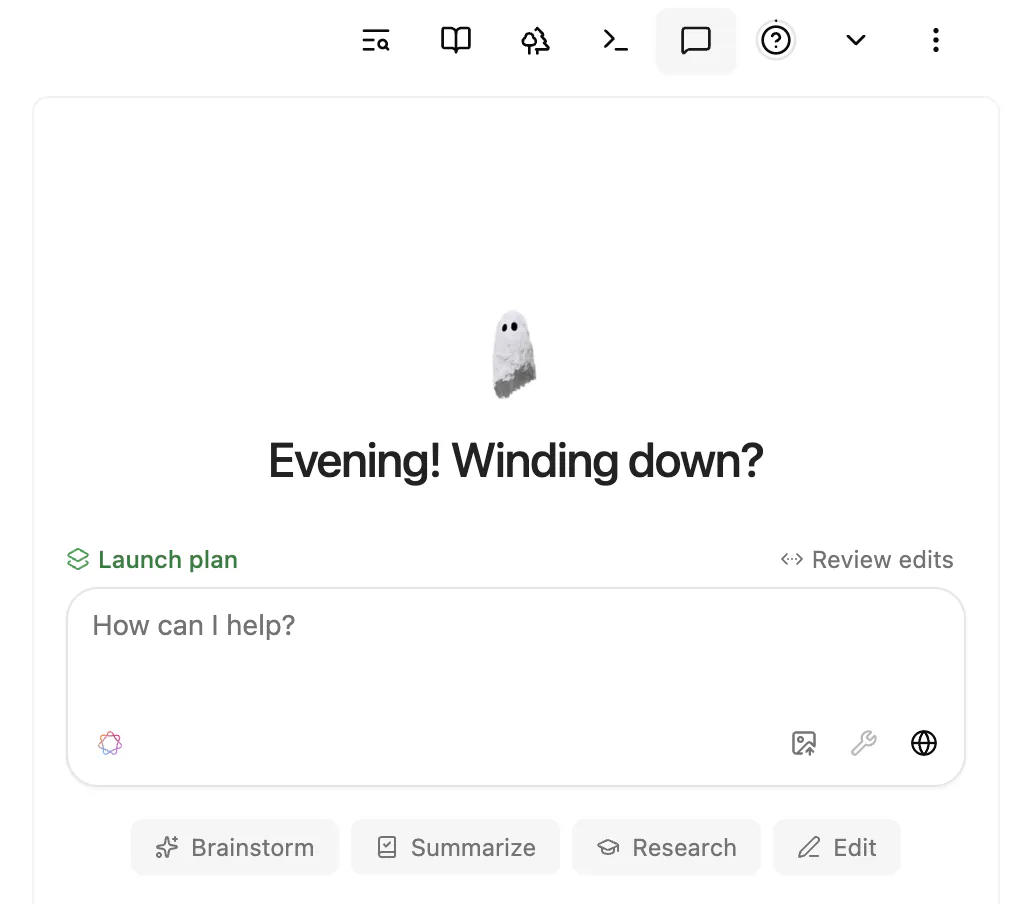
The Chat switch in Settings ▸ Editor shows or hides the top bar button. Floating Chat Button, in the same place, adds a floating one.
Choose a model
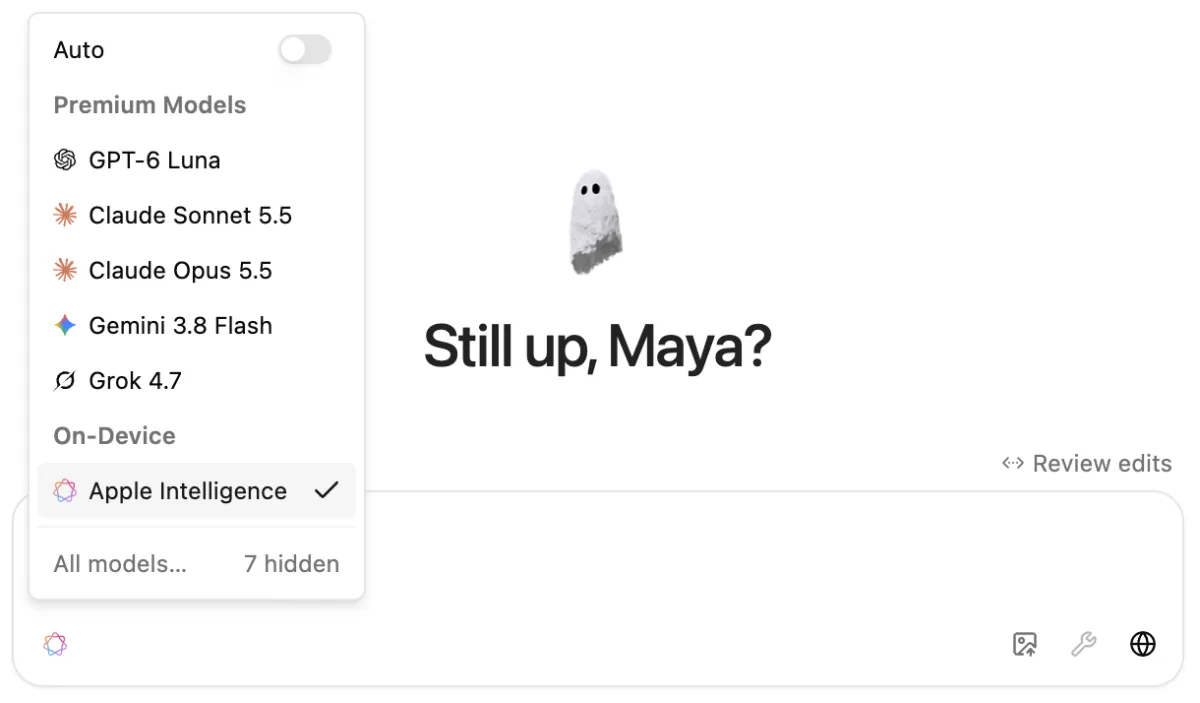
The model menu sits at the bottom of the message box.
- Auto picks a model for each message, mixing local and premium models. It appears once you're signed in. To limit it to one model family, switch on Only ChatGPT, Only Claude or Only Gemini under it.
- Premium Models are cloud models from OpenAI, Anthropic, Google and xAI. They need you to sign in, and they use credits.
- On-Device (Apple Intelligence) and Local Models run free on your computer, in the desktop app. See Local models.
The menu lists pinned models only. Click All models… and switch models on to pin them, or off to tuck them away.
What Chat can see
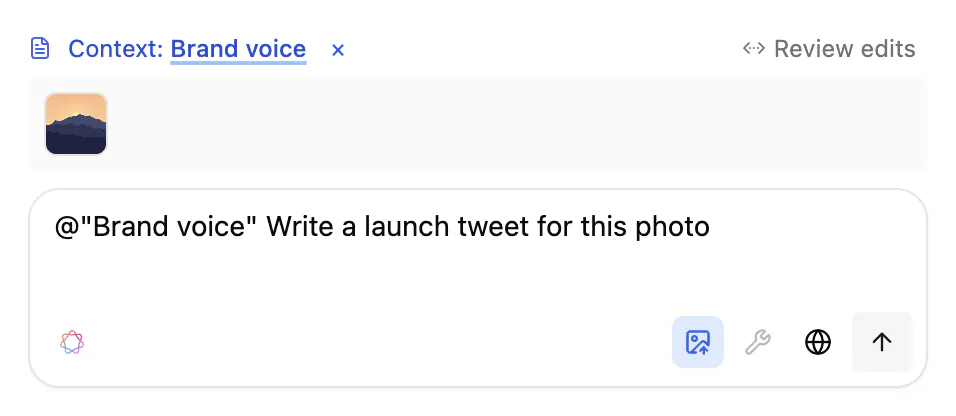
Chat reads the page you have open, or the open collection, slides or moodboard. The Context: line above the box shows what it's using.
- Type
@to add other pages or libraries. - Attach up to 4 images, or paste or drop them on the box.
- Once a chat has started, the book button at the top turns document context off. Click Document Context to turn it back on.
Page descriptions help Chat find things. To add them, click the workspace name at the top of the sidebar, choose Workspace Settings, then click Generate AI summary beside a page.
Review its edits
The button above the box, on the right, sets how Chat's edits land in your pages:
- Review edits (the default) puts each change in the page as a block showing Current and Proposed changes, or AI suggestion for new text. Click Accept changes, discard changes or Both.
- Auto-accept edits writes changes straight away. Version history can take you back.
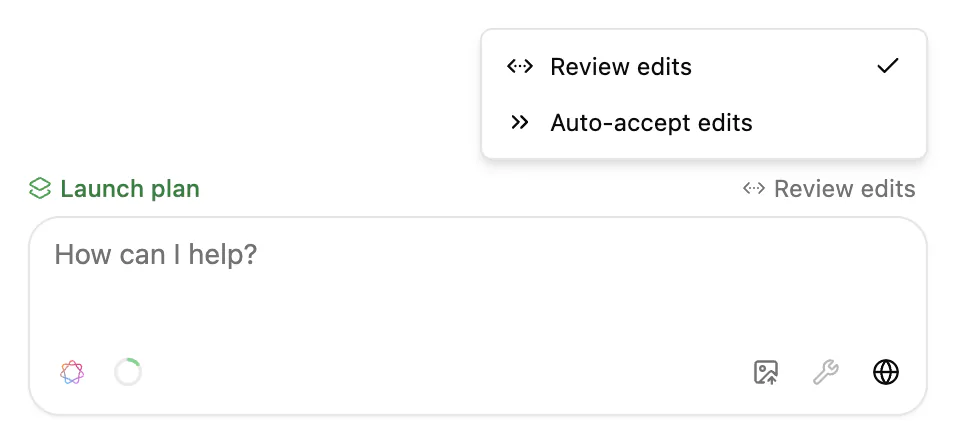
Until you choose, the page keeps both versions. Chat always asks before it deletes a page: click Accept or Decline. Under an answer, Add to editor inserts it at your cursor.
Buttons and commands
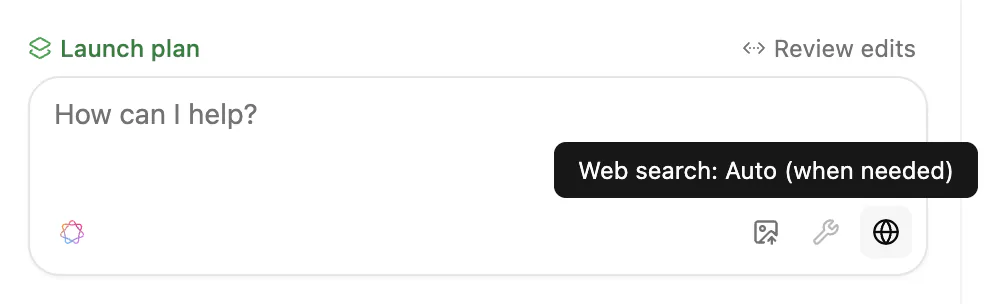
The buttons under the box change how Chat answers. Hover one to see its state.
- The globe (Web search: Auto (when needed)) lets cloud models search the web.
- Local models also get Thinking: Off and Tools: Off buttons. Tools let a model read and edit your workspace. Cloud models use them while document context is on.
- Stop ends an answer early.
In Auto, Chat decides these for you, and the buttons are hidden.
Type / in the box for commands:
/switchopens the model menu./compactsummarises the chat so far and starts fresh./clearclears the conversation.- Your recipes, the saved prompts you can also run in a page, appear here too. See Automations.
Long chats are summarised automatically too.
Other ways to ask
You don't have to open Chat first:
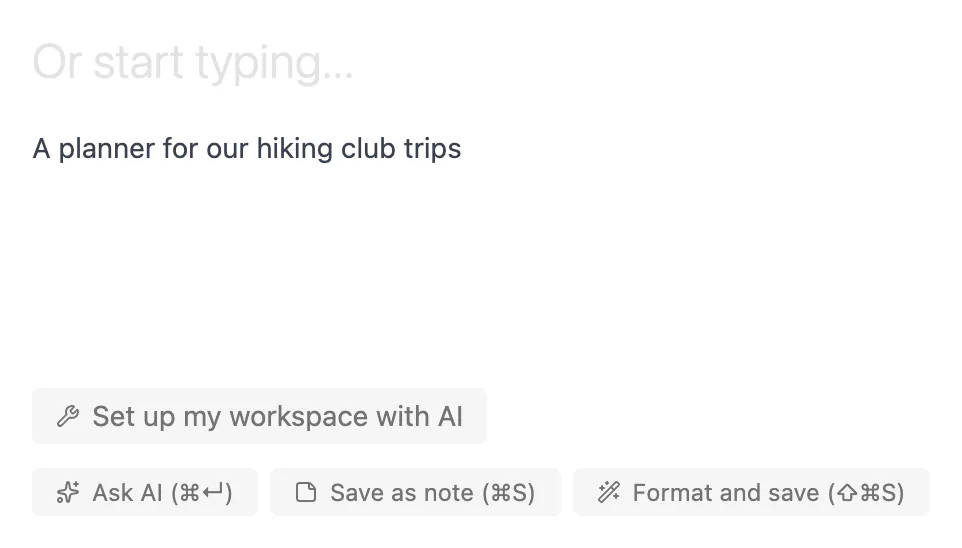
- From a workspace's home page: type a question in the box (What are you thinking?) and click Ask AI (⌘↵, or Ctrl+Enter on Windows). Chat opens with your text.
- In an empty workspace: describe what it's for on its home page and click Set up my workspace with AI for starter folders and pages.
- To tidy a thought: Format and save (⇧⌘S, or Ctrl+Shift+S on Windows) has your local model tidy what you typed into a new page, keeping the original in a collapsed section.
- After dictation: if a transcript couldn't be tidied, Clean up with AI in the notice has Chat make meeting notes from it.
The instructions every model gets are in System Prompts under Settings ▸ Advanced.
More AI works outside Chat. Select text or type / in a page for AI actions and Ask AI (AI while you write). Talk to the same assistant in voice mode (Dictation and voice). Hand requests to the coding agents you use (Agents in your workspace). The workspace home's other buttons are covered in Quick capture.
Ask AI from search
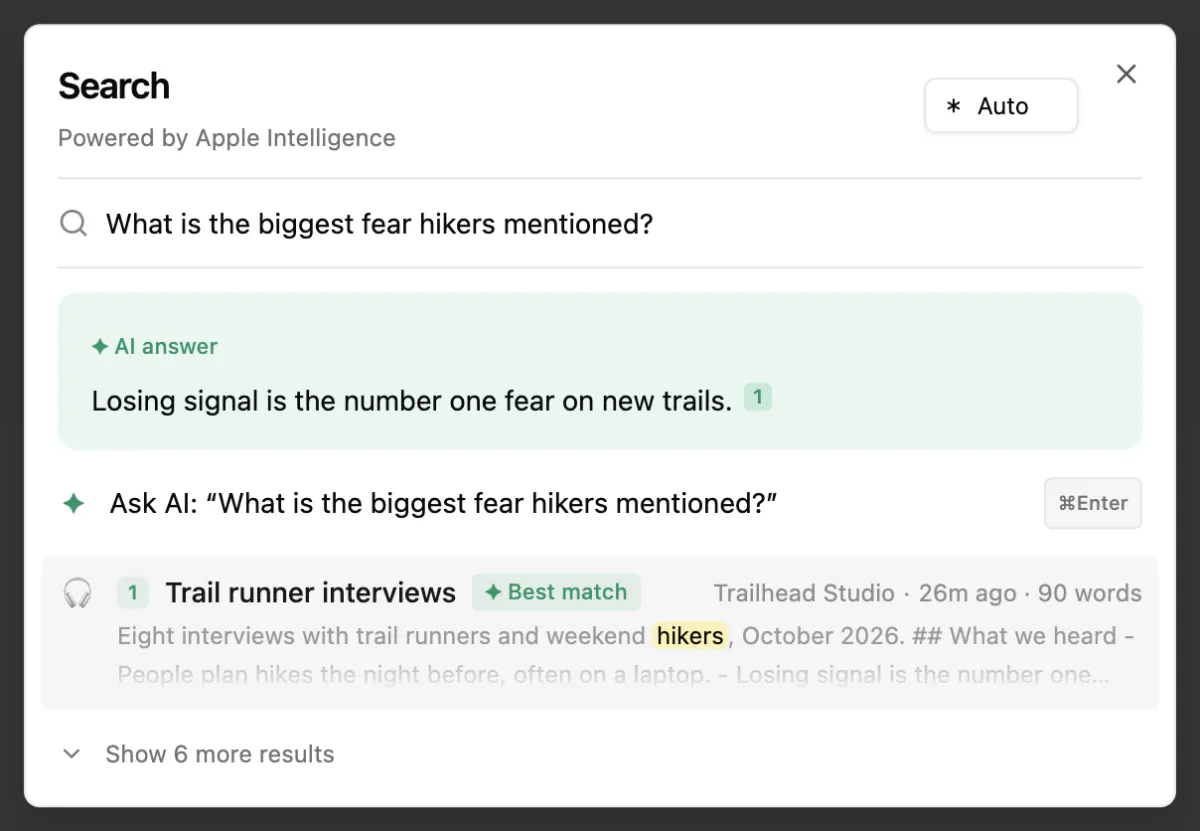
On the home screen, ⌘K (Ctrl+K on Windows) searches every workspace. For an answer, choose Ask AI: “…” at the top of the list, or press ⌘↵ (Ctrl+Enter on Windows). The answer appears above the search results. It's written from the best matches, with numbered links to its sources.
The model menu at the top right starts on Automatic (local engines only), so your notes stay on your computer. A cloud model picked there uses credits, and it doesn't change your Chat model. See Search in App interface.
Credits, local models or your own keys
- Premium cloud models need you to sign in, and use your plan's credits.
- Local models and Apple Intelligence are free and work offline. They're in the desktop app only.
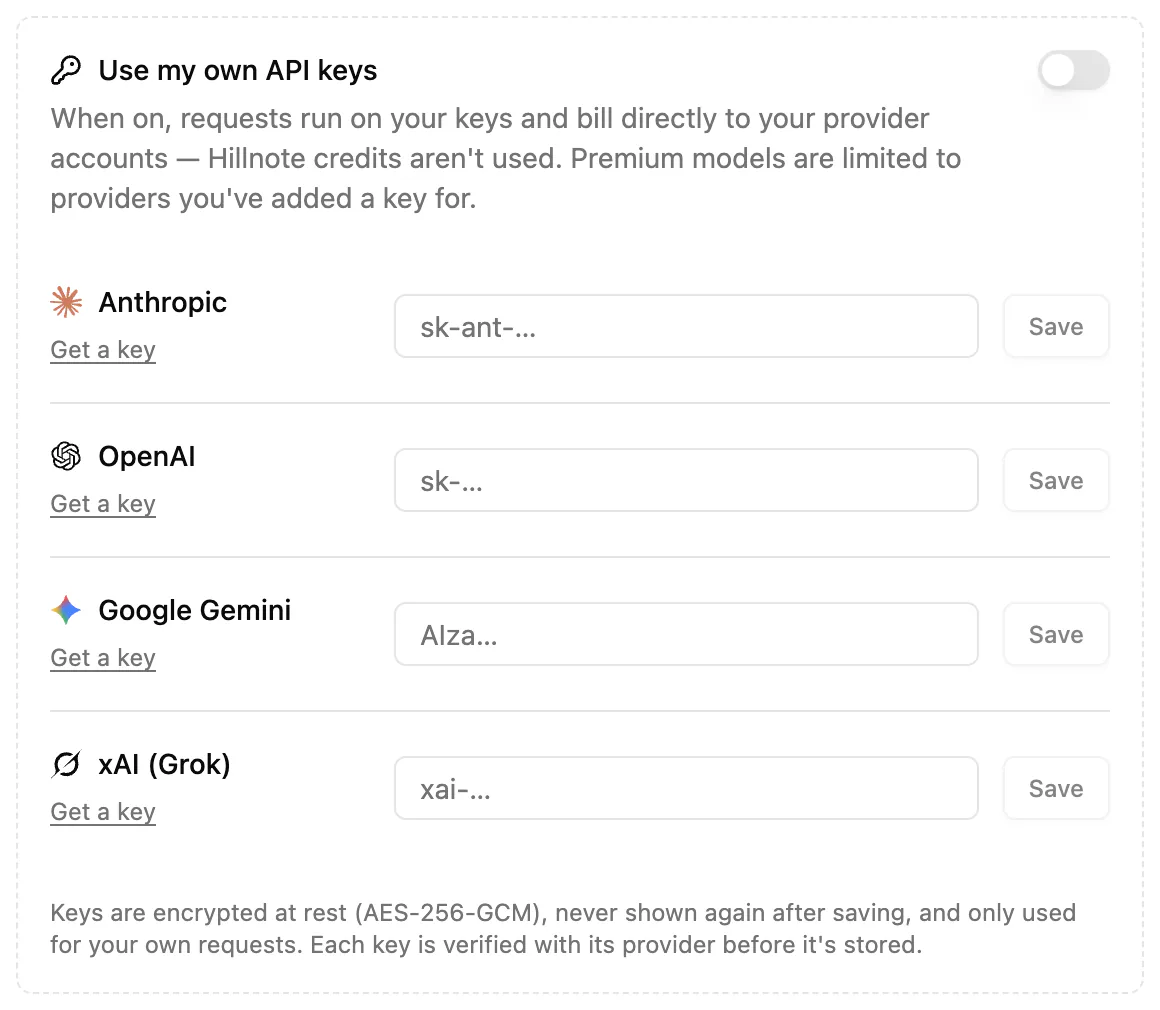
- Your own keys: on Plus, Pro and Ultra, open Settings ▸ API Keys, add a key for Anthropic, OpenAI, Google Gemini or xAI (Grok), then turn on Use my own API keys. Requests then bill your provider accounts, not your credits. Each key is verified with the provider and stored encrypted.
What each plan includes is under Plans and credits in Sign-in to sync and unlock premium features!. For current prices, see the pricing page.