Agents in your workspace
Hillnote can hand work to the coding agents you already use. Ask one a question from any page, follow it in the Terminal panel, or delegate a card on a board to it. Agents work on your workspace's files directly, so they can read your notes and edit your pages.
Agents are in the desktop app only: the web app at app.hillnote.com doesn't have them.
Agents you can use
Hillnote works with five agent command-line tools: Claude Code, Cursor, Codex, Antigravity and GitHub Copilot. Each one runs in Hillnote's Terminal, on your own account, in the workspace folder, so it can read and edit your pages.
Claude Code, Cursor and Codex are on at first. Switch each one on or off under Mention CLIs in Settings ▸ AI, and pick its Model (each starts on Automatic (last used)).
To connect AI apps in other ways, over MCP or with the hillnote command, see Connect your tools.
Ask an agent from a page
- Type
/and the agent's name (/claude,/cursor,/codex,/antigravityor/copilot), then choose its Ask item: Ask Claude, Ask Cursor, Ask Codex, Ask Antigravity or Ask GitHub Copilot. - Pick This document or another page.
- Type your request (
@adds pages) and press ↵ (Enter on Windows).
Or type @claude, @cursor, @codex, @antigravity or @copilot and a space, write your request after the chip, and press ↵ (Enter on Windows).
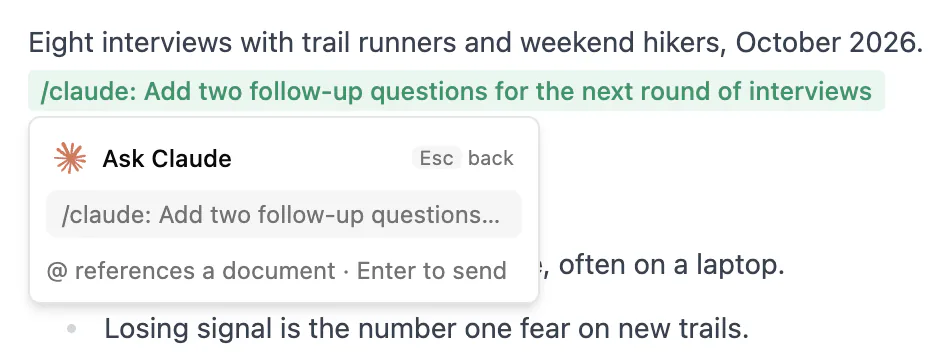
Hillnote starts the agent in a terminal, with a progress pill at the bottom right. The answer appears below your request. To cancel while it waits, click the chip.
To send every / Ask AI to an agent, pick the agent under Switch Model ▸ Send to a CLI. See AI while you write.
The Terminal panel
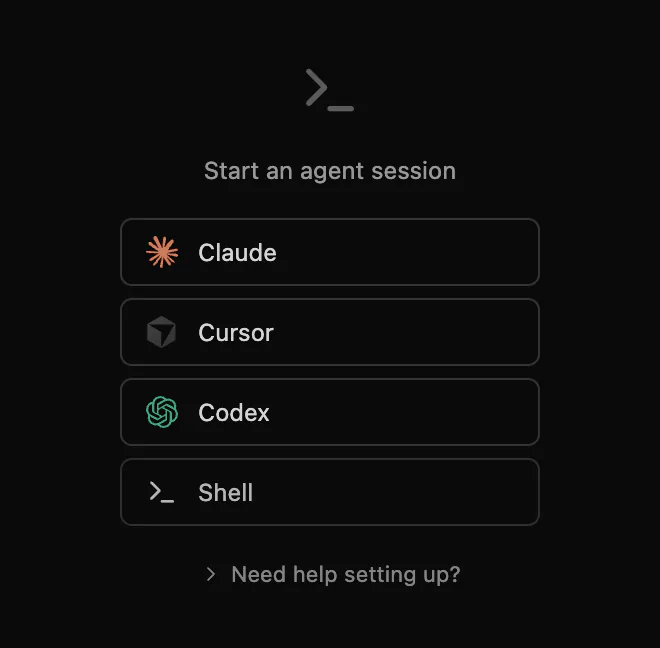
Click Terminal in the top bar to open the panel. With nothing running, it offers a button for each agent and Shell.
- New session (+) starts another session in the workspace folder. Up to 8 can run at once.
- All sessions shows each one as working, needs input, done or exited. Double-click a name to rename it.
- Close session ends one.
Sessions keep running when you close the panel. Sessions started from a page or a board close by themselves when they finish.
To give each agent its own top bar button, turn it on under CLI Tools in Settings ▸ Editor.
Install an agent
In an empty Terminal panel, click Need help setting up? to see which agents are installed.
- For a missing agent, click Install.
- Check the command, then click Run in terminal.
- When it's done, click Recheck.
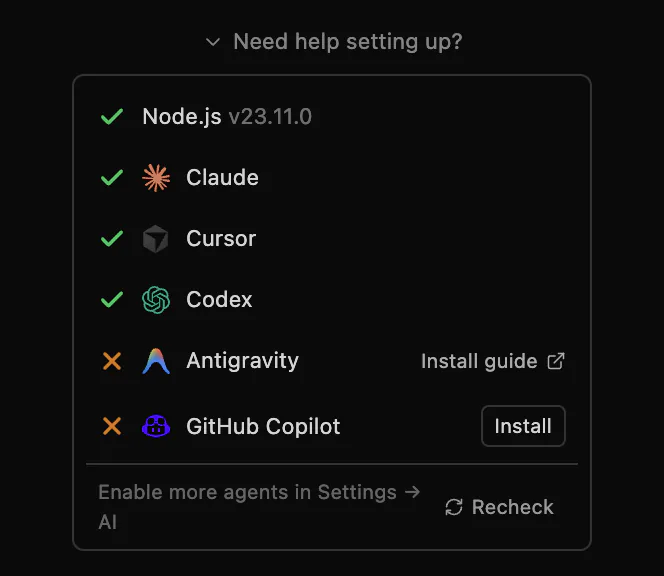
Agents without a one-line installer show Install guide instead. Some installers need Node.js 18 or later (Get Node.js). Fix PATH helps when an agent is installed but can't be found.
If you ask an agent that isn't installed, Hillnote says so, with a link to install it.
Approvals
Agents started from a page run as they do in your own terminal, so they ask before running commands or changing files if their settings say so. When one is waiting, its session shows needs input and the progress pill says it has a question. Click the pill and answer in the terminal.
Board agents use Ask first unless you choose Auto-approve, which runs commands and edits files without asking. Use Auto-approve only for work you trust.
Delegate board cards
On a board of a collection or sheet (see Database):
- Hover a card, click its ⋮ button and choose Delegate to agent.
- Pick an agent, or choose With instructions… to add notes, set Permissions and pick a status for When the agent is done.
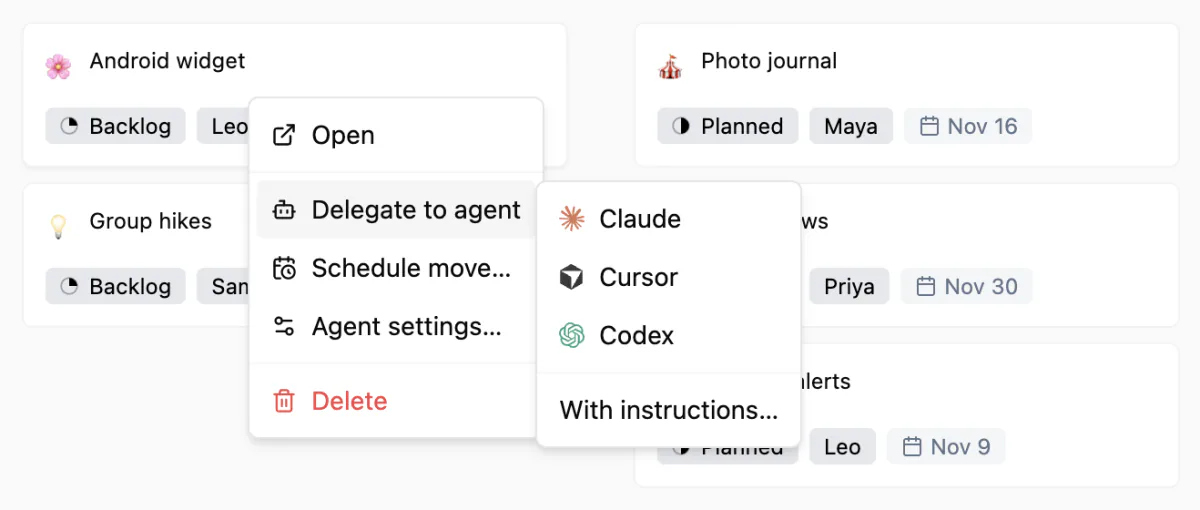
While the agent works, the card offers Open agent terminal, and its ⋮ menu has Stop agent.
Agent settings…, in the same menu, opens the board's Agents tab: the Project folder agents run in, plus the board's defaults. Cards can also start agents when they move: see Automations.
agents.md and CLAUDE.md
Every workspace has an agents.md and a CLAUDE.md at its top level. They tell any agent how the workspace is organised and how to work in it, including how to use the hillnote command (see Connect your tools). Hillnote writes them and refreshes them after updates. To read one in Hillnote, choose File ▸ Open File….
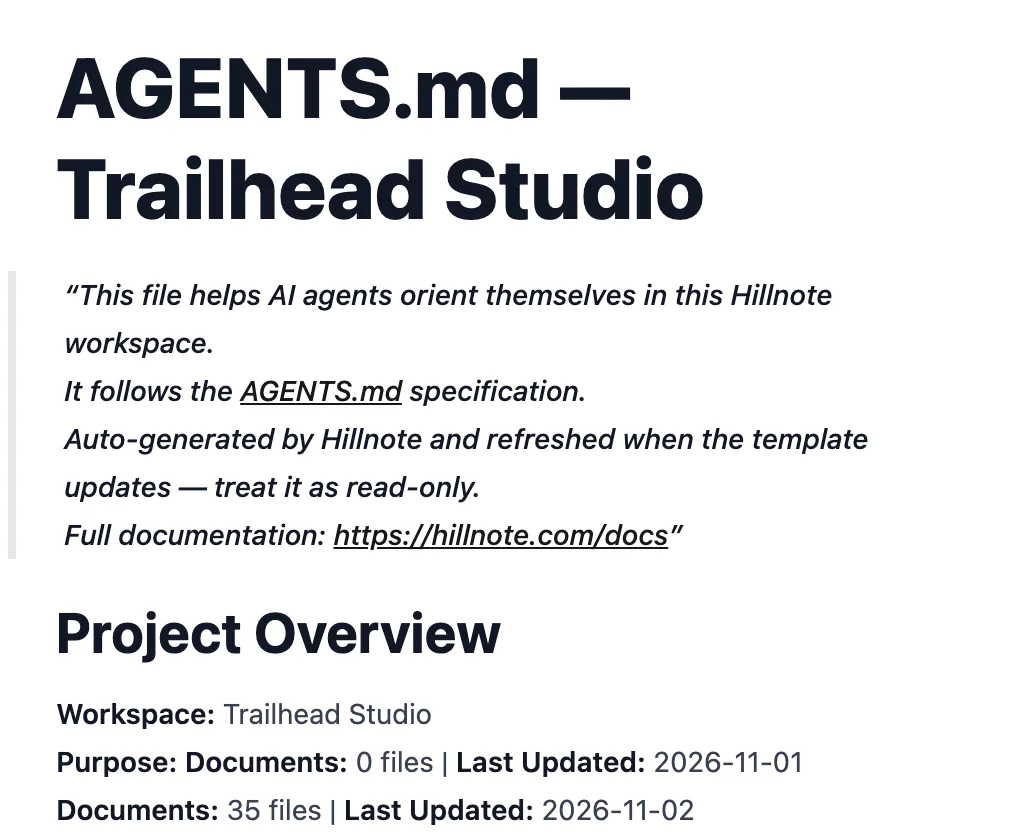
To use your own instructions, replace a file's entire contents. Hillnote's automatic refreshes never overwrite a file it didn't write. Opening a folder as a workspace, or changing the workspace's name or description in Edit Workspace, does rewrite both files, though, so keep a copy of yours. See Files and folders.
Agent memory
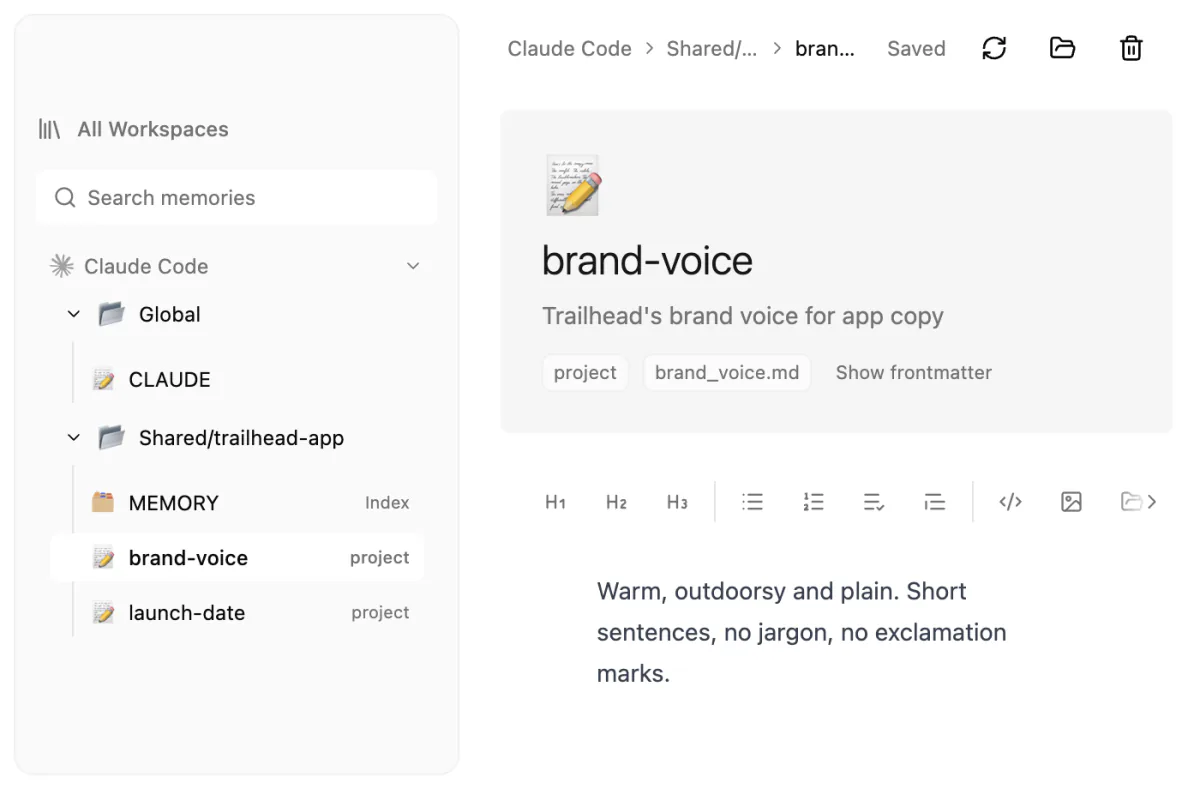
Coding agents keep memory files on your computer, and Hillnote can edit them. On the home screen, open Workspaces, then the Agent memories tab: an icon at the end of the tab row. The tab appears once Hillnote finds memory files.
It finds memory from Claude Code, Codex, Gemini CLI, Cursor and Windsurf. Your edits go straight into the agent's own file, changing only the lines you touch.
- Show in folder finds a file on your computer.
- Move to Trash deletes one.
- If an agent changes the same lines while you edit, choose Keep mine, Use theirs or Copy mine.
To run agents on coding projects of their own, see Coding projects. Agents can also build tools for your workspace: see Tools.