Workspace templates
A workspace template is a ready-made workspace for a kind of work, such as a research project or a product team. Instead of starting from an empty folder, you get pages, collections and tools that are already set up, with a start page that explains how to use them. Start a new workspace from a template, or add one to a workspace that's still empty. Everything a template adds is yours to change.
What a workspace template is
A template can come with pages, collections, sheets, slides, boards, libraries, tools and plugins. Each one is MIT licensed, and its source is public.
Installing a template copies its files into a workspace folder, so they're yours to change. Most templates open on their start page, usually called Start here, which explains how to use them.
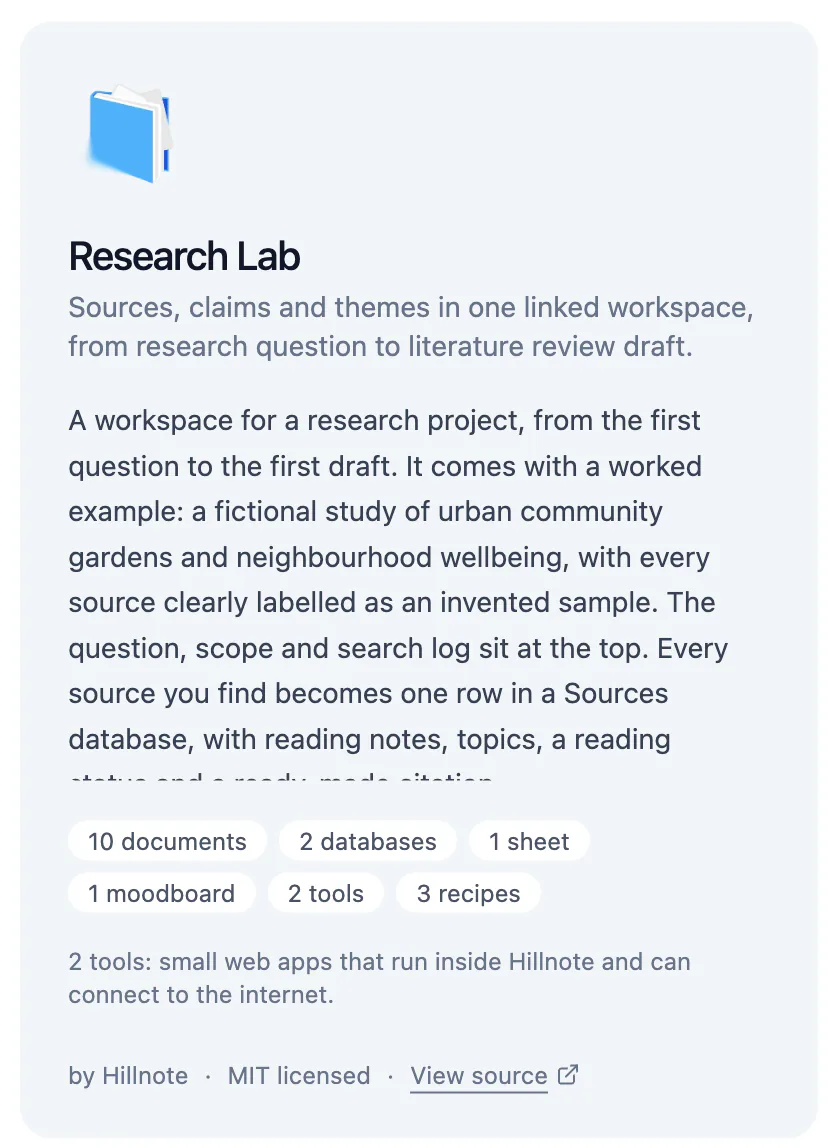
You can also browse templates on the website at hillnote.com/templates. Open in Hillnote there opens the template in the app.
Browse the gallery
The template gallery is in the desktop app only: the web app at app.hillnote.com doesn't have it. Open it in any of these ways:
- On the Workspaces screen, click Create Workspace, then From a template.
- On an empty workspace's home page, click Browse all templates.
- On hillnote.com/templates, click Open in Hillnote on a template.
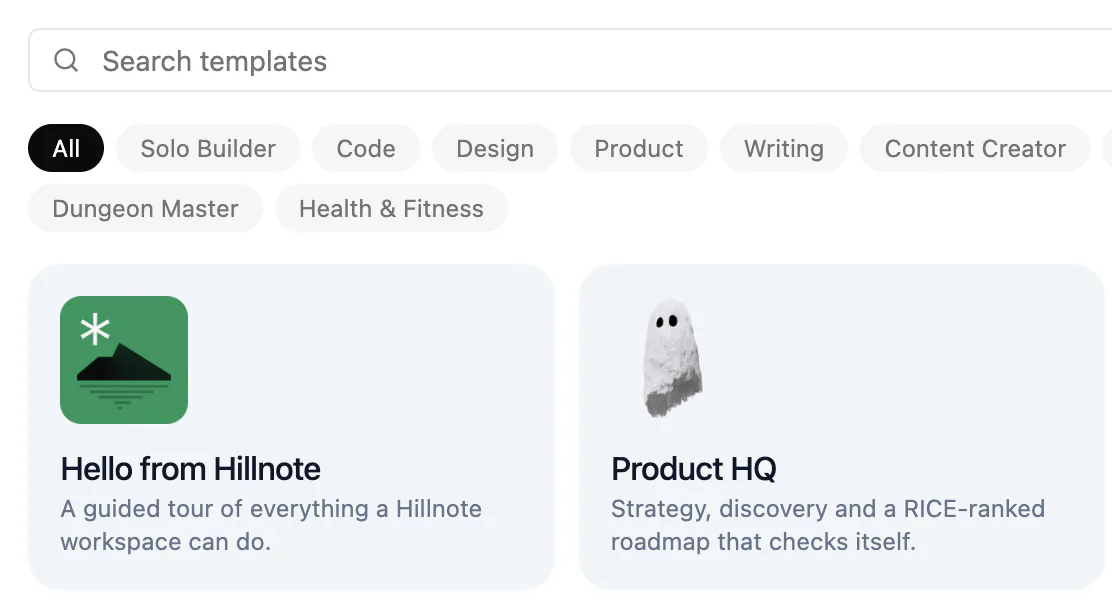
Type in Search templates, or click a chip to filter by setup. Click a template to see what's inside, who made it and View source; All templates takes you back to the list.
If the list can't load, check your connection and click Retry. Meanwhile, Hillnote may show the templates saved on this computer.
Start a workspace from a template
- In the gallery, click a template.
- Check the Name and Location. The location starts as the Hillnote folder in Documents; click Browse to change it.
- Click Create workspace.
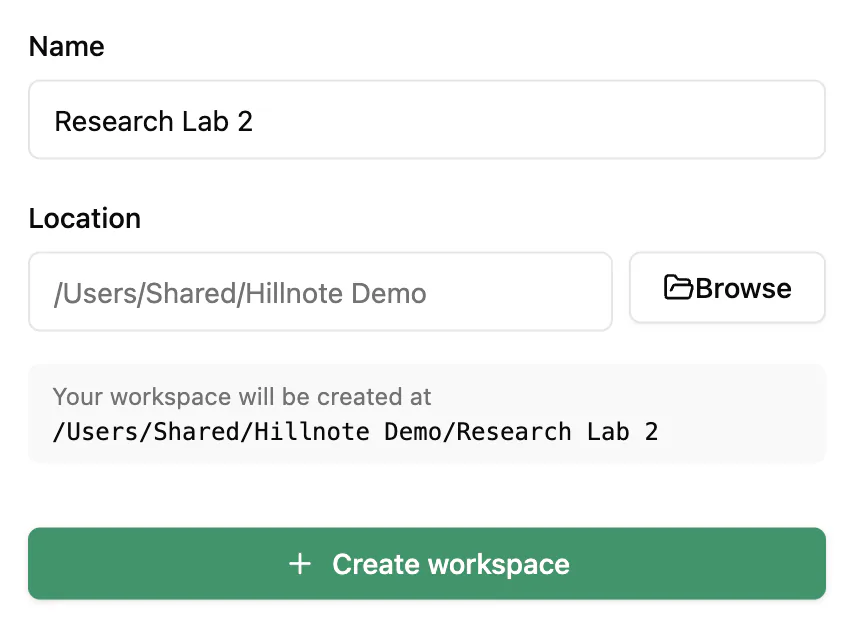
Hillnote downloads the template, creates the workspace and opens it at its start page. If a folder with that name is already there, Hillnote suggests a free name that you can use with one click.
Fill an empty workspace
A workspace with nothing in it shows Start from a template on its home page, with a few suggestions. Ones that match the setup you chose when you first started Hillnote come first. This is desktop app only.
- Click a suggestion, or Browse all templates.
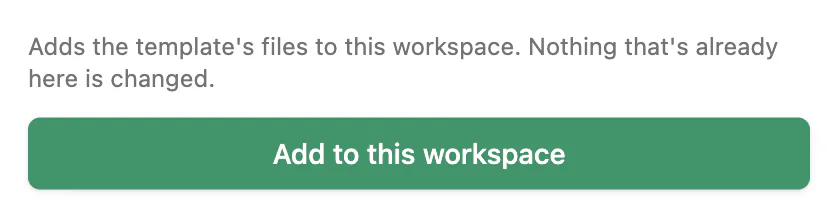
- Click Add to this workspace.
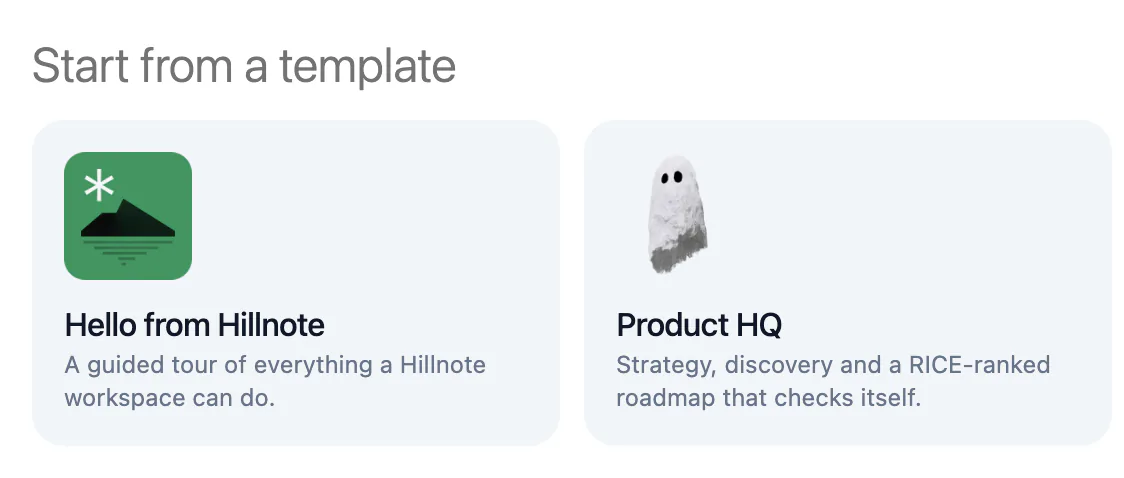
The template's files are added to the workspace you're in, and its start page opens. Nothing that's already there is changed.
What installing does
- Nothing is overwritten. If a file with the same name exists, Hillnote keeps yours. Shared lists, such as variables, page properties and recipes, only gain the template's new entries.
- Plugins arrive turned off. You'll see “This template added a plugin. It stays turned off until you review it.” Click Review plugins to see what each one can do before you turn it on.
- Tools are small web apps that run inside Hillnote and can connect to the internet. Tools and plugins are both covered in Tools.
- No settings or triggers. A template can't change your app settings or add triggers (see Automations).
- Dates move to this week. Sample dates in collections and sheets shift to the week you install, so they look current.
If a template needs a newer version of Hillnote, update the app first.
Page templates
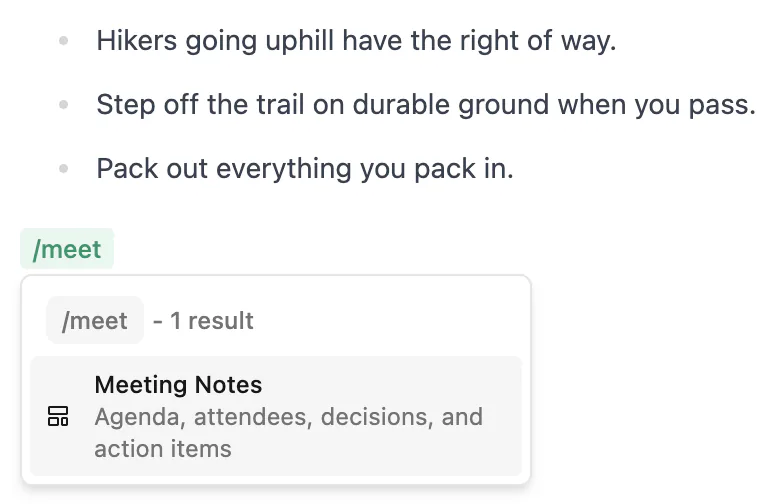
Page templates are something else: ready-made blocks of content, such as Meeting Notes or Weekly Review, that you insert into any page in any workspace.
- To insert one, type
/in a page, type part of its name and press ↵ (Enter on Windows). - To manage them, open Settings ▸ Templates. Click New to make your own: fill in Name, Description, Category, Keywords and Content, then click Create. Reset restores the built-in set.
More on page templates in Customise Hillnote.
The Templates item in the sidebar's Create new (+) menu is different again: it makes ready-made kinds of collection, such as a task list, calendar, blog or map. See Database.