Files and folders
A Hillnote workspace is an ordinary folder on your computer, and each page in it is a plain Markdown file. Nothing is locked inside the app. You can back up a workspace like any other folder, open your pages in other apps, and let AI agents work on them directly. This page shows how a workspace is laid out on disk and how to work on its files outside Hillnote.
This is how the desktop app stores your work. The web app at app.hillnote.com doesn't keep workspaces in folders on your computer, so none of this applies there.
A workspace is a folder
Every workspace is an ordinary folder on your computer. New ones go in a Hillnote folder inside your Documents folder, unless you pick another Location when you create the workspace (see Create workspace in App interface).
Copy or back up a workspace like any other folder.
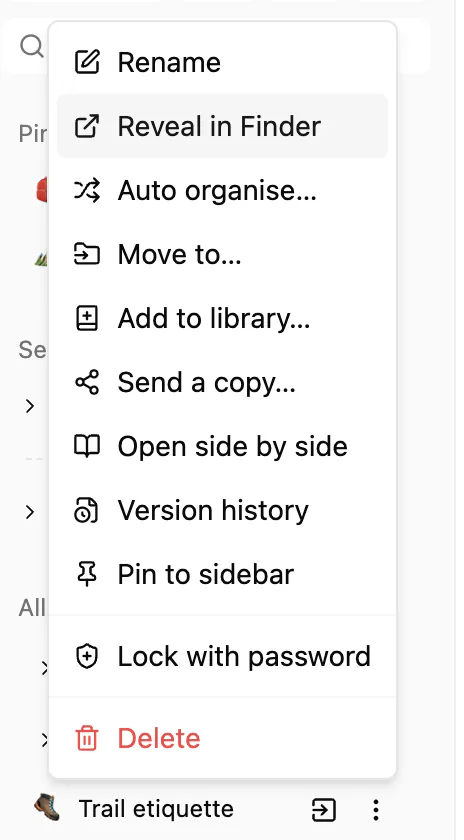
To find a file, hover over it in the sidebar, click ⋮ and choose Reveal in Finder (Reveal in File Explorer on Windows). Finder or File Explorer opens with the file selected. The workspace folder is the one that holds documents/ and resources/.
What's inside
| Item | What it holds |
|---|---|
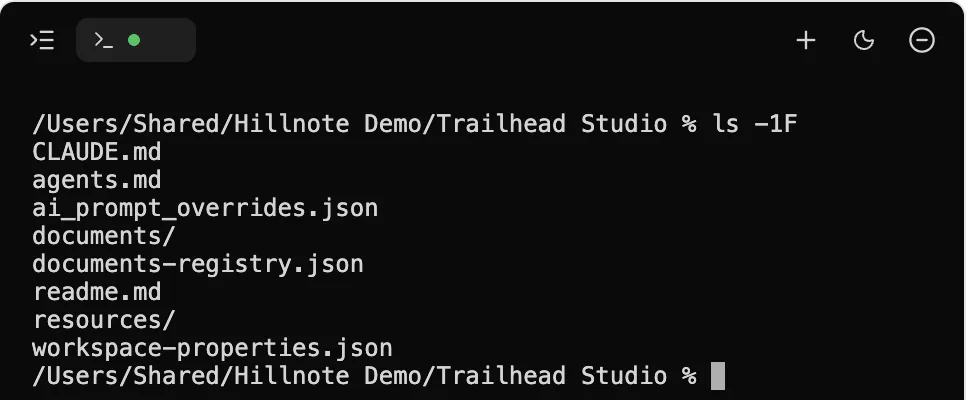
documents/ | Your pages, folders, collections and sheets. Only this folder shows in the sidebar. |
resources/ | Images and attachments your pages use. |
documents-registry.json | Page icons, order, pins and descriptions. |
readme.md, agents.md, CLAUDE.md | Notes that explain the workspace to AI. See Notes for AI agents below. |
Inside documents/, the quicknotes, imports and recordings folders hold the sidebar's Quick Notes, Imports and Recordings.
At the top level, next to documents/, you may also see these files:
| File | What it holds |
|---|---|
dashboard.json | The workspace home's dashboard and which view it opens on. |
workspace-properties.json | The name and type of each page property you've used. See Page properties below. |
variables.md | Your workspace variables. |
ai_prompt_overrides.json | Your recipes: saved prompts you run with / in Chat or in a page. |
cover.png (or .jpg, .webp…) | The image on the workspace's tile, if you uploaded one. |
Workspaces that use them also have a plugins/ folder for plugins and a builds/ folder for coding projects, and tools live in resources/html/. See Tools and Coding projects.
Hidden folders such as .system and .hillnote hold app data, such as your version history, and don't sync. Leave them alone. For what does leave your computer when you sync, see Privacy and your data.
Pages are Markdown files
Each page is a Markdown (.md) file, and its name is the file name. Renaming a page renames its file. Characters that files can't use, such as / or :, are left out.
Other items are files too:
- Slides end in
.slides.md, and boards in.moodboard.md. - A collection is a folder with a
database.jsonfile and one.mdfile per row. - A sheet is a folder with a
sheet.jsonfile and adata.csvfile.
See Slides, Moodboards and Database for each of them.
Images you paste are saved in resources/images/, in a folder named after the page. To see what a page looks like inside, and how links, topics and other extras are written in it, see Pages and the Complete formatting guide.
Page properties
Properties are labelled values at the top of a page, such as a status, a date or tags. To add one, hover over the page title and click Add property, or type / and choose Add property.
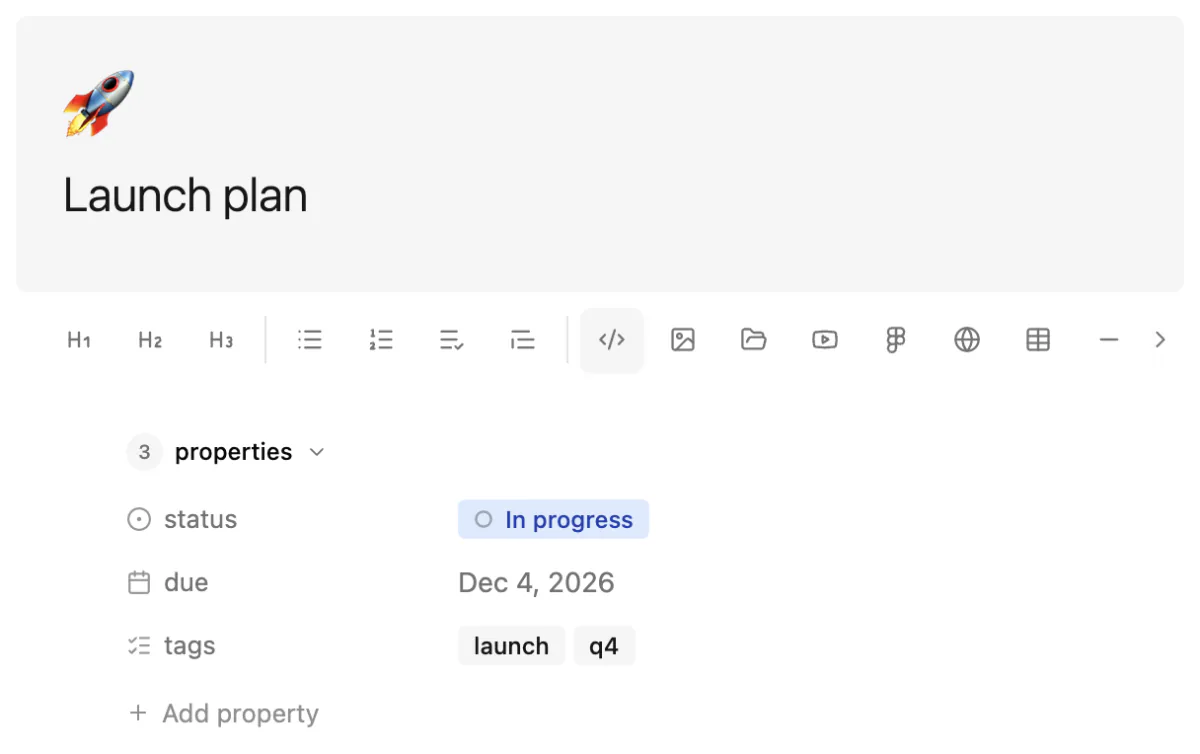
In the file, properties are a block between two --- lines at the very top, with one name: value per line, such as status: In progress. This is standard YAML frontmatter, which many Markdown tools understand. Hillnote remembers each property's name and type in workspace-properties.json, so you can reuse it on other pages.
In a collection, each row's properties are its columns. See Database.
Notes for AI agents
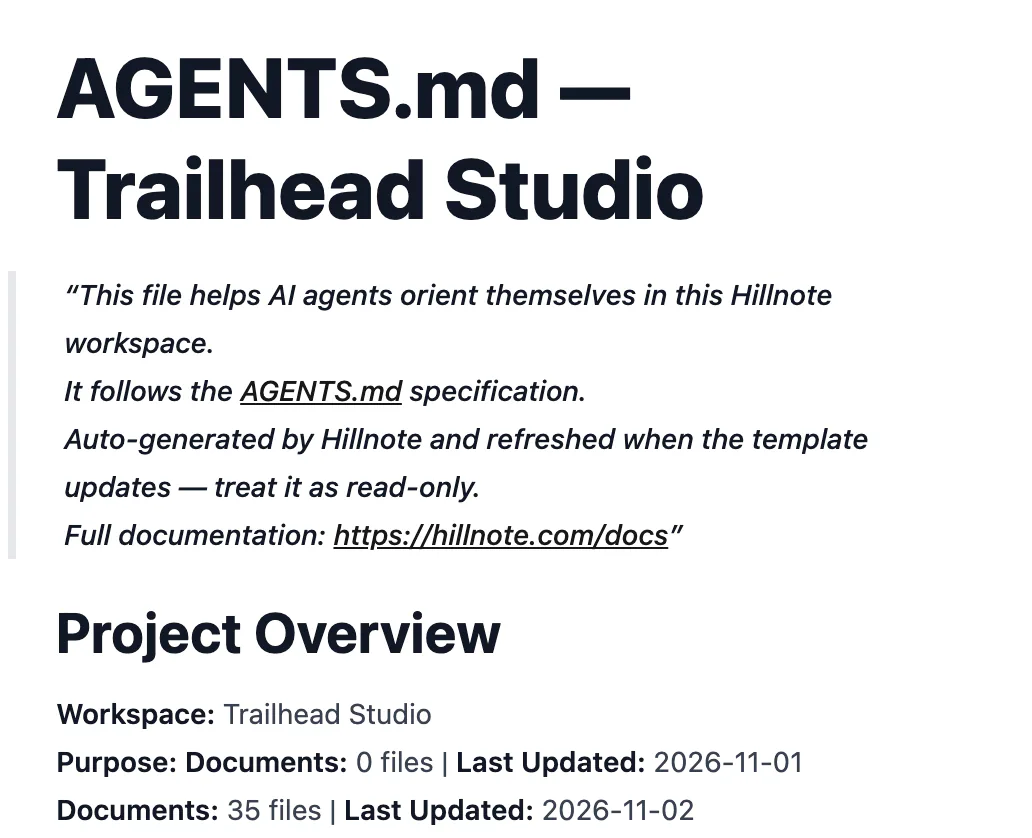
Hillnote writes readme.md, agents.md and CLAUDE.md at the top of each workspace. They explain the workspace and its file formats to AI agents, such as Claude Code, Codex, Cursor, Antigravity and GitHub Copilot, when you run them in the folder.
Hillnote keeps these files up to date, for example when you change the workspace's name or description. Treat them as read-only, as the files themselves say: your changes can be replaced. When you open a folder you already have as a workspace, Hillnote writes its own copies over any files with those names, so copy yours somewhere safe first. To give agents your own instructions instead, see Agents in your workspace.
Edit in other apps
You can change your files in other apps, or let an agent change them, while Hillnote is open.
- If you haven't edited the open page, it reloads in place.
- If you have, Hillnote merges both sets of changes. Where you both changed the same line, it shows both versions in the page so you can choose.
- If a merge isn't safe, the file keeps the other app's version, and your unsaved edits go into a copy beside it with
conflictin its name.
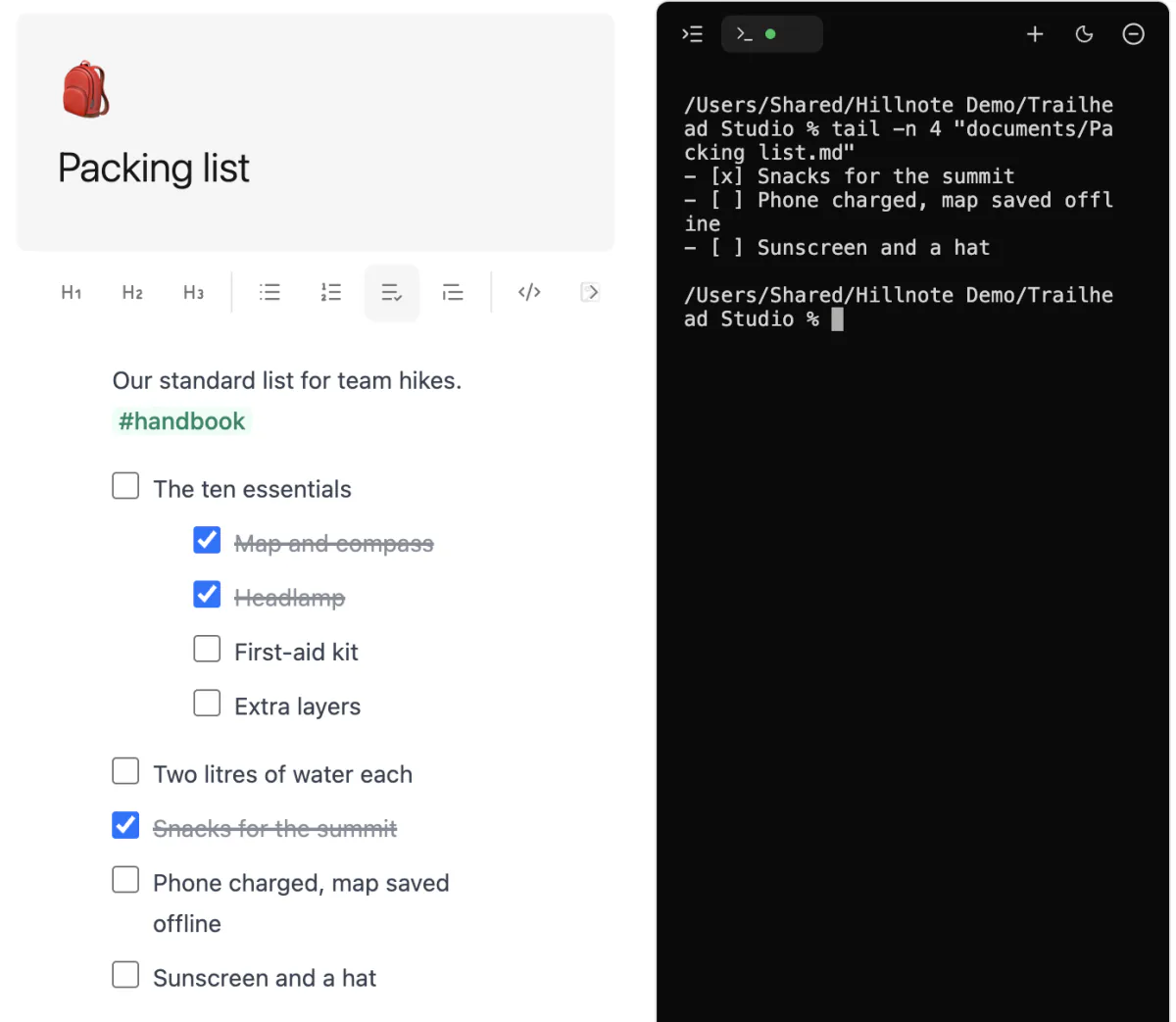
The sidebar refreshes when you switch back to Hillnote. To rescan by hand, click the workspace's name at the top of the sidebar and choose Refresh.
Cloud drive folders
You can keep a workspace in a folder that iCloud Drive, Google Drive, OneDrive or Dropbox syncs.
Those apps can keep files online-only. If Hillnote can't read one, it shows This workspace lives in the cloud. To fix it:
- Open your workspace folder in Finder (File Explorer on Windows).
- Right-click the folder and choose “Available offline” or “Always keep on this device”.
- Wait for the download, then reopen Hillnote.
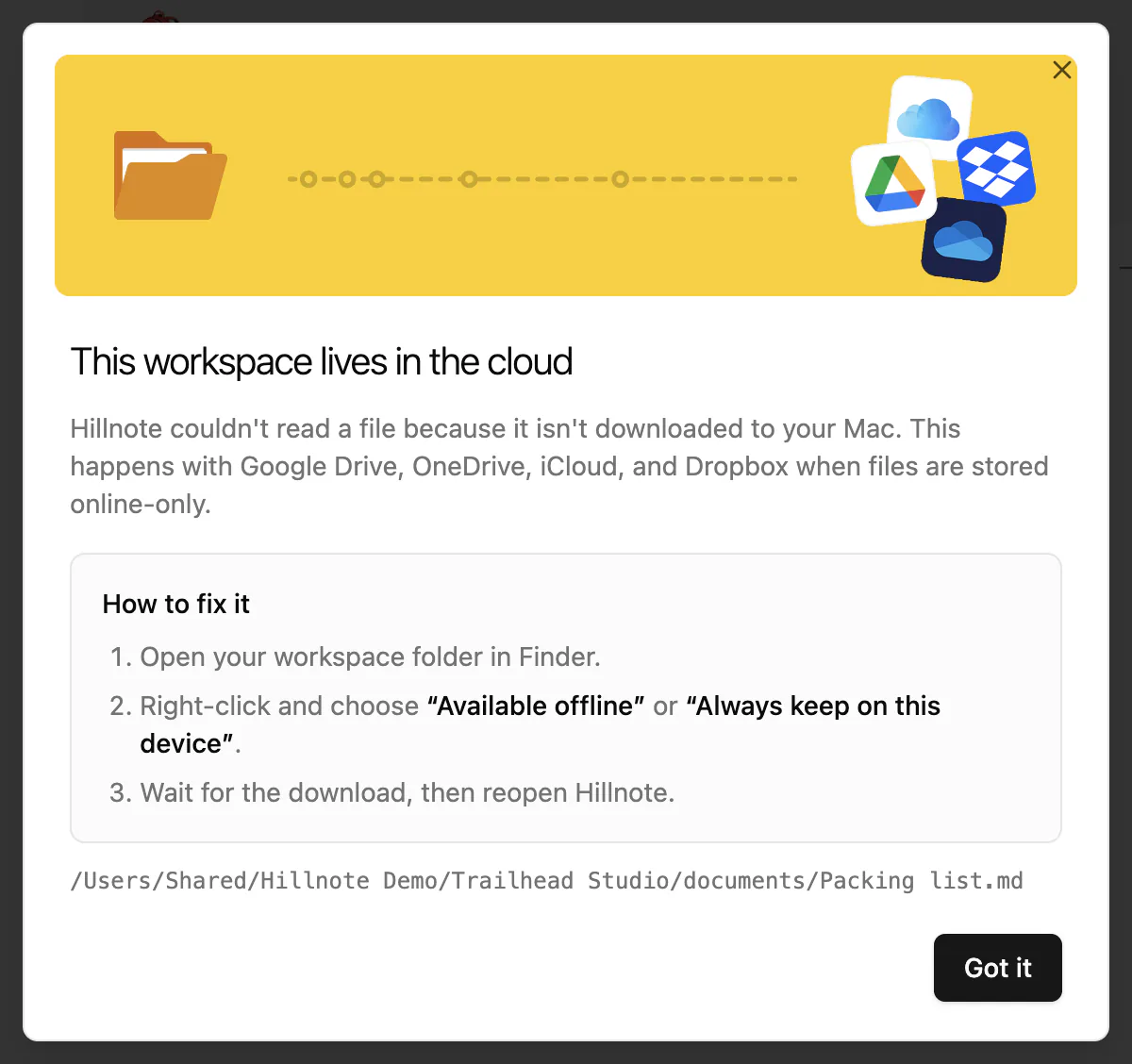
There are guides for Google Drive, Dropbox and OneDrive. Hillnote's own sync is separate from these apps: see Sign-in to sync and unlock premium features!.
Open a single Markdown file
You can edit a Markdown file from anywhere on your computer without adding it to a workspace.
- Double-click a
.mdfile when Hillnote is your Markdown app, or drag it onto Hillnote's Dock icon on a Mac. - Or choose File ▸ Open File… (⌥⌘O, or Ctrl+Alt+O on Windows).
A file inside a workspace's documents/ folder opens in that workspace. Any other file opens on its own, and your edits save straight to it. Those files appear under Recent files on the Workspaces screen.
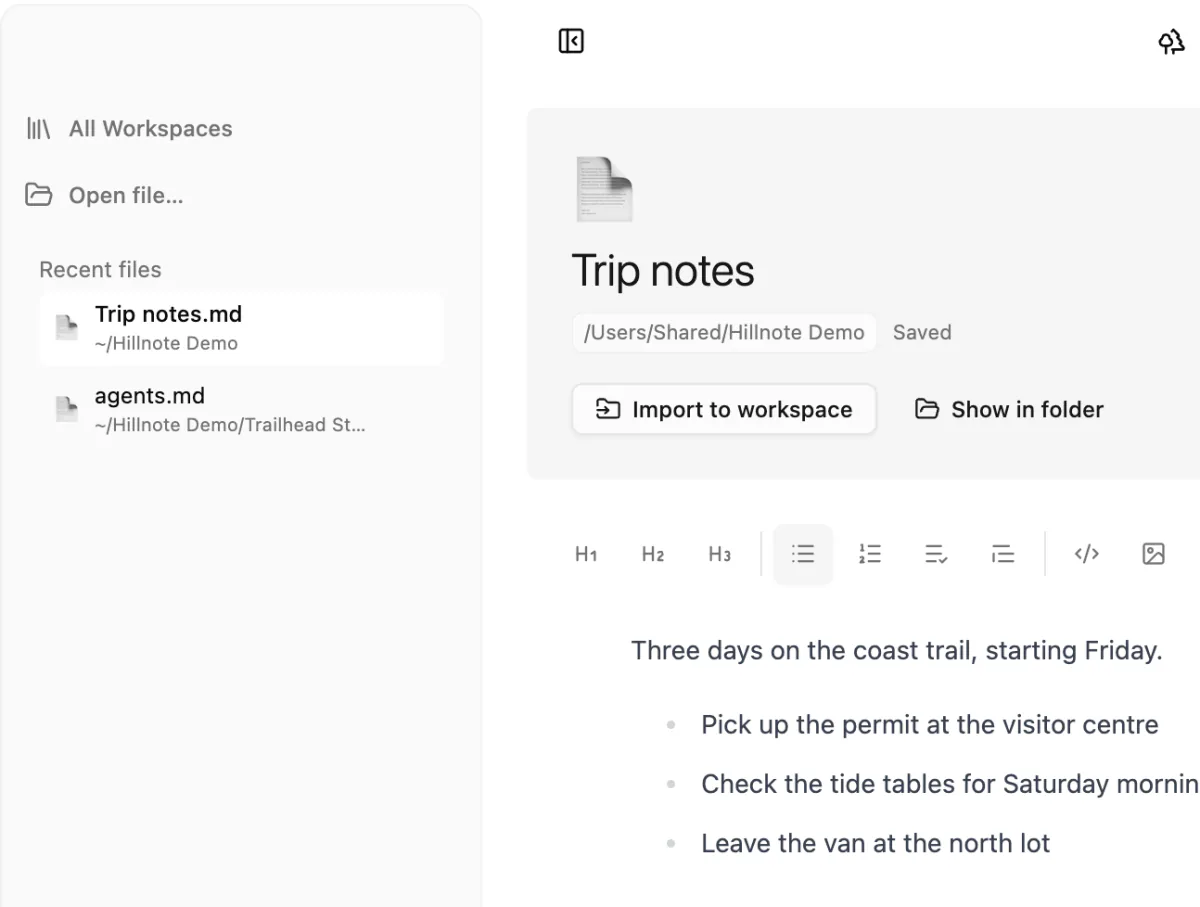
Under the title, Show in folder opens the file's folder, and Import to workspace copies the file into a workspace; the original stays unchanged. Properties aren't saved to these files.