Table of contents
Markdown cheat-sheet
This is the Markdown behind each kind of formatting on this page:
| Write | To get |
|---|---|
# to ###### and a space | Headings 1 to 6 |
**bold** | Bold |
*italic* | Italic |
~~strike~~ | Strikethrough (saved as ~strike~) |
[text](https://example.com) | Web link |
- item or 1. item | List |
- [ ] task or - [x] done | Checklist |
> text | Quote |
Highlight is two equals signs on each side of the text. Code goes between backticks: one on each side for inline code, or three on the lines above and below a block, with an optional language name, such as python, after the first three. Images are standard Markdown image links into resources/.
Most of this also works as you type in a page; see Markdown shortcuts as you type in Pages, which also explains how Hillnote saves its own extras, such as anchors, mentions and variables.
Heading 1
Heading 2
Heading 3
Heading 4
Heading 5
Heading 6
Text Formatting
Paragraph text which is your standard format when nothing else is selected. You could have bold text or italic text or bold and italic combined.
highlighted text works too
You can also use strikethrough for deleted text.
For superscript, put the text in square brackets with a caret after the opening bracket, like X2, or select it and press CMD/CTRL + . (full stop). There's no subscript.
Select text and pick a colour to make it stand out.
Links
Document links look like Pages or perhaps something else entirely?
Regular links look like hillnote.com
Links with titles: Hillnote
Topics
#formating-reference is how you reference a topic that spans across multiple documents
Lists
Unordered List
- First item
- Second item
- Nested item
- Another nested item
- Third item
Ordered List
- First item
- Second item
- Nested item
- Another nested item
- Third item
Task List
- Uncompleted task
- Completed task
- Tier 2 task
- Tier 2 task 2
- Tier 3 task 1
- One more
- Tier 3 task 2
- Another
- Another task
- Tier 2 task 2
- Last root
Code
This is a little code block that appears inline.
// Code block with syntax highlighting
function greet(name) {
  console.log(`Hello, ${name}!`);
}
# Python example
def hello():
    print("Hello, World!")
Blockquotes
This is a blockquote.
It can span multiple lines.
Nested blockquotes are also possible.
Tables
| Column 1 | Column 2 | Column 3 |
|---|---|---|
| Left | Center | Right |
| aligned | aligned | aligned |
| text | text | text |
Images
Local images
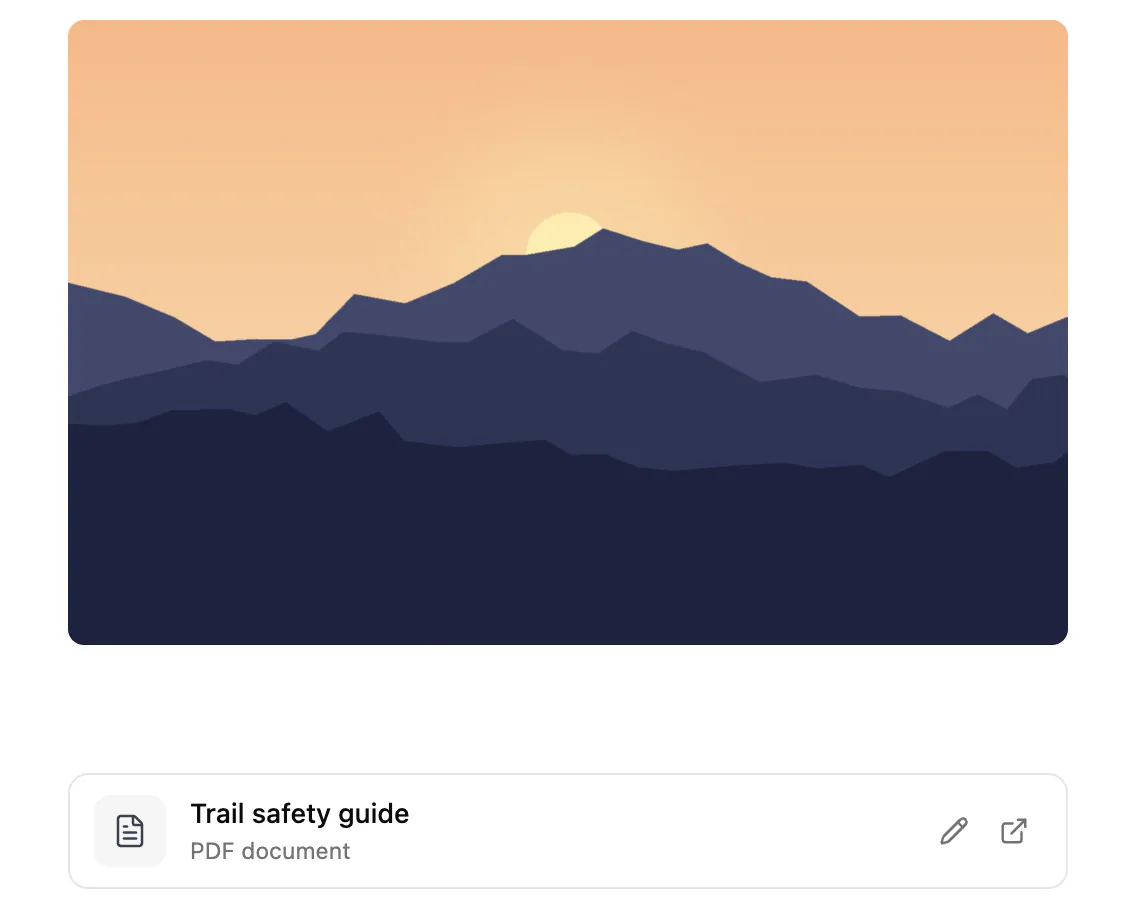
Paste an image or drag one in. Hillnote copies it into resources/images/ in your workspace, in a folder named after the page, and keeps the file's name. Add Image in the toolbar can also reuse an image already in resources or take an image URL. Images can't be resized.
Public images

Horizontal Rules
Three or more hyphens:
Three or more asterisks:
Three or more underscores:
Escaping Characters
Use backslash to escape: *not italic* and `not code`
Footnotes
Here's a sentence with a footnote1.
Scratchspaces
# Hello! this is a scratchspace!
What is a scratchspace?
A scratch space is a hidden section in your document that can be used to store your raw thoughts, additional info, etc.
Tabs
This is an easy way to segregate content into several tabs
- Organised content
- Simplified reading
- Selective disclosure
This is another tab
You could put any content in here that would help convey the idea or so
Resources
PDFs, audio files and HTML tools show as blocks in the page. Paste or drop a PDF or an audio file in, or use Upload PDF, Audio or Upload HTML in the ‘/' menu. Audio can be transcribed.
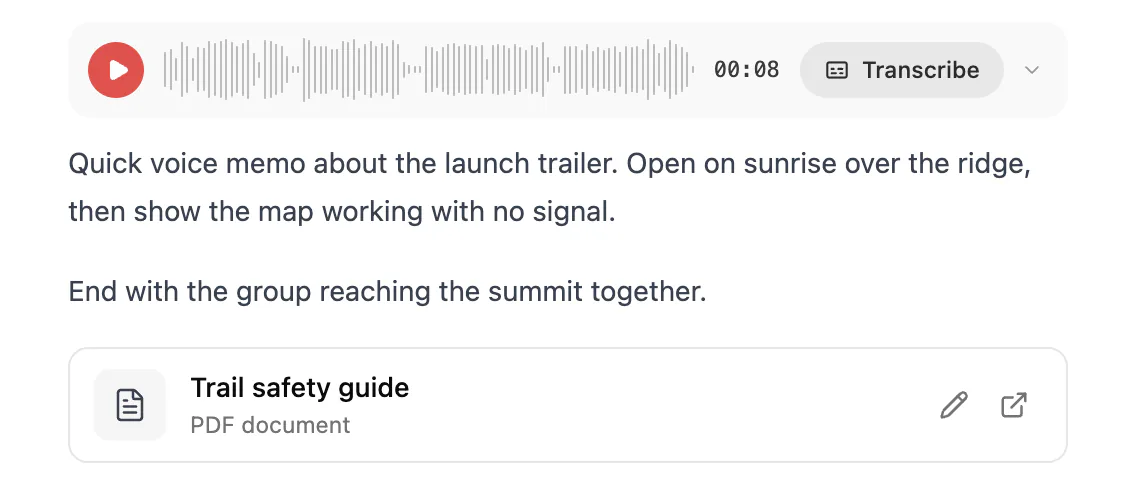
File or Folder in the ‘/' menu links to any other item in resources.
Web Embeds
Slide embeds
Link a deck with ‘@’ and it shows as a preview in the page. Step through the slides with the arrows, or click Open to go to the deck.

Collection (database) embed
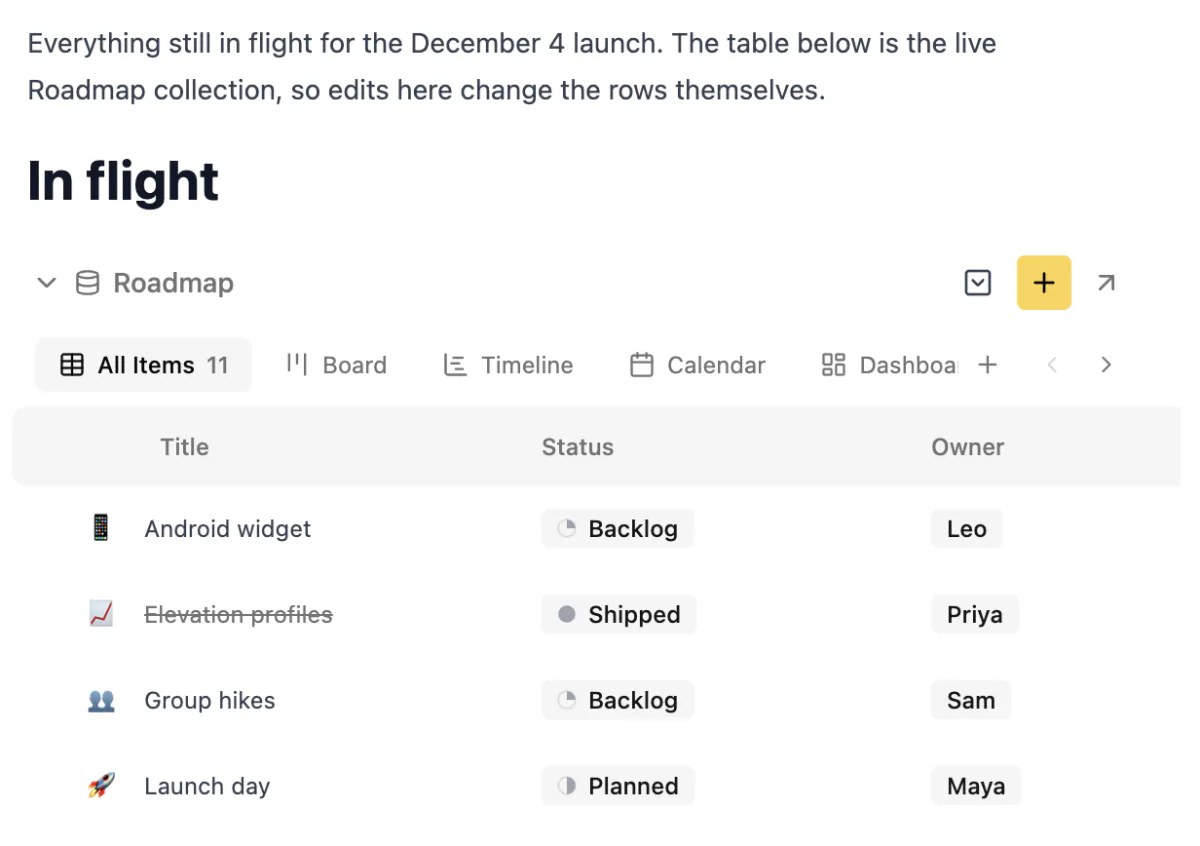
Type ‘@’, pick a collection and click Insert Database to show it inside the page, with its views and rows. Sheets work the same way with Insert Sheet.
- This is the footnote content. ↩