
Workspace variables
A workspace variable is a named value, such as a price, a launch date or a contact list, that you can use on any page in the workspace. Change the value once and every page that uses it updates, so the same fact never goes stale on one page while another has the new one. Variables can also do sums for you.
What variables do
A value can be a word, a sentence with Markdown formatting, or a whole section of several paragraphs.
Built-in variables are always available and always current: $today, $now, $time, $weekday, $year and $month. A variable of your own with the same name replaces the built-in.

Insert a variable
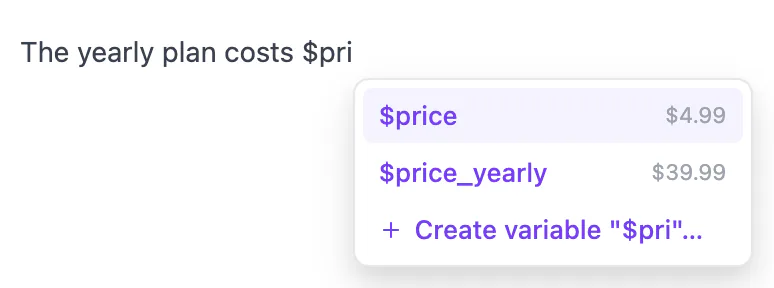
- Type
$and the start of a name, for example$pri. - Choose from the list with ↑ and ↓, then press ↵ or ⇥ (Enter or Tab on Windows). Esc closes the list.
To make a new one, choose Create variable "$name"… at the end of the list, type a value and click Create (⌘↵, or Ctrl+Enter on Windows). It's inserted where you were typing.
Names start with a letter and contain only the letters a–z without accents, digits, - or _, so an amount like $100 is left alone. A space ends the name. Variables work in ordinary text, lists and tables, but not in headings or code.
Edit or delete a variable
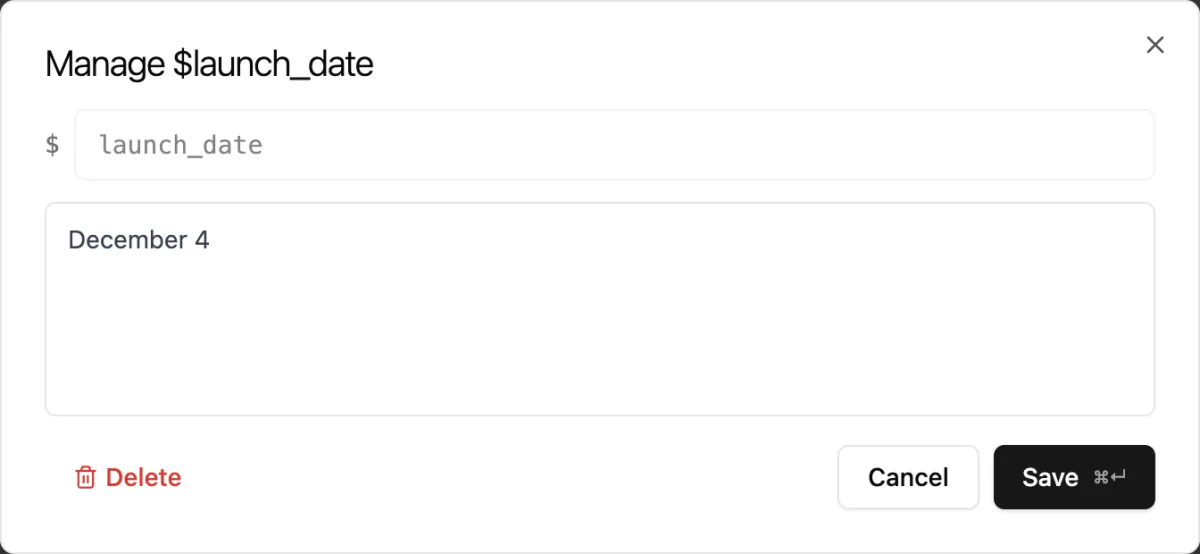
In a page, a variable looks like ordinary text. Hover it to see its name and a Manage button.
Manage opens Manage $name, where you can change the value and click Save, or click Delete. On a built-in, Manage lets you create your own value to replace it.
Deleting a variable doesn't remove it from pages. Its references show as $name, marked as an unknown variable, until a variable with that name exists again.
Whole sections
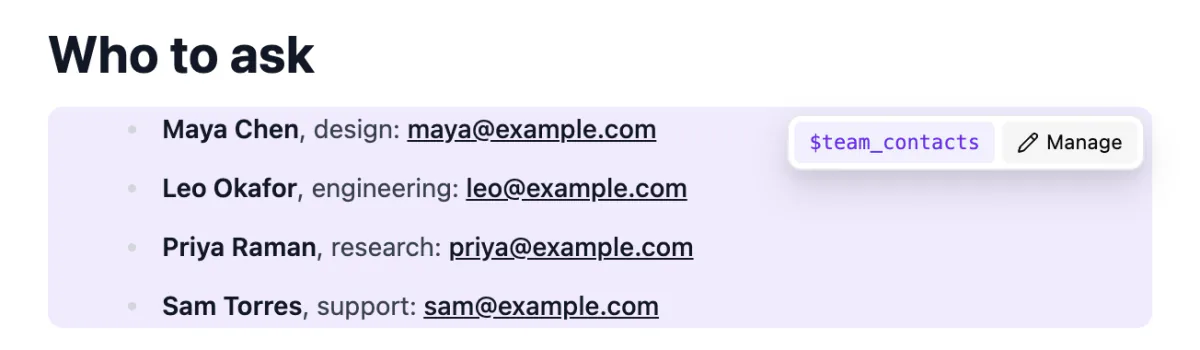
A value with several lines, or one that starts with a heading, list, quote, table or code block, counts as a section. Insert a section variable on a line by itself and it appears as a full block, such as a standard disclaimer or a contact list. Edit the value in one place and every copy updates.
Calculations
Type $= and an expression without spaces, such as $=price*1.2. A preview shows the result; press ↵ (Enter on Windows) or click Insert calculation to insert it. The result updates when the variables in it change.
- Operators:
+,-,*,/,^(power) and%(remainder), with brackets. - Functions:
sum,avg,min,max,round(x,2),floor,ceil,abs,sqrt,pow,percent(part,whole),add,sub,mulanddiv. - Shorthand:
$sum:1,2,3works like$=sum(1,2,3).
A variable holding $1,200 or 15% counts as 1200 or 0.15. Hover a calculation and click Edit to change it.
Names can contain hyphens, so price-2 reads as one name. To subtract, write (price)-2 or $sub:price,2 instead.

Manage them in Settings
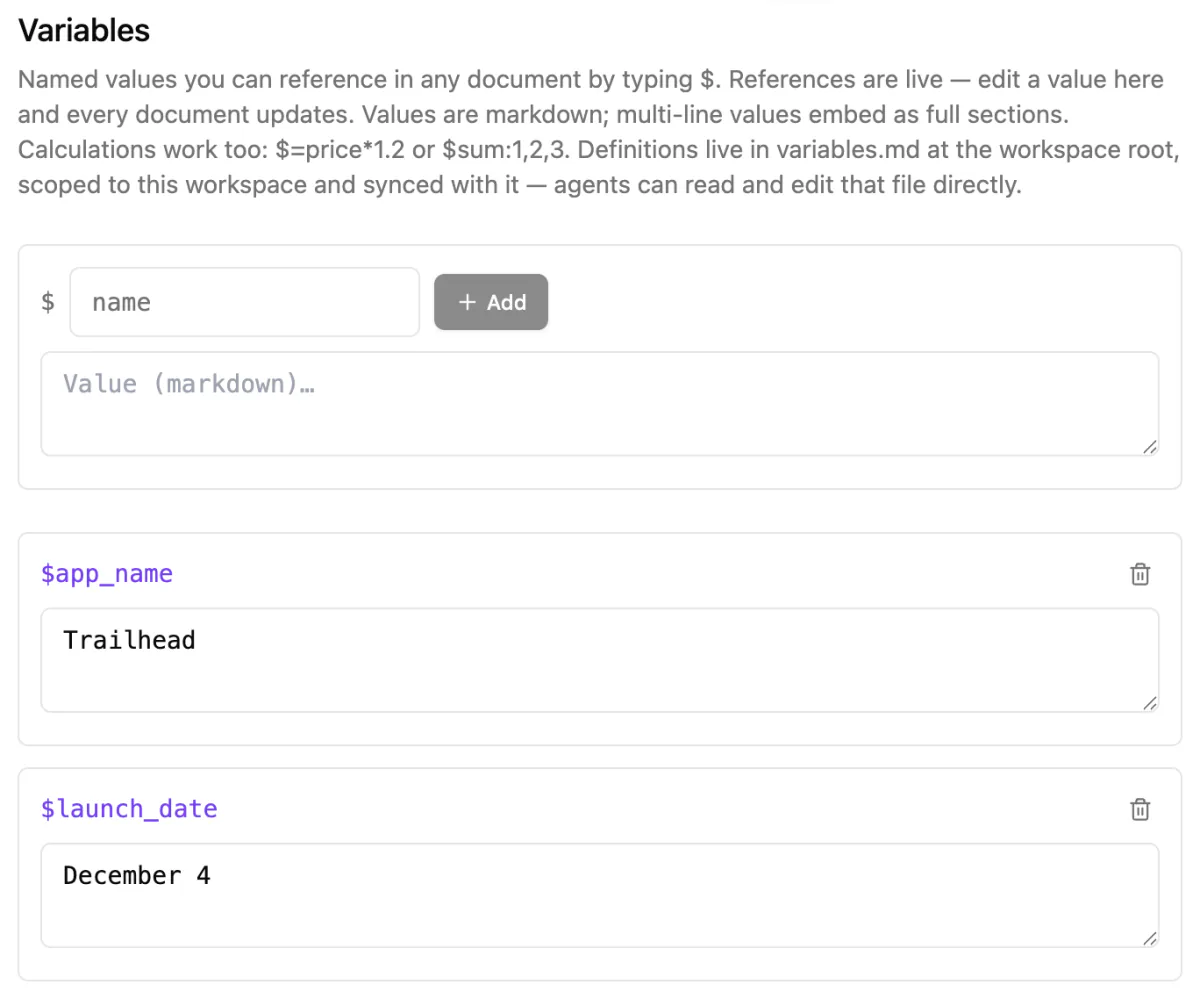
Settings ▸ Variables lists every variable in the workspace:
- To add one, type a name after the
$, a value in Value (markdown)…, then click Add. - To change a value, edit its box; it saves when you click away.
- To delete one, click its bin button and confirm.
The built-ins are listed at the bottom.
Where variables are kept
Variables are kept in variables.md at the top of your workspace folder, under one ## $name heading each, with the value underneath:
## $launch_date

December 4

## $team_contacts

- Maya Chen, design
- Leo Okafor, engineering
The file syncs with the workspace, and AI agents can read and edit it; see Agents in your workspace. Hillnote rereads it when you open the workspace or come back to the window. Files and folders shows where it sits among the workspace's other files.
In a page's file, a variable is saved as ${name} and a calculation as ${=price*1.2}, so the page always shows the current value. Pages lists how Hillnote's other extras are saved.