Pair with Gemini
Gemini, working in the notes you actually own.
Bring Google Gemini to the plain-markdown files in your Hillnote workspace. Proofread and rewrite on-device with Gemini Nano, ask Gemini on your phone to act through App Functions, and let it reason over and reorganize your notes over MCP in Antigravity and the Gemini CLI — all on files you own.

Hillnote works best with Antigravity
Google's agentic workspace — point it at your notes and it goes to work.
Take Gemini and Hillnote with you.
On Android, Gemini proofreads on-device and acts in your notes — right from your phone.
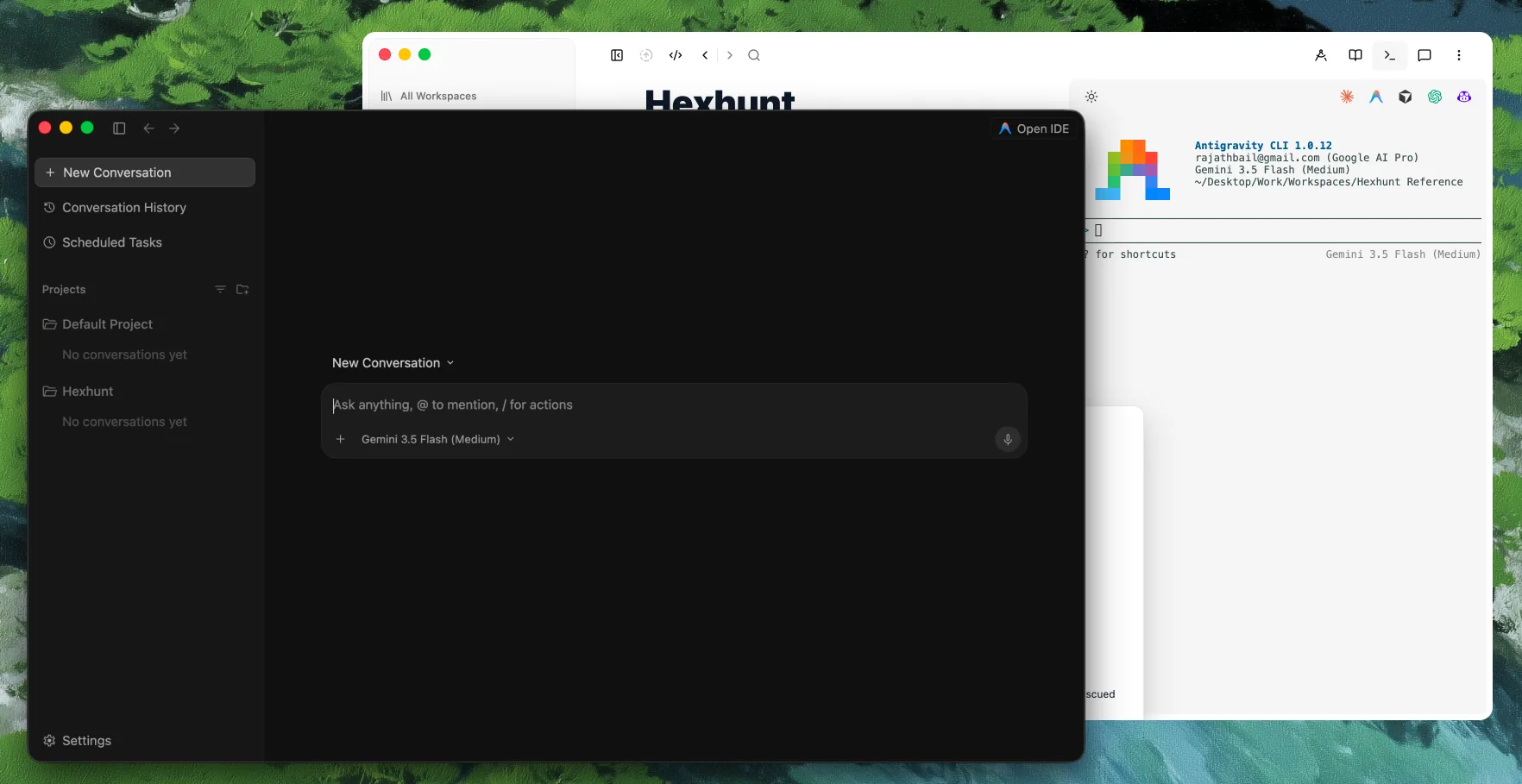
How Gemini and Hillnote fit together.
You already reach for Gemini. Hillnote gives it a home to work in — a workspace of plain-markdown notes Gemini can proofread on-device, reason over, and reorganize, while everything stays a file you own.
It's all just files
Your workspace is plain markdown in a folder you own — nothing proprietary to import or sync around.

On-device on Android
Gemini Nano proofreads and rewrites right on your phone — offline and private — and App Functions lets you ask Gemini to act in Hillnote directly.
Real tools over MCP
In Antigravity and the Gemini CLI, Gemini gets about 34 tools to read, search, write, and reorganize — not just pasted text.
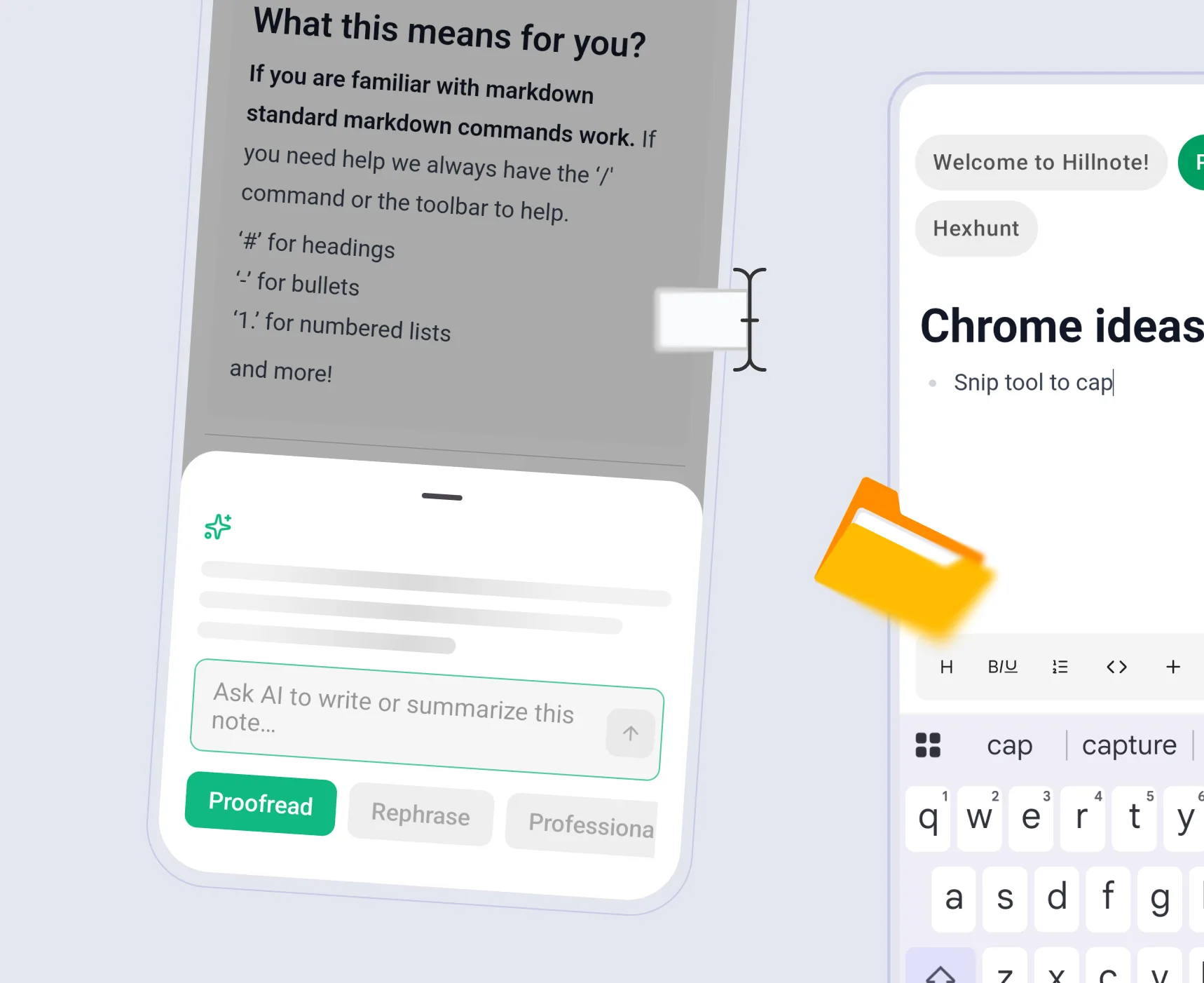
Proofread and rewrite, right on your phone.
On Android, Gemini Nano reshapes a paragraph on-device — proofreading, rewriting, tightening — with no signal and nothing leaving your phone. The same file you'll open on your desktop later.
Reason across everything you've written.
Point Antigravity at your workspace and it reads your whole knowledge base, cites the right notes, and answers from what you've actually written — over MCP, not copy-paste.
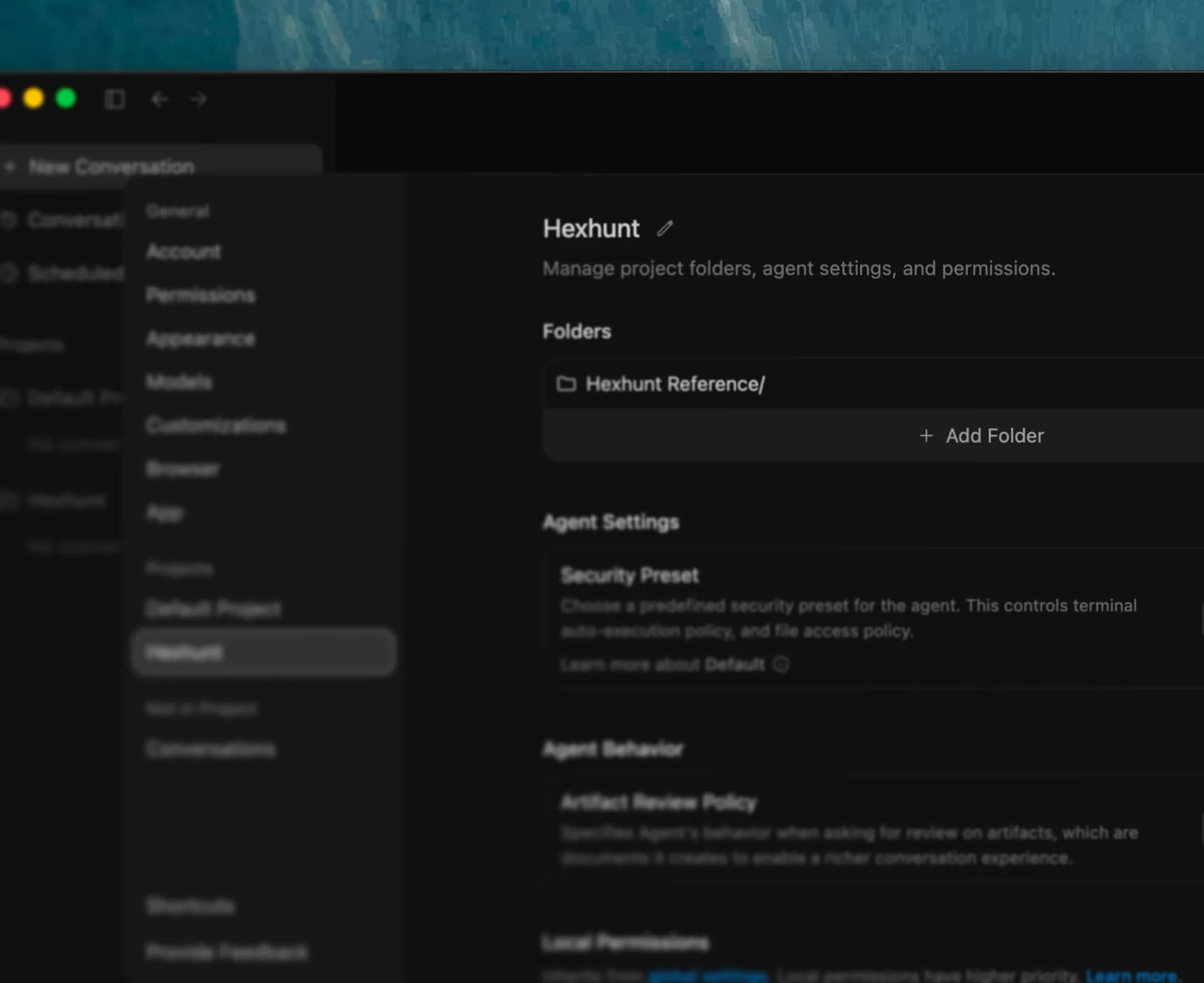
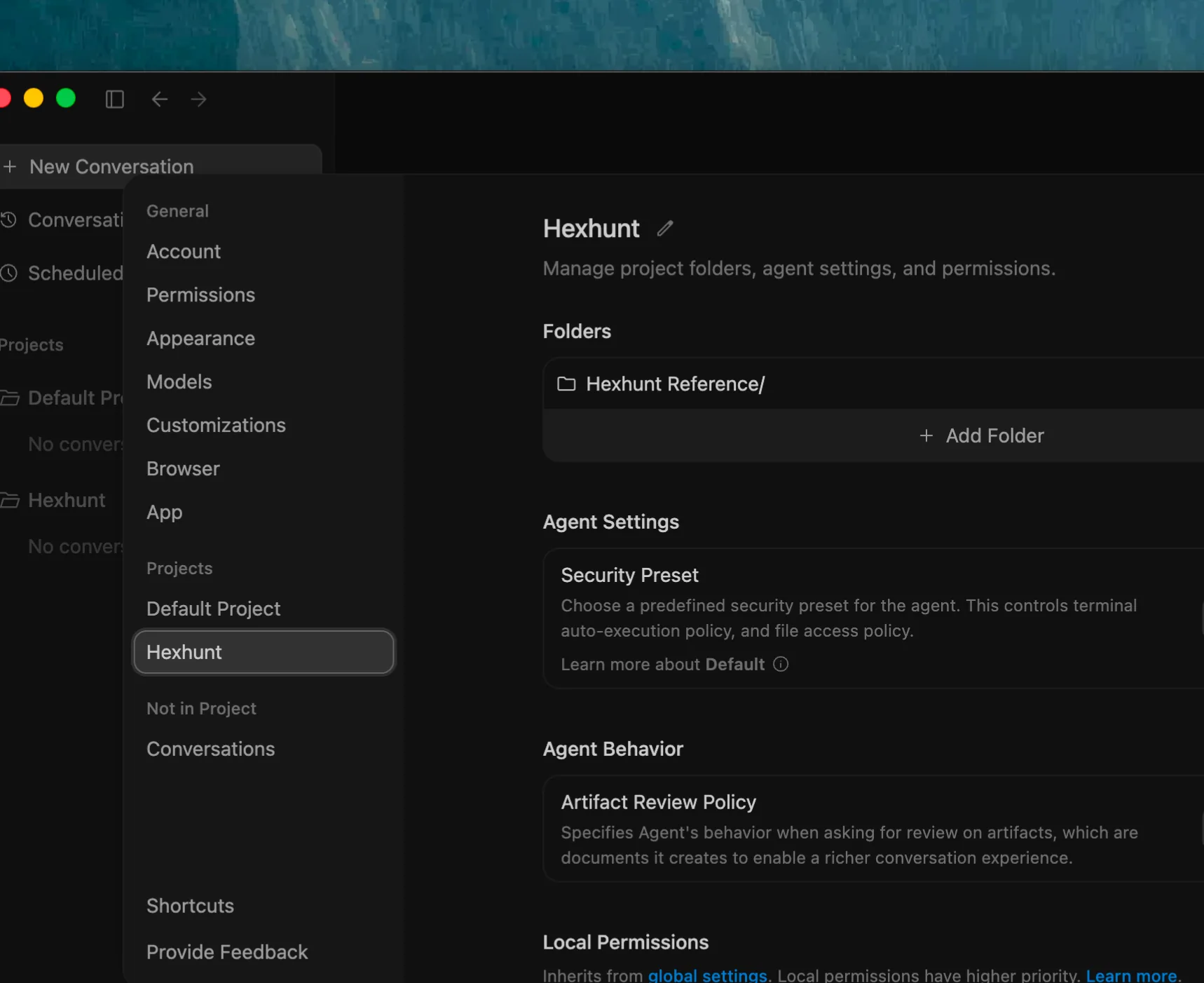
Let Antigravity edit the real files.
Your workspace is markdown in a folder, so Antigravity drafts new documents, rewrites sections, and reorganizes structure directly — no copy-paste, no export to reconcile.
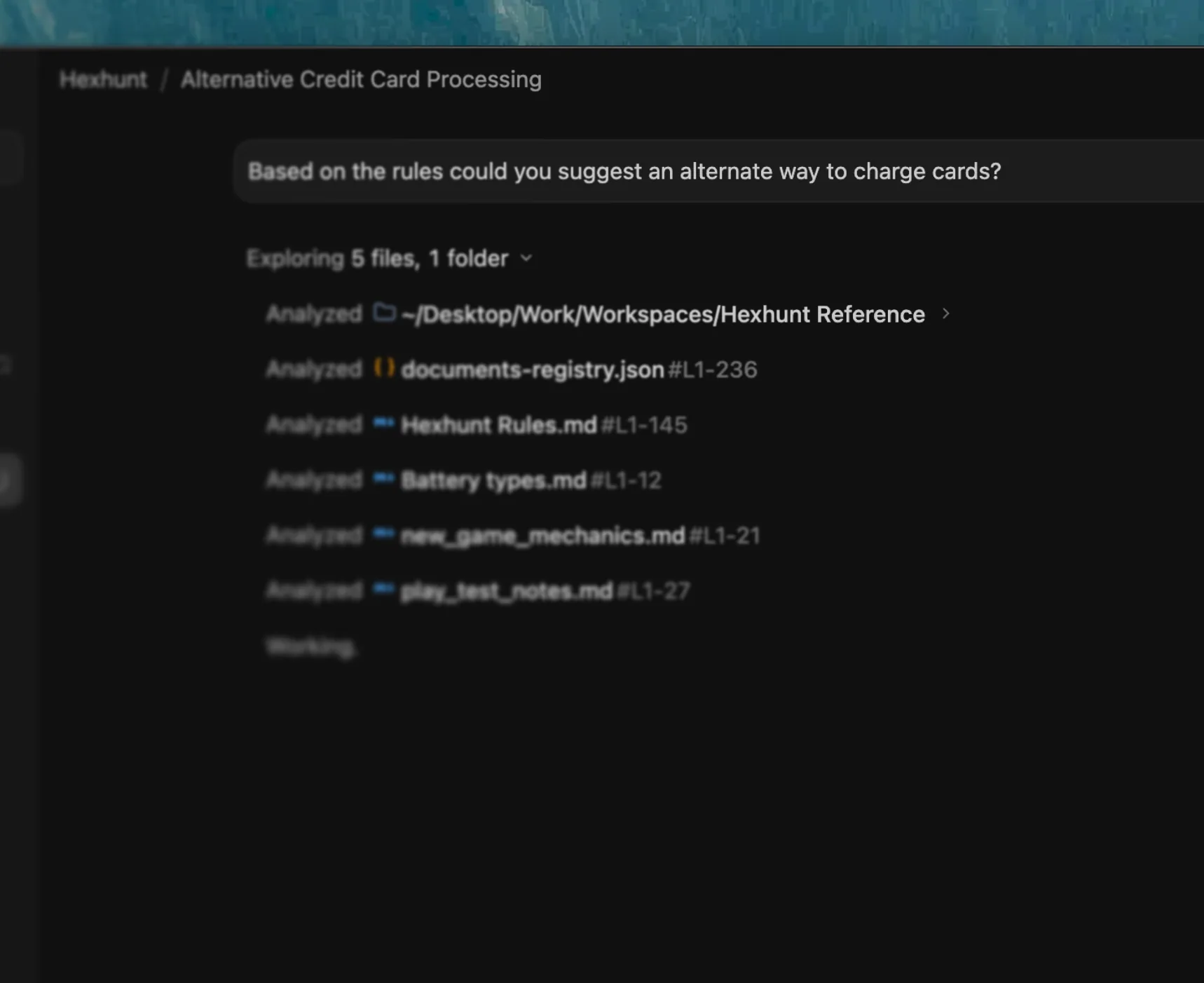
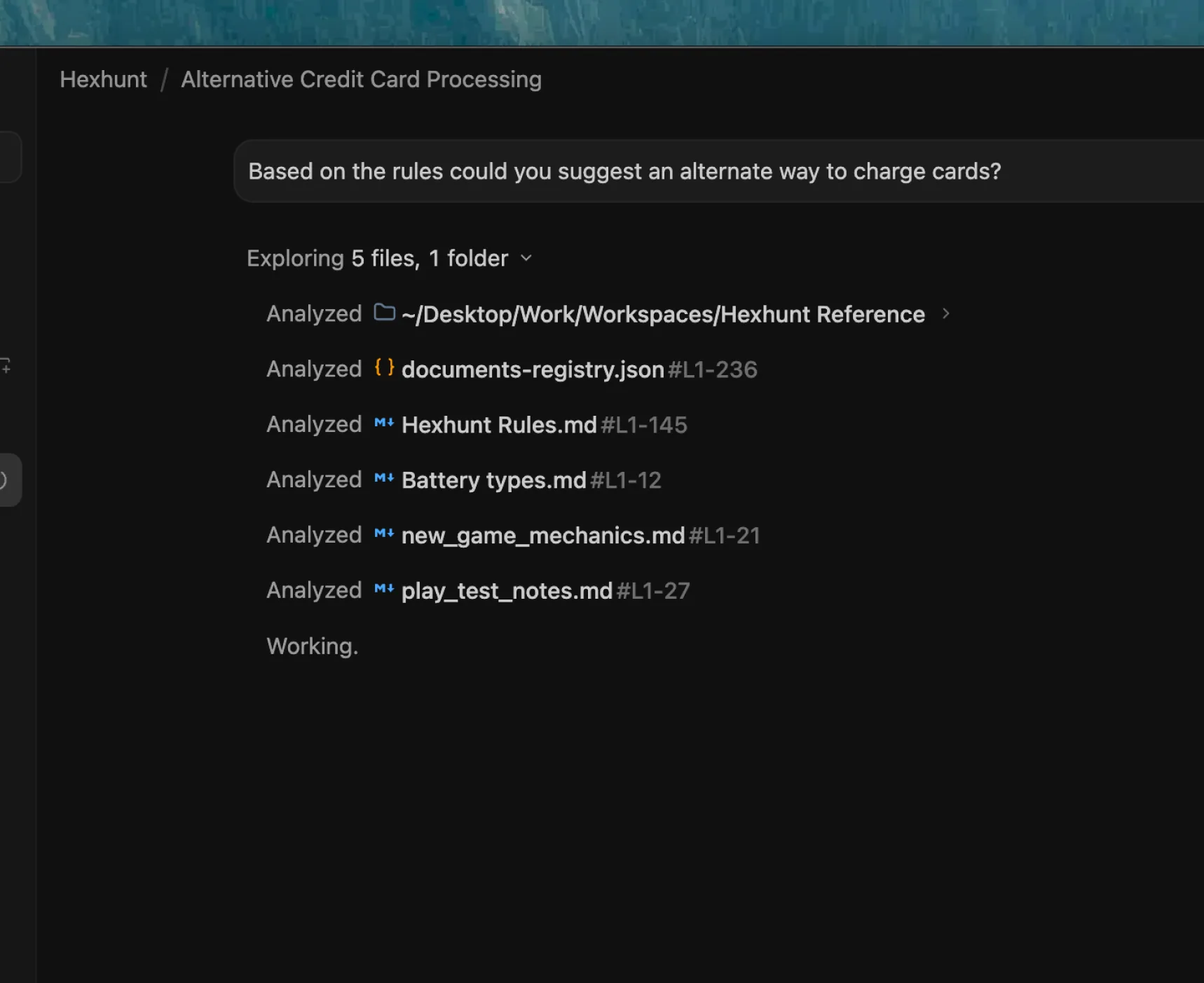
Five ways to connect Gemini.
Pick the path that fits how you work. Gemini connects over MCP through Antigravity, the Gemini CLI, or the Gemini API; the raw files, a synced drive, and routines all work on the files you already have.

Connect over
Model Context Protocol
~34 toolsThe richest connection — real tools, not just pasted text.
Nothing to install — Hillnote hosts the endpoint. You authorize with an OAuth sign-in.
Connect over MCP where Gemini supports it — Google Antigravity, the Gemini CLI, or the Gemini API. They reach your synced workspaces through the hosted endpoint over HTTP.
- 1
In Antigravity, open the MCP settings and add a server.
- 2
Point it at the Hillnote Streamable HTTP endpoint shown below.
- 3
Authorize Hillnote when prompted — access is scoped to your workspaces.
- 4
Ask Gemini to list your workspaces to confirm — the Gemini CLI and API use the same endpoint.
Endpoint
https://hillnote.com/mcp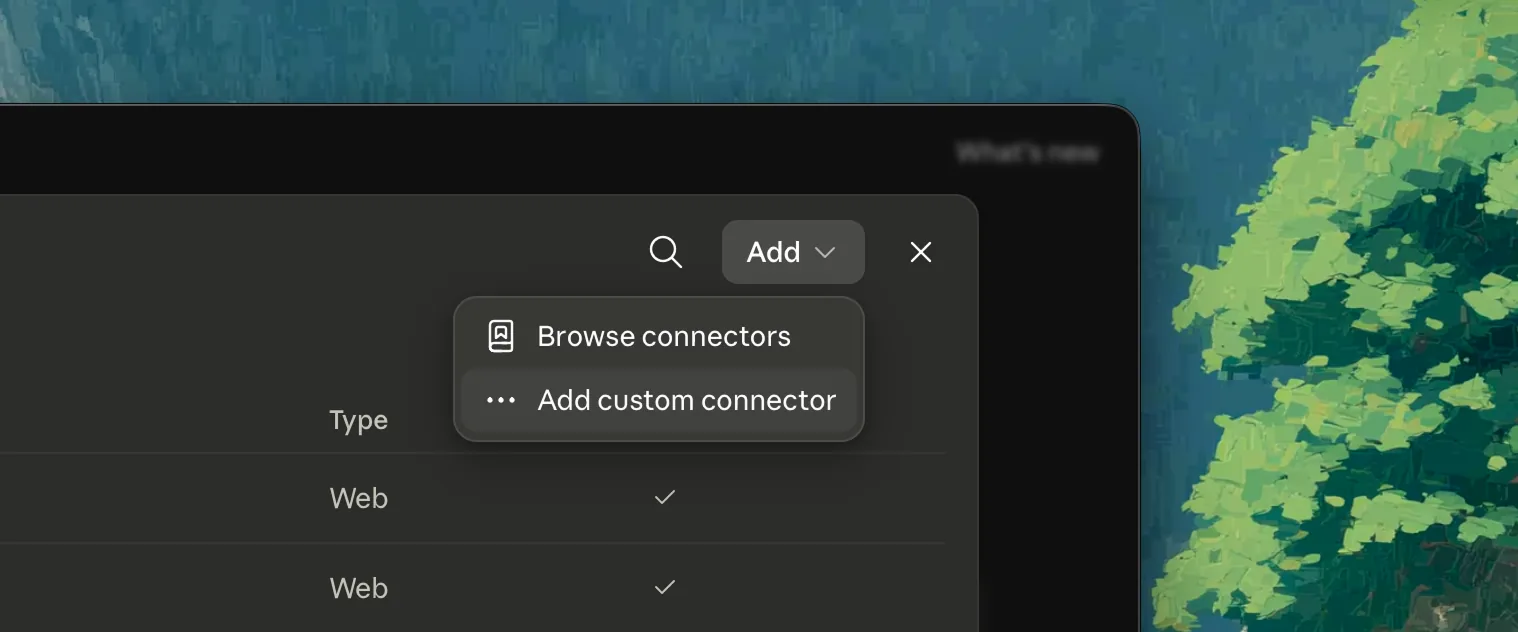
Run it in
Antigravity in the terminal
A CLI agent, right inside your workspace.
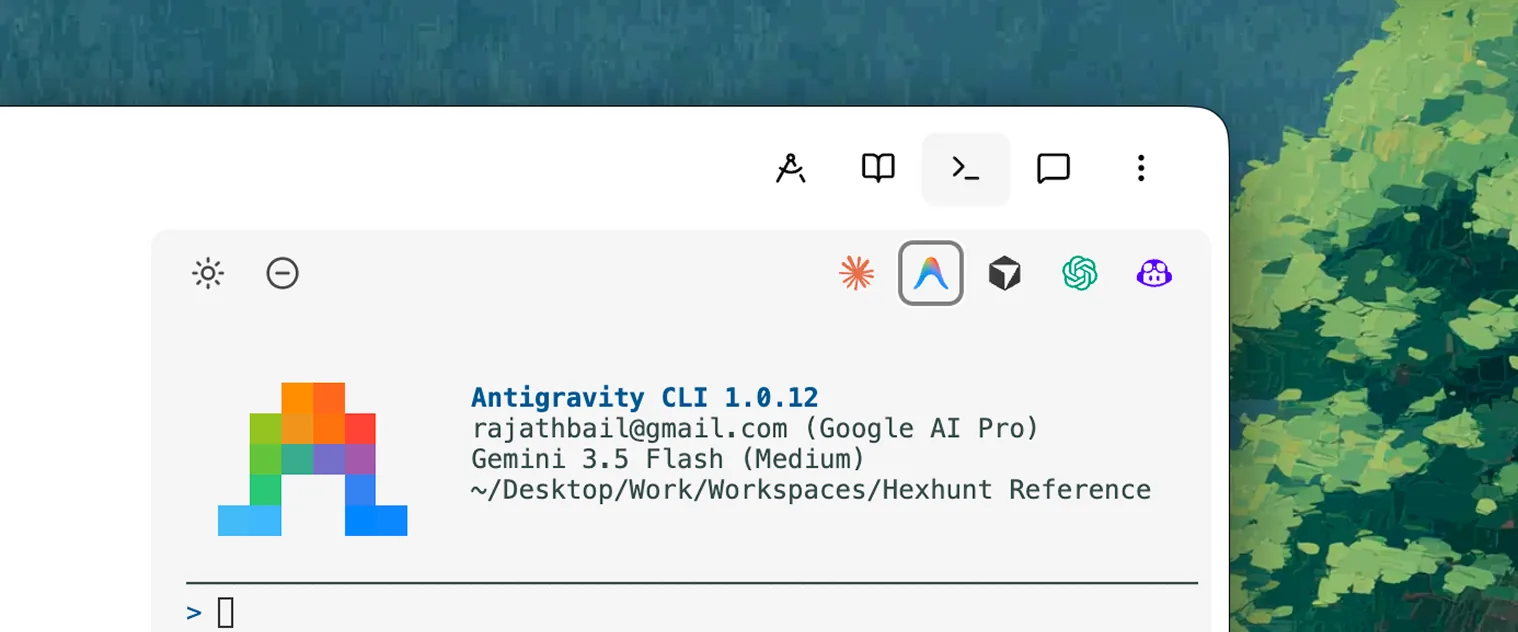
Google's CLI now lives in Antigravity. Hillnote has a real terminal docked to your workspace, already in the folder — turn it on in Settings, then launch Antigravity with one click from the terminal toolbar and it operates on the files in front of you.
- 1
Turn the terminal on in Settings → Interface.
- 2
Open the docked terminal — it opens in your workspace folder.
- 3
Click the Antigravity button in the toolbar — nothing to type.

No setup
Raw markdown files
Your workspace is already just files.
- 1
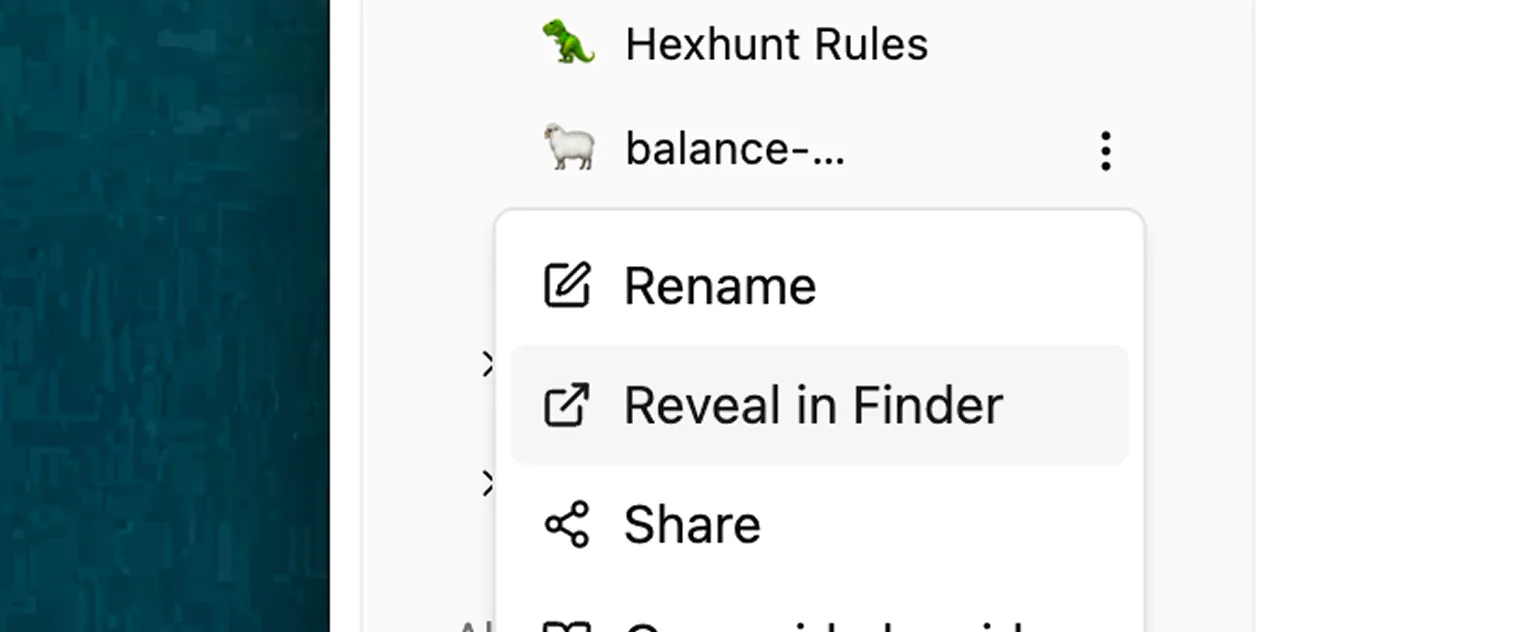
In Hillnote, right-click a workspace or document and choose “Reveal in Finder / Explorer.”
- 2
Open the folder in Antigravity, or point the Gemini CLI at it as its working directory. It's plain markdown, nothing proprietary.
- 3
Gemini reads and edits the files directly — no connector, no copy-paste.

Through
A synced drive
Keep the folder where it can already see it.
Keep your workspace in a synced drive like Google Drive and it travels with you — plain files in a folder, in reach wherever you pick Hillnote up.


Automate with
Routines on events
Put the AI to work on its own.
Beyond chat: a change in your workspace — a new doc, a status change — can fire a routine that runs a Gemini model on its own, writing the result straight back to your notes.
A workspace event
New doc · comment · status change

Gemini runs a routine
Your saved prompt, on the change
Written back
The result lands in the workspace
See Gemini in a full setup.
Gemini is even better alongside the rest of your stack. Each setup wires Hillnote and the tools that fit a kind of work — all on the same markdown files.
Solo Builder
One person. Every hat. One workspace.
Build this setup
Product
Spec, plan, and track in one place.
Build this setup
Writing
Draft, edit, and publish without leaving your words.
Build this setup
Content Creator
From idea to upload, without the tab circus.
Build this setup
Marketing
Research, plan, and ship campaigns end to end.
Build this setup
Research
Gather, synthesize, and cite what you find.
Build this setupGoogle Gemini questions, answered
Can I add Hillnote as a connector in the Gemini app?
Not in the consumer Gemini app — it doesn't take custom MCP connectors. Gemini reaches your workspace over MCP through Google Antigravity, the Gemini CLI, or the Gemini API, all pointed at the same Hillnote endpoint. On Android, on-device features use Gemini Nano, and App Functions lets you ask Gemini to act in Hillnote directly.
What runs on my phone versus online?
On Android, Gemini Nano runs proofreading and rewriting on-device — offline and private — and App Functions lets you ask Gemini to capture and find notes in Hillnote. Reasoning across your whole workspace uses Gemini's larger models when you're online.
Can Gemini edit my files, or only read them?
Both, over MCP in Antigravity or the Gemini CLI — create, edit, rename, and reorganize documents directly. Keep it read-only or revoke access any time.
What is the built-in terminal?
A real terminal docked to your workspace, already in the workspace folder. Run the Gemini CLI there and it works on the exact files you're editing — no path setup, no connector.
Is there a public API I can call?
MCP is the interface — about 34 tools for reading and writing your workspace, available to Antigravity, the Gemini CLI, and the Gemini API. For automation, save a routine that fires on a workspace event and runs a Gemini model.