
Pair with Perplexity
Research the web, save it in your notes.
Add Hillnote as a connector and Perplexity works on your workspace directly — researching against the notes you've already gathered and writing what it finds back into the plain markdown you own. Across Perplexity, the Comet browser, and Personal Computer on Mac.
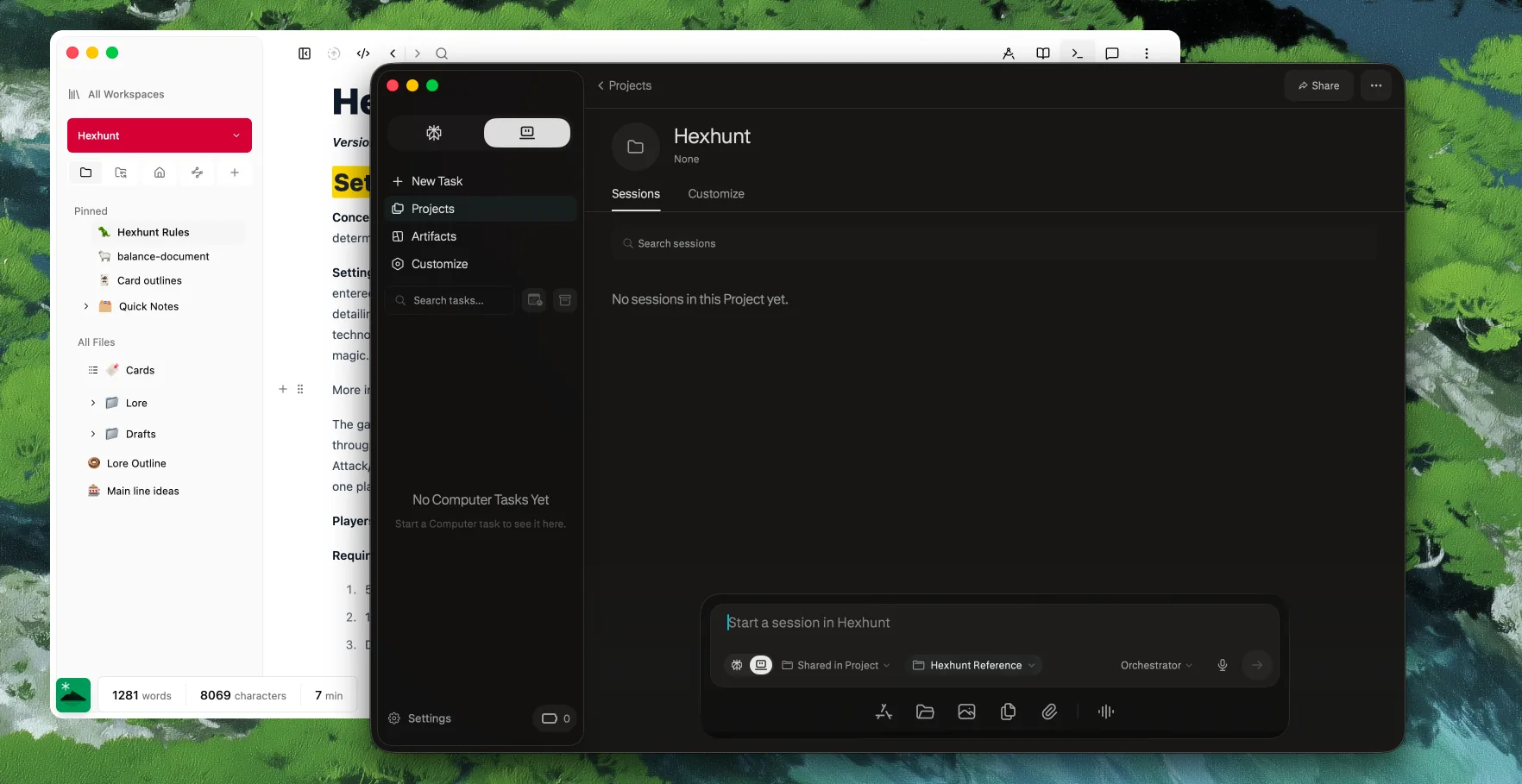
How Perplexity and Hillnote fit together.
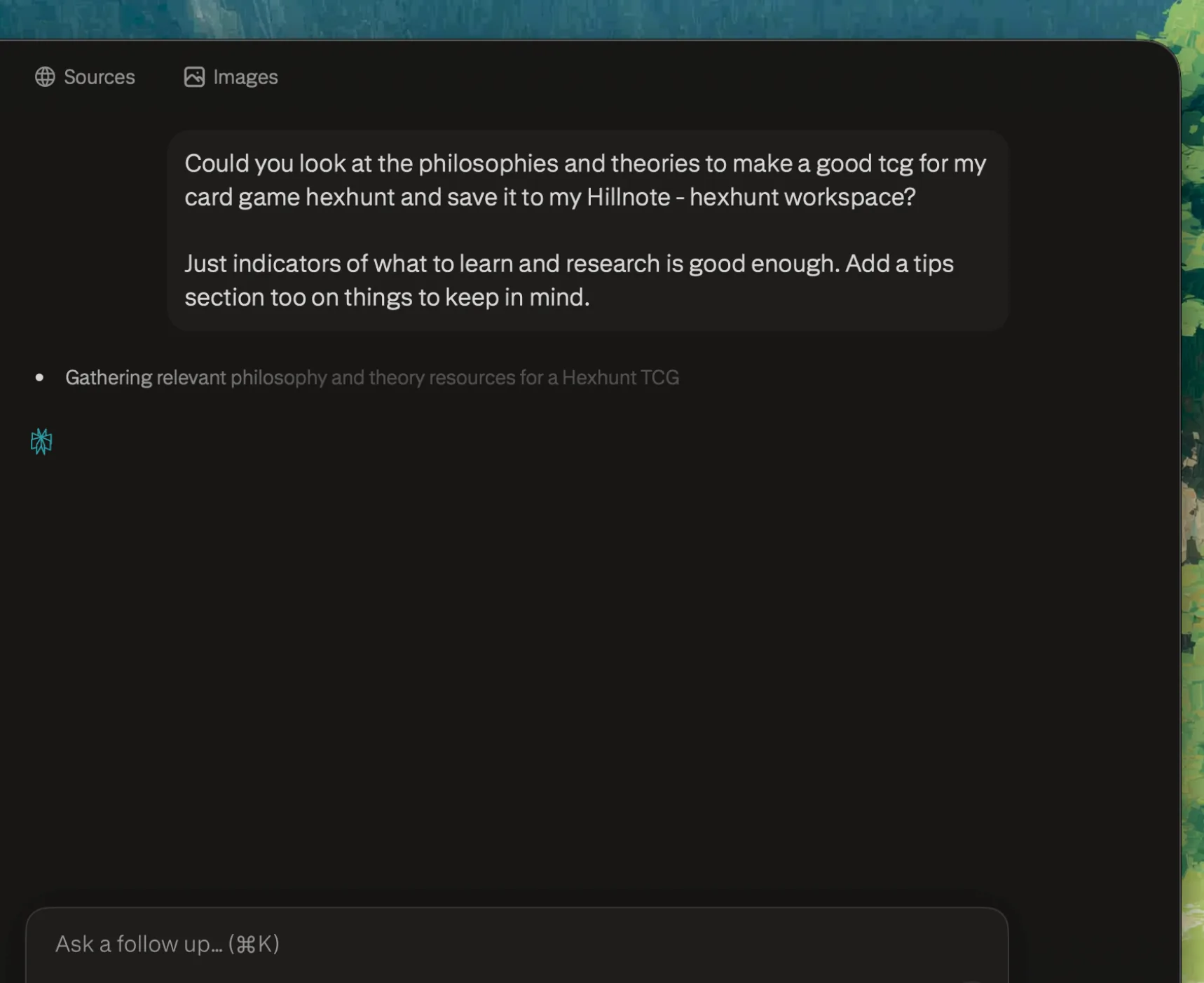
Perplexity is at its best when it's researching from what you already know. Connect it to your Hillnote workspace and it reads your notes, does the research, and lands the findings back in your files — a knowledge base that grows instead of a chat you lose.
Real tools, not just answers
Add Hillnote as a connector and Perplexity gets about 34 tools to search, read, and write your workspace — so it works on your notes, not just the open web.

Research from what you know
Perplexity starts from the documents you've already gathered, connecting fresh findings to the library you keep instead of researching in a vacuum.

Findings land in your files
Your workspace is plain markdown, so summaries and sources get written straight into it as documents you own — not a chat that scrolls away.
Research grounded in your library.
Give Perplexity access to the workspace and its research starts from what you've already gathered — reading your existing notes and connecting new findings to them, instead of starting from a blank page.
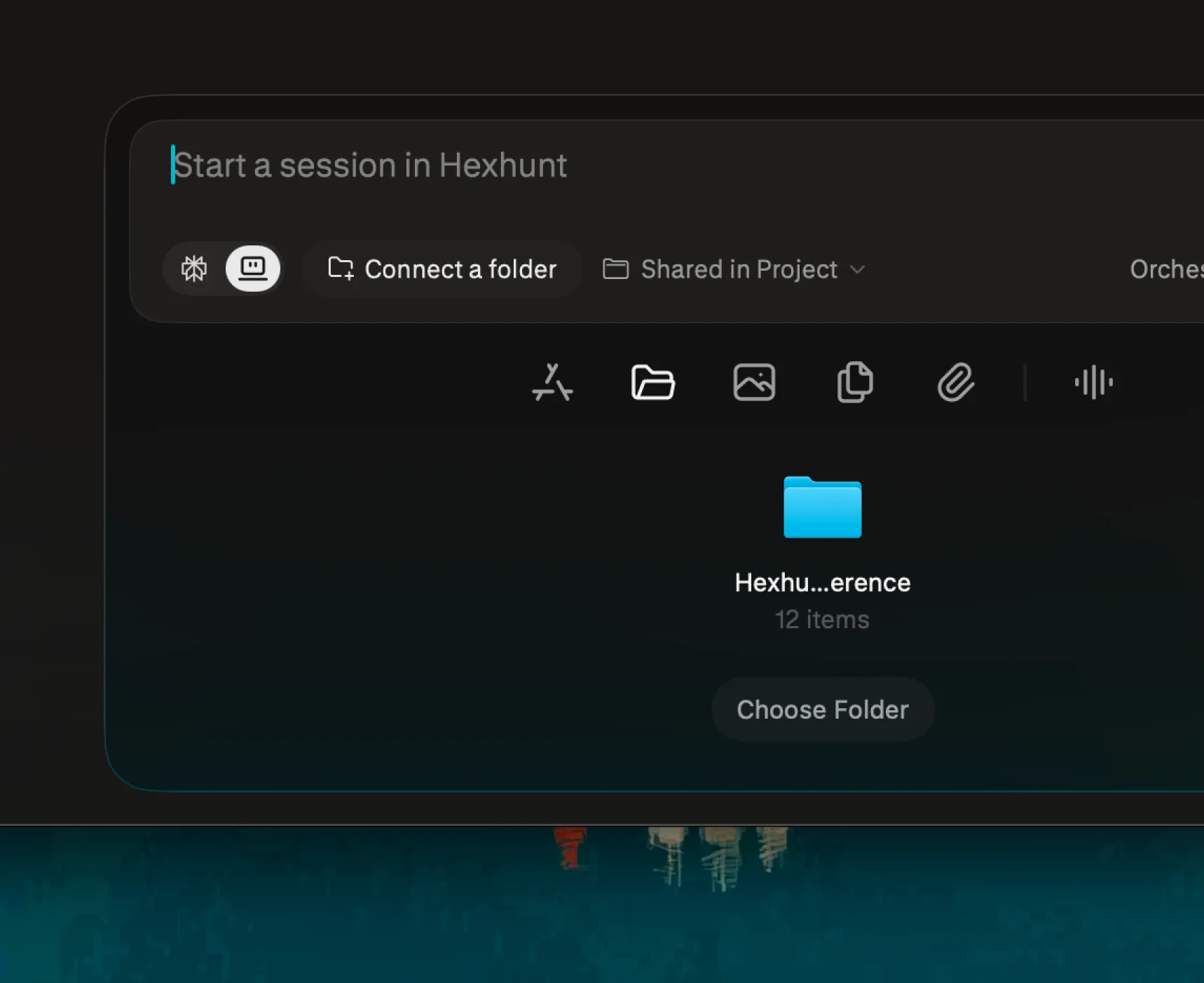
Capture findings where they belong.
Because the workspace is plain markdown, Perplexity can write summaries and sources straight into it — a new document, a filled-in table, a section appended to your notes. Your research lands in your knowledge base.
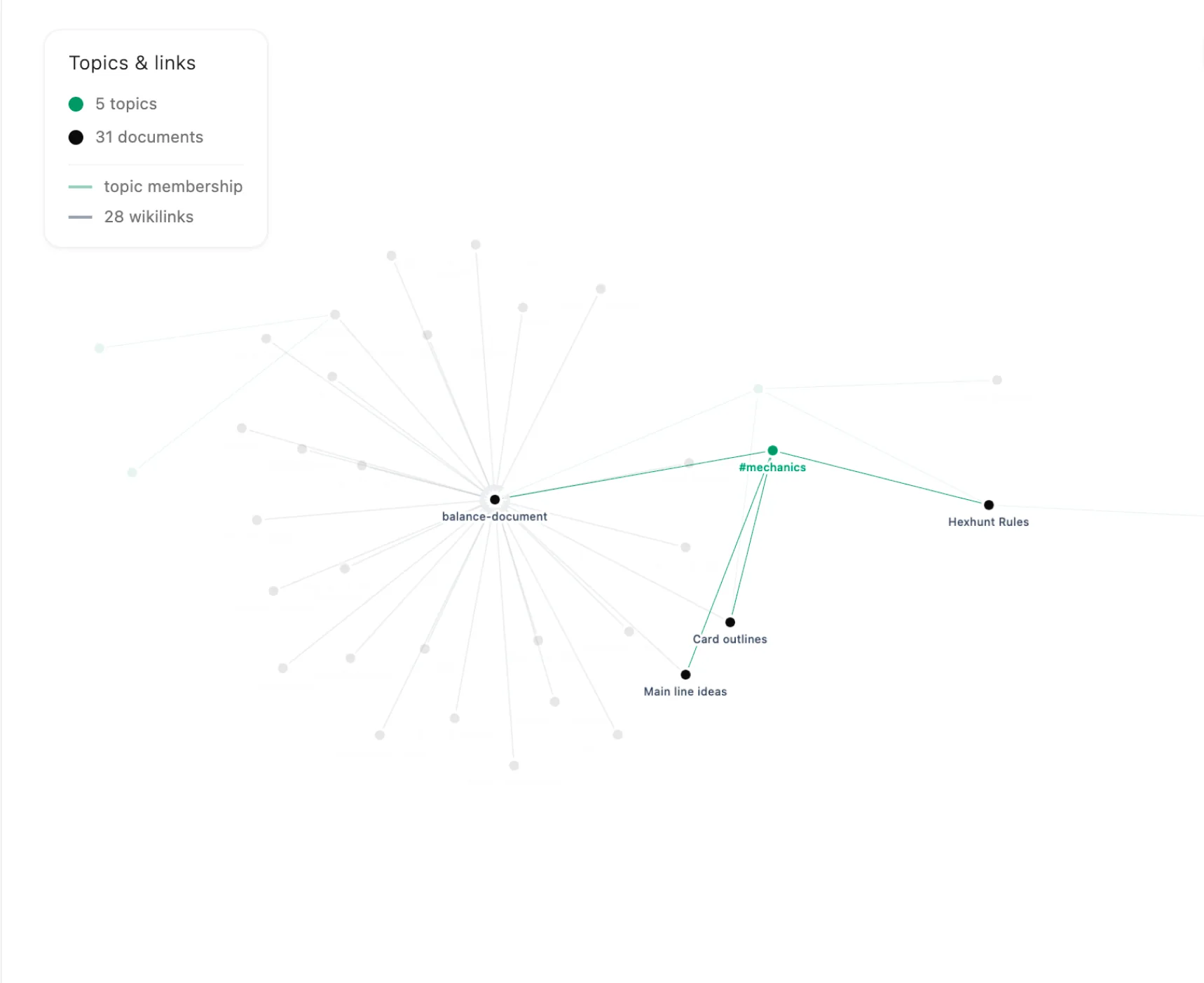
Weave new research into old.
Ask it to link fresh findings to the documents you already have — tagging shared #topics and cross-referencing related notes — so the knowledge base stays woven together instead of piling up.
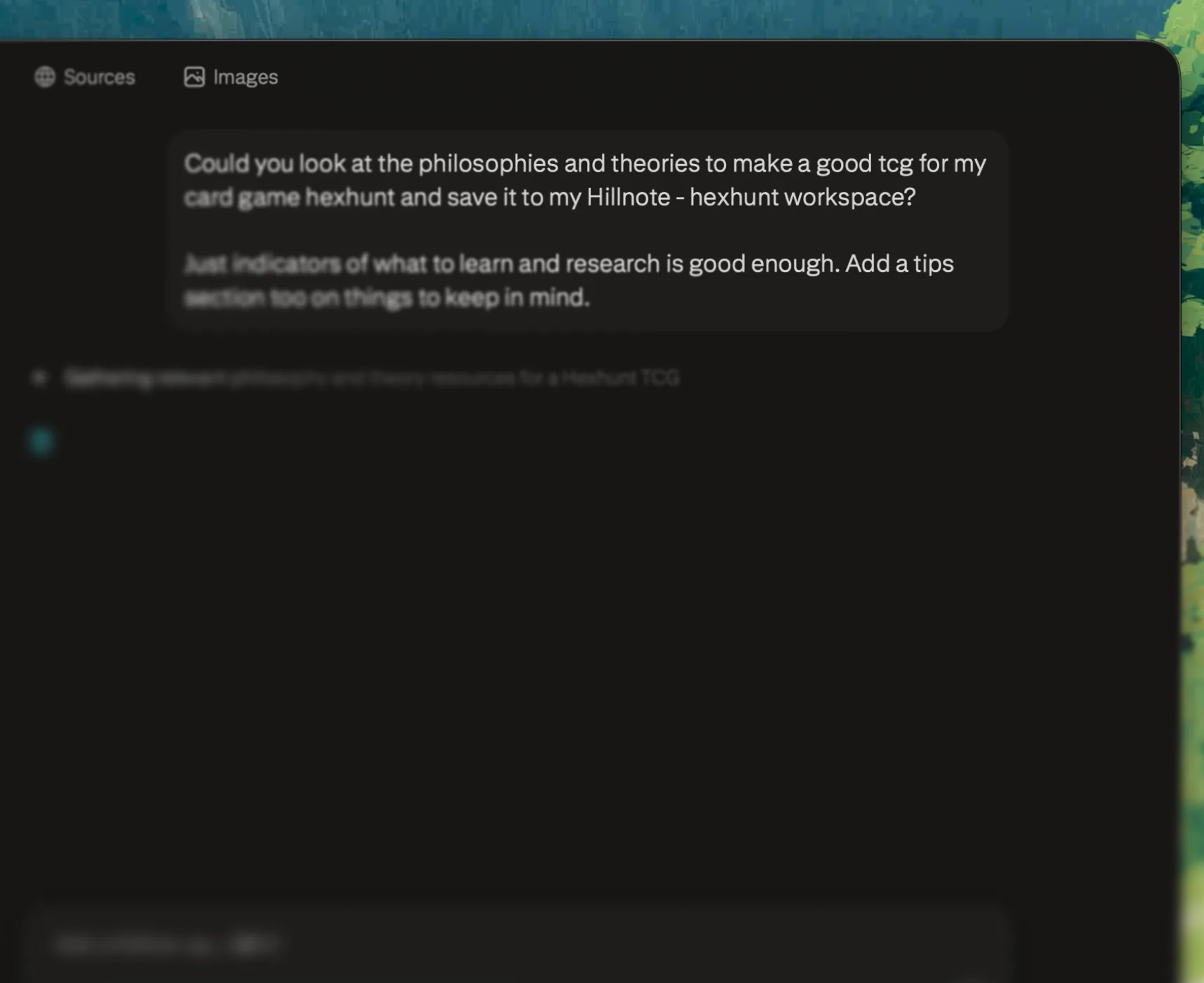
Three ways to connect Perplexity.
Add Hillnote as a connector for real tools over MCP, point Personal Computer for Mac at the workspace folder, or keep the workspace in a synced drive Perplexity can already reach.

Connect over
Model Context Protocol
~34 toolsThe richest connection — real tools, not just pasted text.
Nothing to install — Hillnote hosts the endpoint. You authorize with an OAuth sign-in.
Add Hillnote as a custom remote connector in Perplexity. It authorizes with OAuth and works across Perplexity, the Comet browser, and Personal Computer on your synced workspaces.
- 1
In Perplexity, open your profile menu → Settings → Connectors, then click “+ Custom connector” and choose Remote.
- 2
Give it a name and paste the Hillnote endpoint below as the MCP Server URL (HTTPS):
https://hillnote.com/mcp - 3
Pick OAuth 2.0 for authentication — Perplexity discovers the sign-in automatically; there's no key to paste.
- 4
Authorize Hillnote when prompted — access is scoped to your workspaces — then ask Perplexity to list your workspaces to confirm.
Endpoint
https://hillnote.com/mcp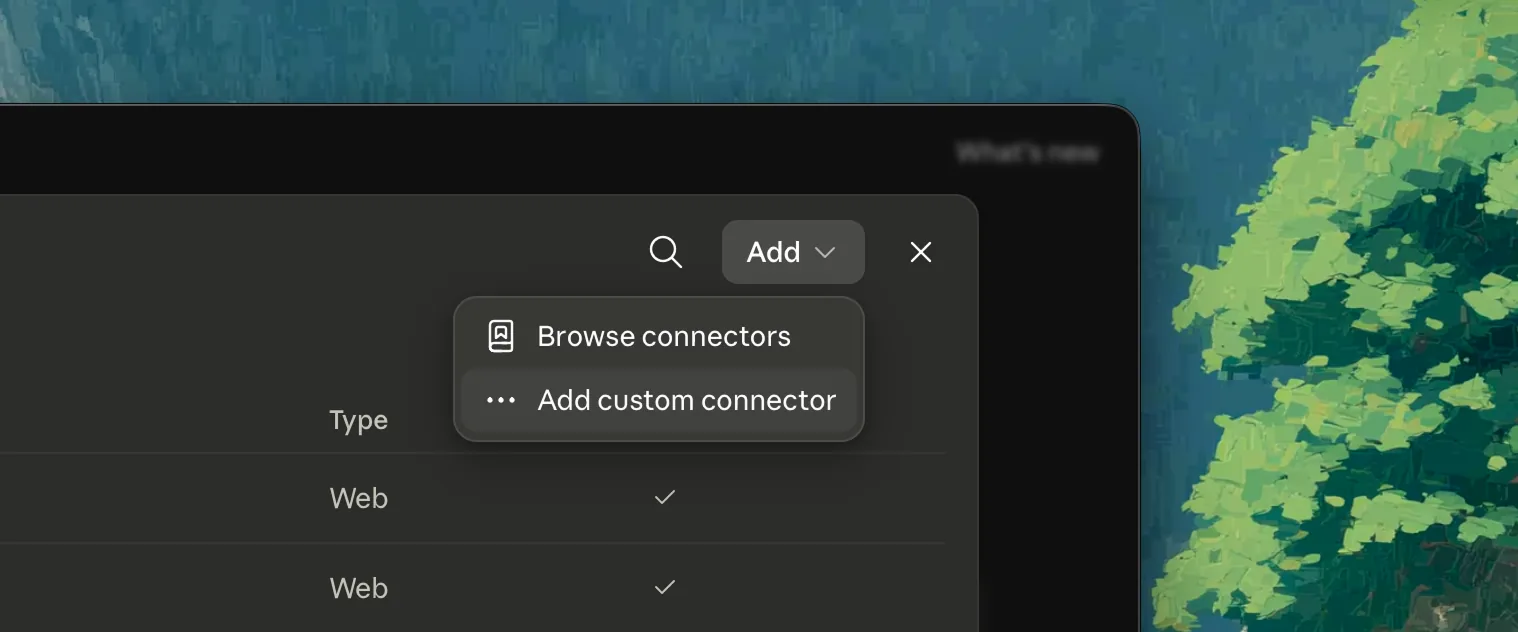

No setup
Raw markdown files
Your workspace is already just files.
- 1
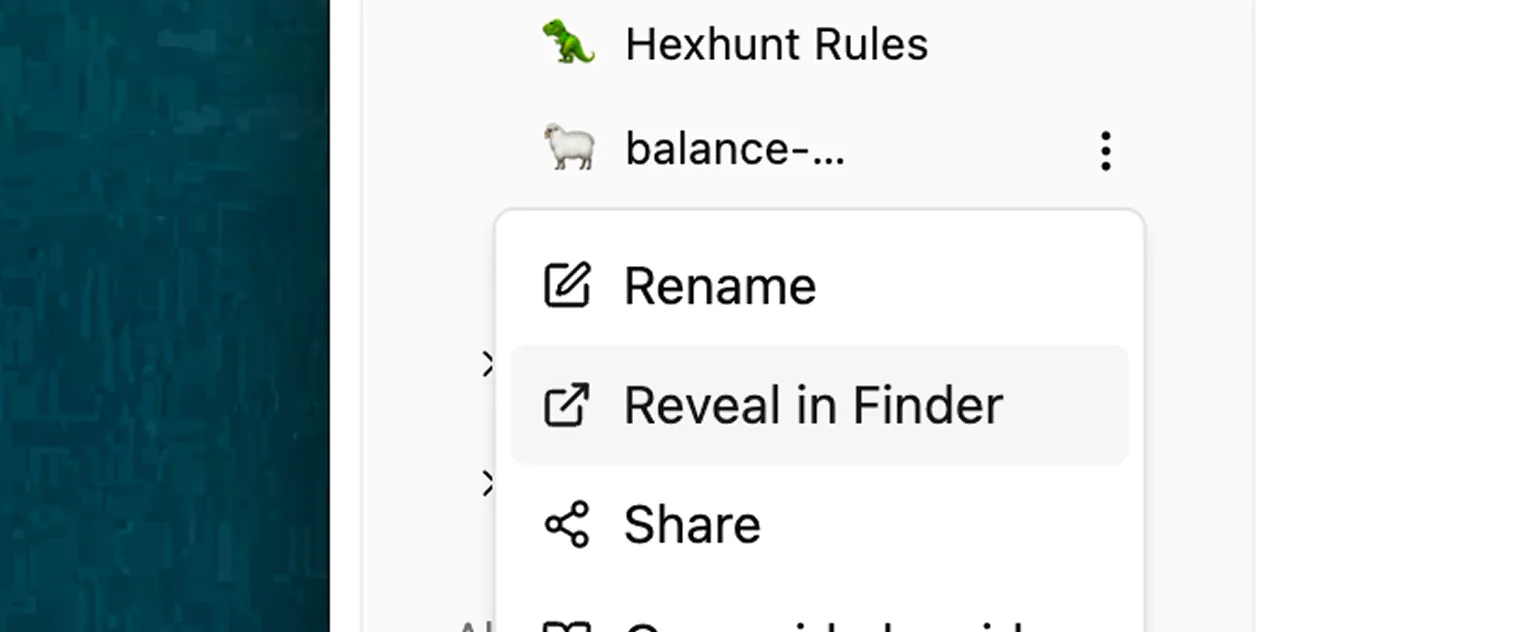
In Hillnote, right-click the workspace and choose “Reveal in Finder.”
- 2
Point Personal Computer for Mac (Pro or Max) at that folder — it reads the plain markdown directly, no connector needed.
- 3
Ask it to research a topic and write the results back as new markdown files in the same folder.


Through
A synced drive
Keep the folder where it can already see it.
Keep your workspace in a synced drive and Perplexity reaches it from wherever it lands — over the remote connector on any device, or as local files when Personal Computer has the folder in view. In the Comet browser you can also just ask about a workspace you have open.



See Perplexity in a full setup.
Perplexity is even better alongside the rest of your stack. Each setup wires Hillnote and the tools that fit a kind of work — all on the same markdown files.




Perplexity questions, answered
Which connection should I use?
Add Hillnote as a custom remote connector to give Perplexity tool access to your synced workspaces — it works across Perplexity, Comet, and Personal Computer. On a Mac, you can also point Personal Computer straight at the workspace folder and it reads the markdown directly.
Which Perplexity do I need?
Custom remote connectors are on Pro, Max, and Enterprise. Personal Computer for Mac — the always-on agent that works with your local files and apps — needs Pro or Max. The Comet browser is free, but it works from the page you have open rather than your files.
Do I need an API key?
Not for Hillnote — the remote connector authorizes with an OAuth sign-in scoped to your workspaces, discovered automatically. There's no key to paste or leak.
Can Perplexity write back to my workspace?
Yes. Over MCP it can create and edit documents directly, and through a folder Personal Computer can see it can save findings as new markdown files. You can revoke access at any time.
Does my whole workspace get exposed?
No. The remote connection is scoped to your own workspaces and authorized by your sign-in, and with the local path you choose which folder Personal Computer can see. Personal Computer's actions are auditable and reversible.