
Pair with Cursor
Plan in Hillnote, build in Cursor.
Your Hillnote workspace is a folder of plain markdown, so Cursor opens it like any project. Keep your specs, notes, and docs in Hillnote, let Cursor's agent edit the real files, and watch every change land on both sides at once — no import, no export.
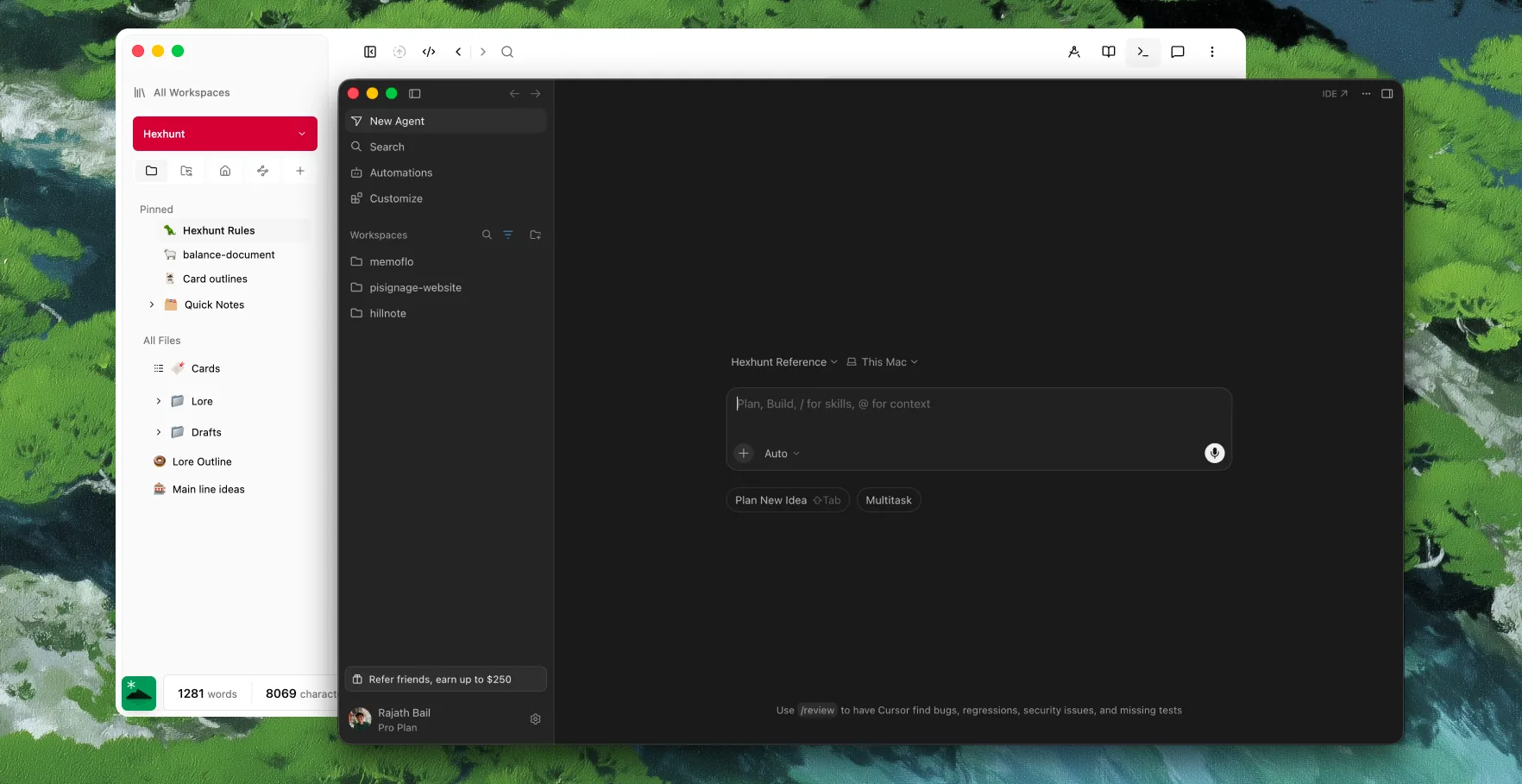
How Cursor and Hillnote fit together.
You already build in Cursor. Point it at your Hillnote workspace and it's just a folder of markdown — the specs, notes, and docs you write live right next to the work, and every edit round-trips instantly.

It's all just files
Your workspace is plain markdown in a folder you own — Cursor opens it like any other project, nothing proprietary in the way.

One folder, both ways
Cursor and Hillnote read and write the same files on disk, so an edit in one shows up in the other immediately — no import, no export.

Context and tools, built in
Every workspace ships an AGENTS.md that orients Cursor's agent the moment it opens, and adding Hillnote to mcp.json gives it about 33 real tools.
Your notes are just a project.
Point Cursor at the workspace folder and every document is a file in the tree — browse, search, and edit your notes with the same editor you already know.
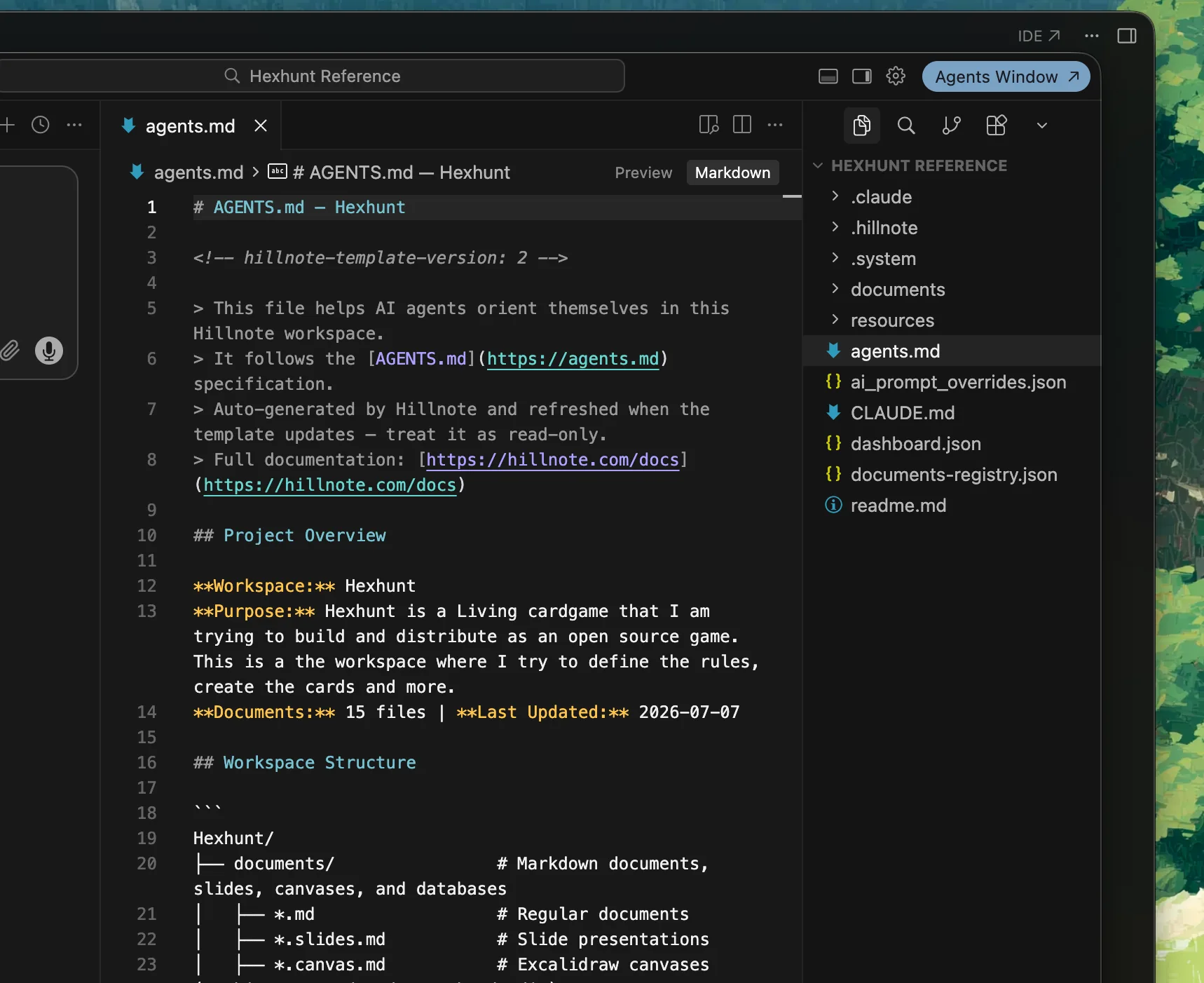
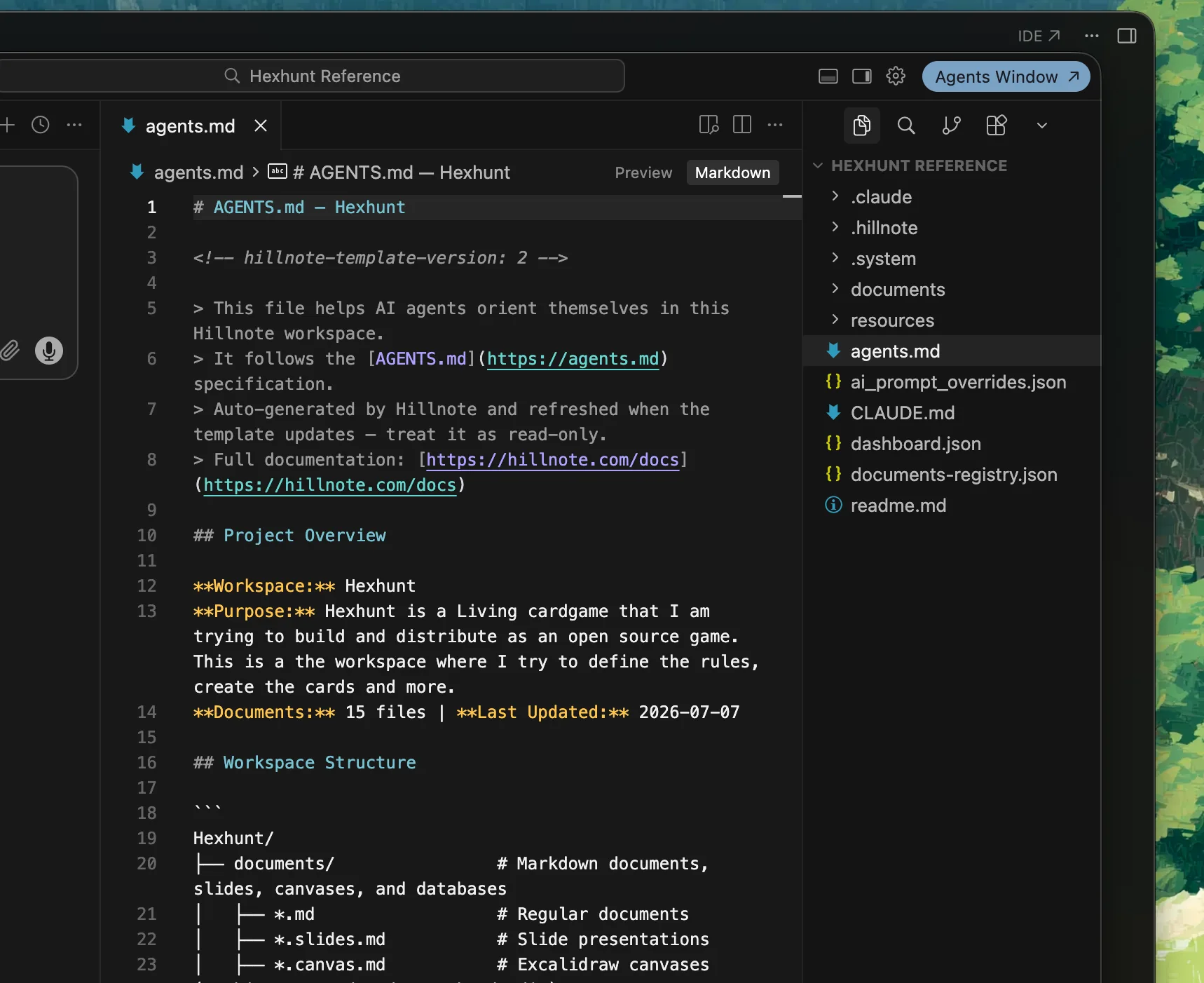
Cursor's agent on the same files.
Ask Cursor's agent — in the editor or the CLI — to rewrite a section, generate a doc, or sweep changes across many notes. It edits the real files, and Hillnote picks the changes right up.
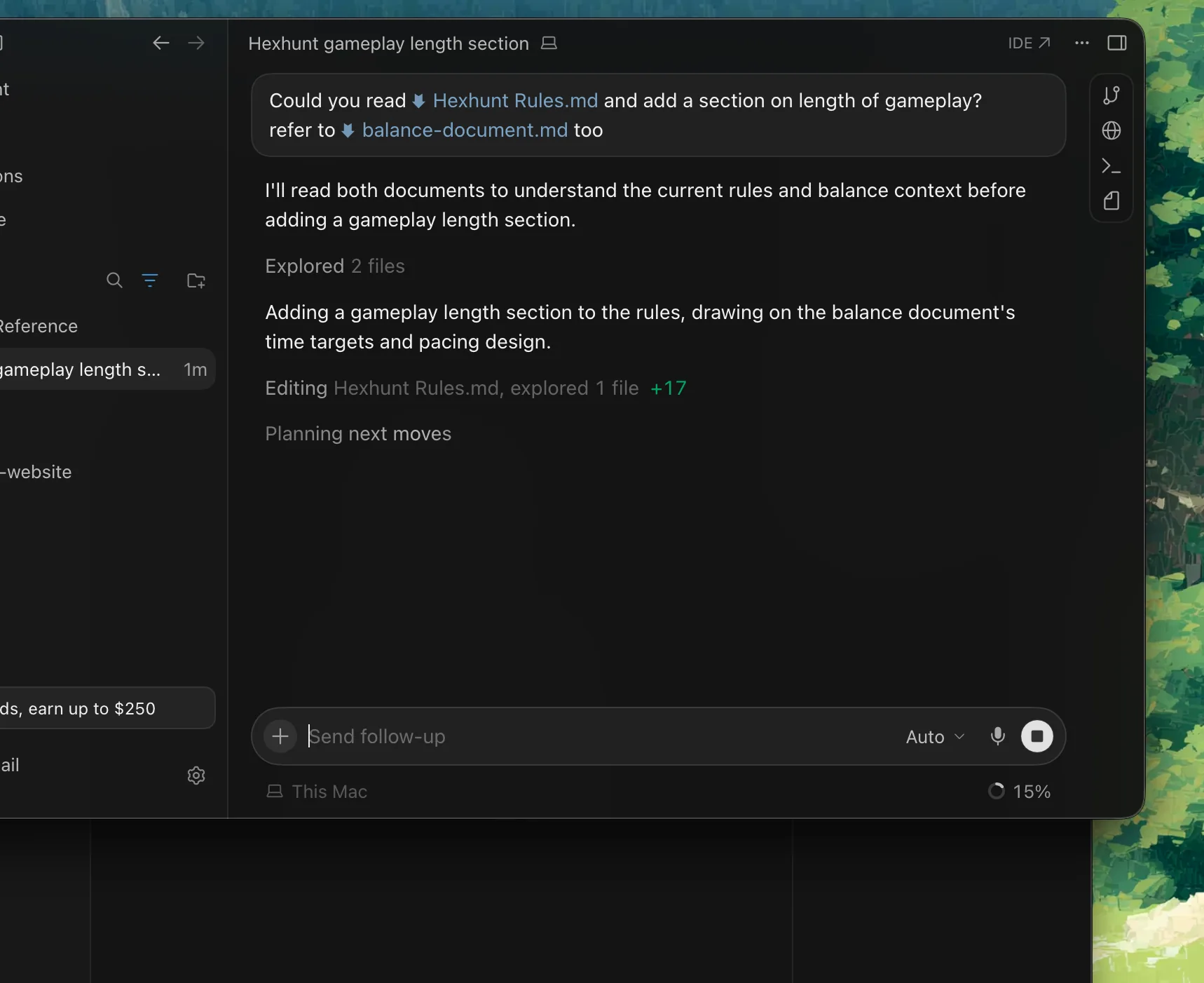
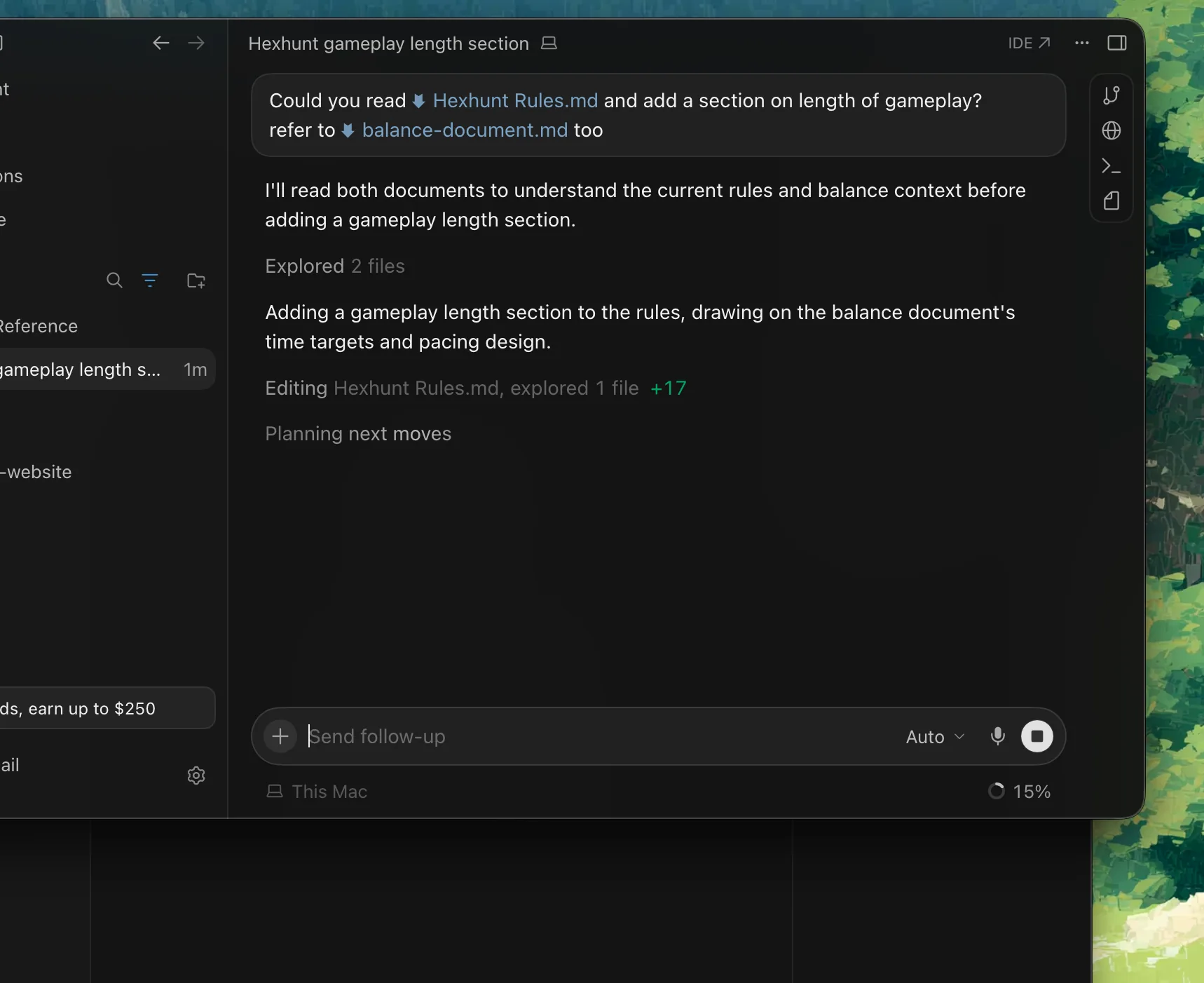
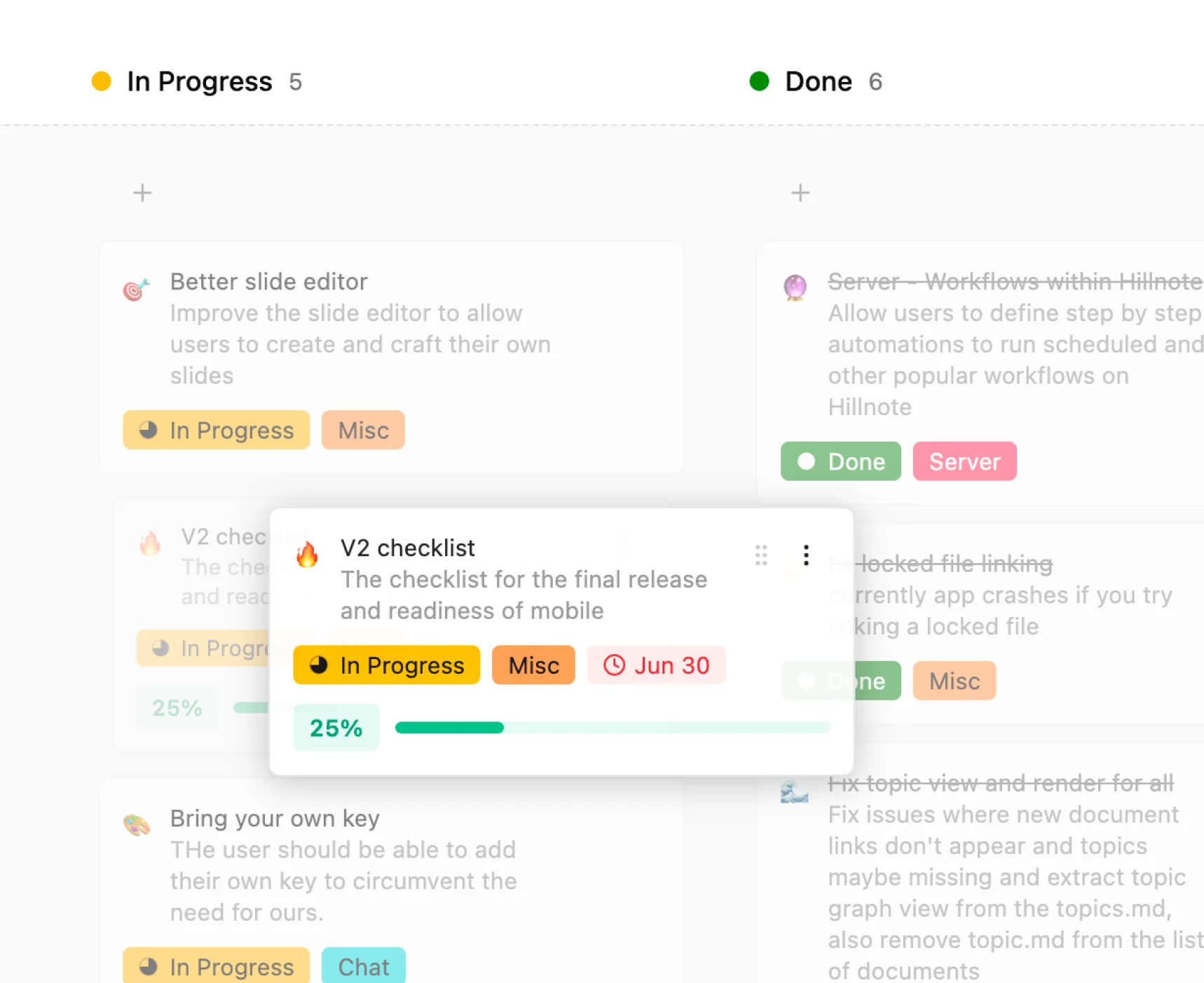
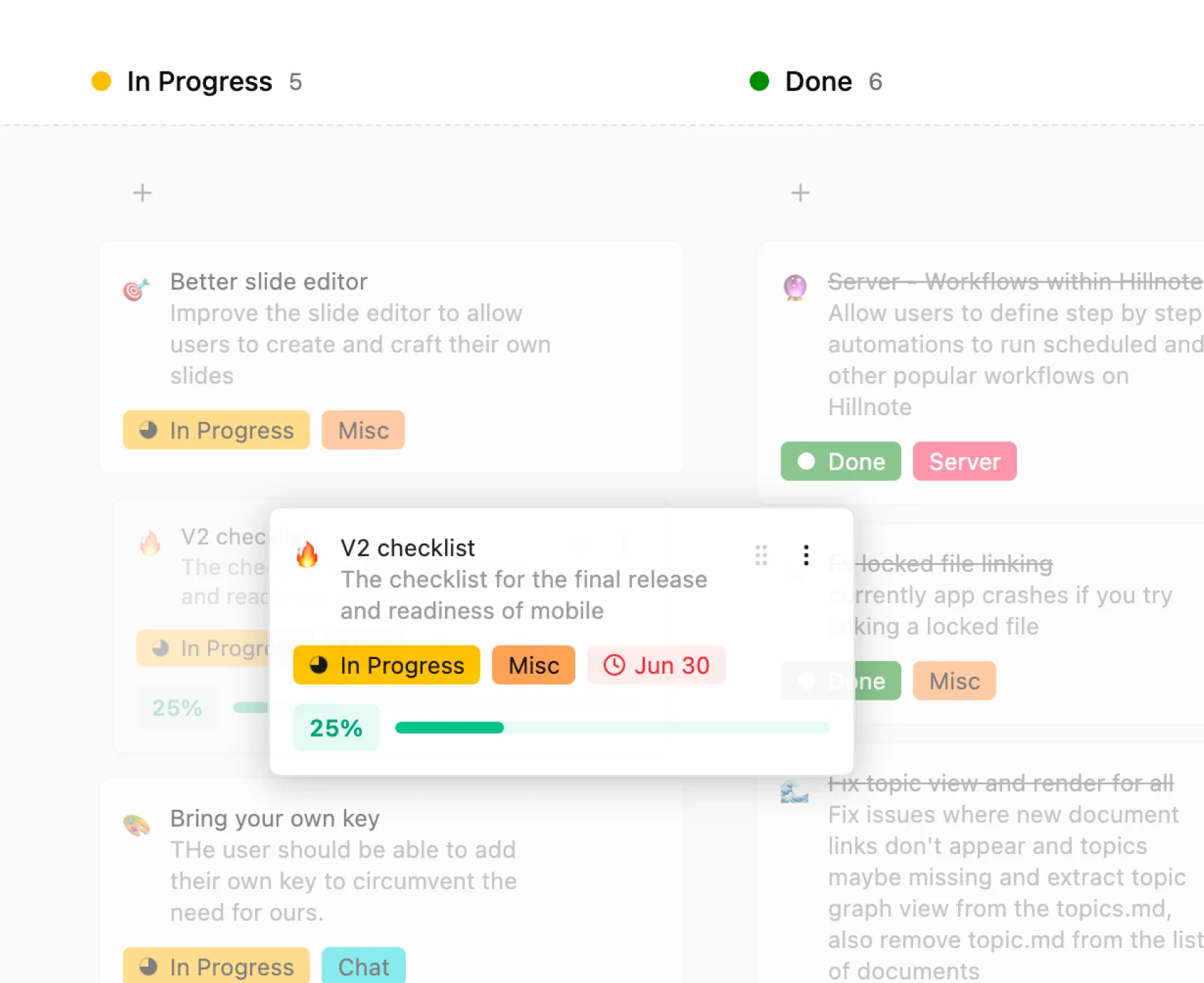
Plan it in Hillnote. Build it in Cursor.
Keep the spec, the tasks, and the notes as markdown in Hillnote; build the project in Cursor. Both sides see the same folder, so the doc and the work never drift apart.
Four ways to connect Cursor.
Cursor is an editor, so the simplest path is just opening the workspace folder. Add the MCP server when you want its agent to use Hillnote's own tools, run the Cursor CLI agent from the built-in terminal, or keep the workspace in a synced drive.

No setup
Raw markdown files
Your workspace is already just files.
- 1
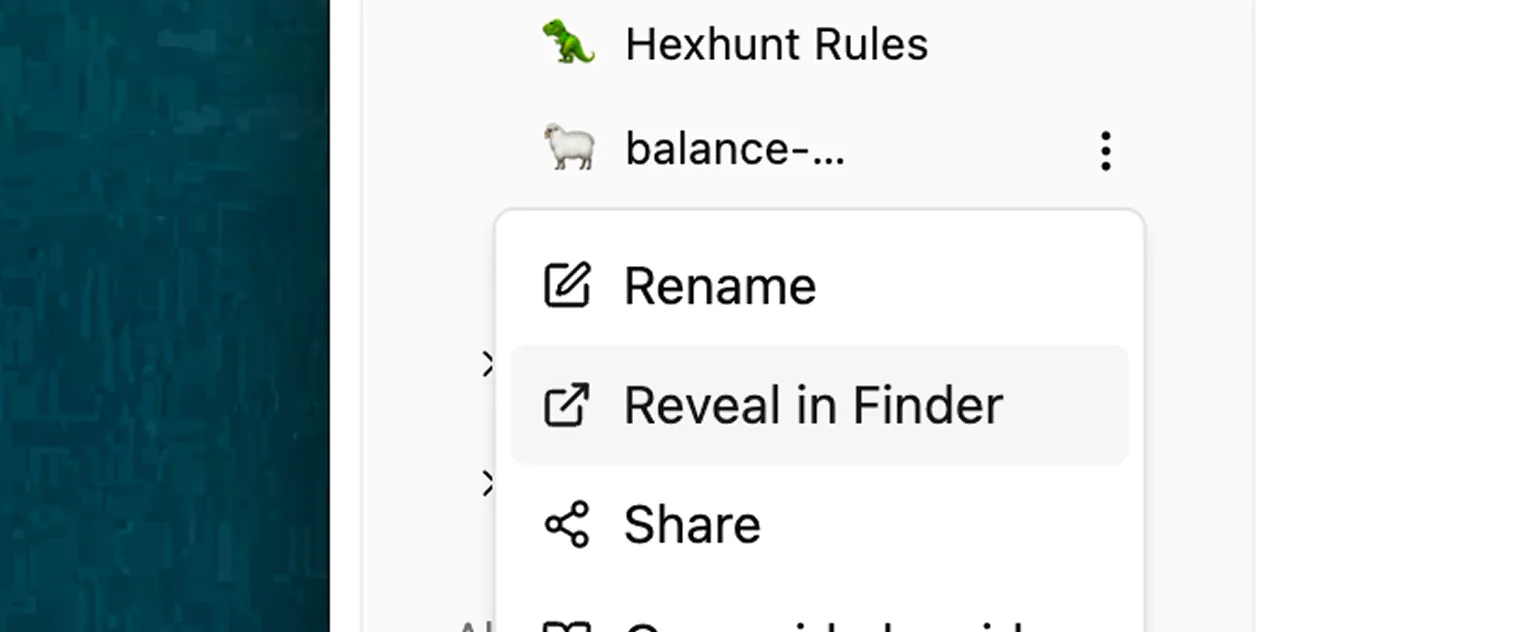
In Hillnote, right-click the workspace and choose “Reveal in Finder / Explorer.”
- 2
In Cursor, choose File → Open Folder and pick that workspace directory.
- 3
Edit any document — Hillnote and Cursor are looking at the same files, so changes sync both ways.


Connect over
Model Context Protocol
~34 toolsThe richest connection — real tools, not just pasted text.
Nothing to install — Hillnote hosts the endpoint. You authorize with an OAuth sign-in.
Prefer your synced workspaces? Point Cursor at the hosted endpoint instead.
- 1
Add an HTTP MCP server entry in mcp.json pointing at the endpoint below.
- 2
Complete the OAuth sign-in when Cursor opens the authorization window.
Endpoint
https://hillnote.com/mcp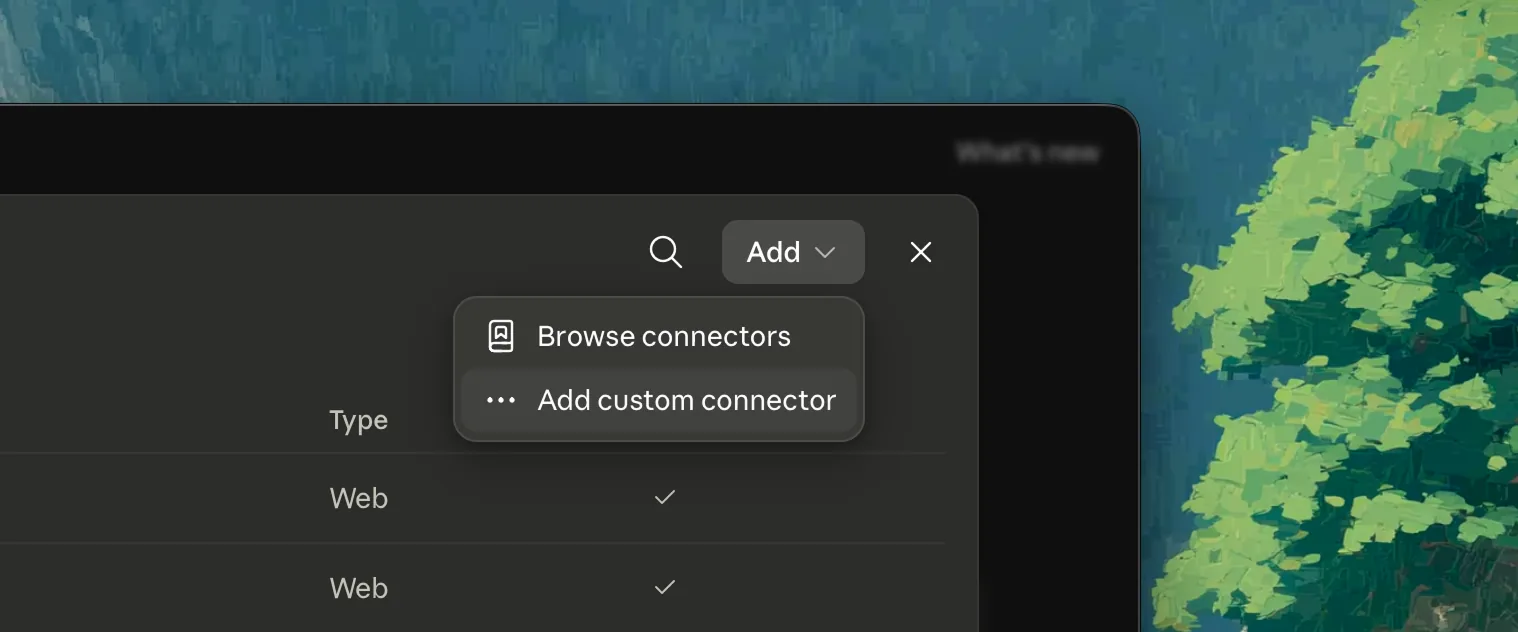
Run it in
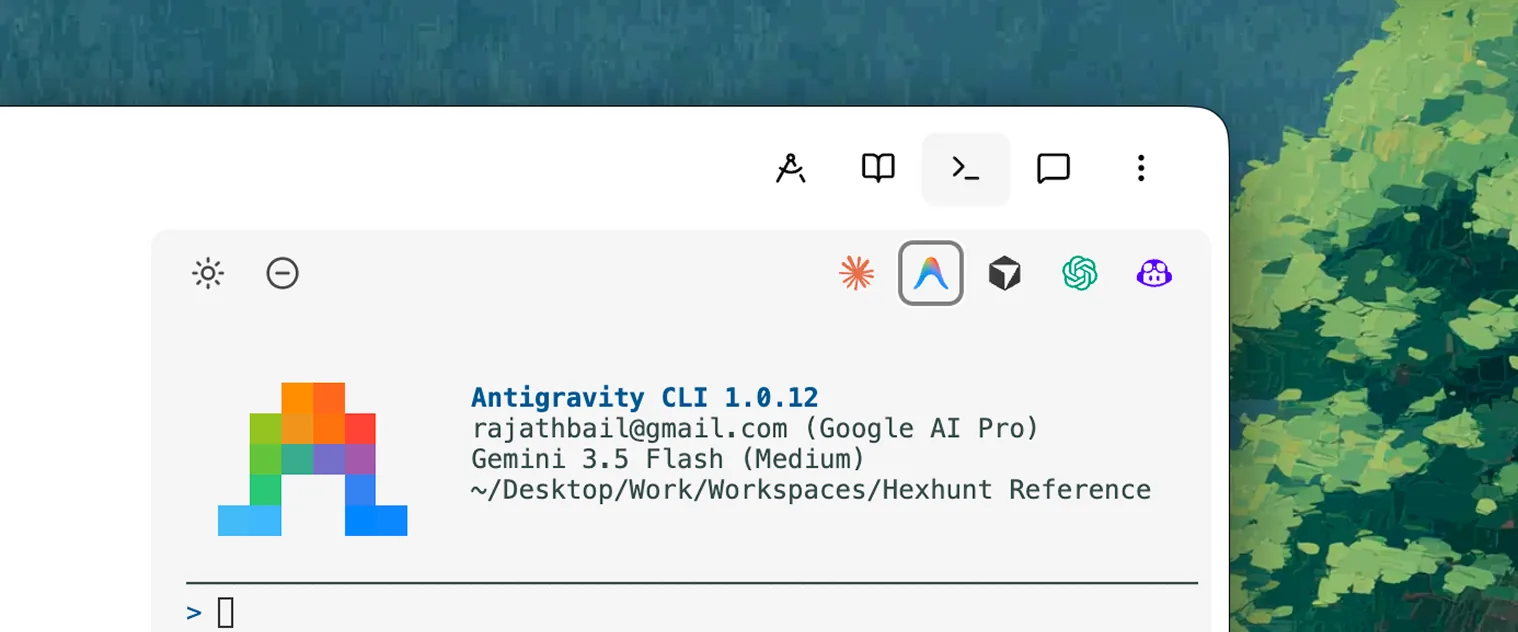
Cursor CLI in the terminal
A CLI agent, right inside your workspace.
Cursor's CLI agent, running in Hillnote's docked terminal — on the exact files you're editing.
curl https://cursor.com/install -fsSL | bash- 1
Turn the terminal on in Settings → Interface, then open it — it's already in the workspace folder.
- 2
Click the Cursor button in the toolbar to launch it — or type cursor-agent -p for a headless sweep.

Through
A synced drive
Keep the folder where it can already see it.
Keep your workspace in a synced drive and Cursor opens it from wherever it lands — it's just a folder of files, in reach on every machine you build on.



See Cursor in a full setup.
Cursor is even better alongside the rest of your stack. Each setup wires Hillnote and the tools that fit a kind of work — all on the same markdown files.
Solo Builder
One person. Every hat. One workspace.
Build this setup
Code
Ship software in a markdown-native flow.
Build this setup
Design
From brief to mockup, in one workspace.
Build this setup
Product
Spec, plan, and track in one place.
Build this setup
Writing
Draft, edit, and publish without leaving your words.
Build this setup
Research
Gather, synthesize, and cite what you find.
Build this setupCursor questions, answered
Which connection should I use?
For most work, just open the workspace folder in Cursor — it's plain markdown, no setup. Add the MCP server when you want Cursor's agent to use Hillnote's own tools, or run the Cursor CLI agent from the built-in terminal.
Will edits in Cursor show up in Hillnote?
Yes. Cursor and Hillnote read and write the same files on disk, so an edit in one appears in the other immediately — no import or export.
Do I need the MCP server to use Cursor?
No. Opening the folder is enough for editing and for Cursor's agent. The MCP server is optional and adds Hillnote's own tools — search, structured edits — to the agent.
Does Cursor read my workspace's AGENTS.md?
Yes. Every Hillnote workspace ships an AGENTS.md that orients the agent the moment it opens, and Cursor applies it (alongside any .cursor/rules) — so it understands your workspace without a setup step.
What is the built-in terminal?
A real terminal docked to your workspace, already in the folder. Run Cursor's CLI agent (agent) — or any CLI — there, and it operates on exactly the directory you're working in.